📖USER MANUAL
CHEPPY ENGLISH LEARNING APPLICATION
Version 1.1 - Updated May 8, 2026
1. OVERVIEW
1.1. General Introduction
This document is designed to support learners in accessing, using, and studying on Cheppy - an online English learning platform that integrates Artificial Intelligence (AI) technology and a gamified learning model. This approach allows students to learn through play and play while learning. The learning content is built based on curriculum prescribed by the Ministry of Education and Training (MOET), combined with the Common European Framework of Reference for Languages (CEFR), aimed at helping students comprehensively develop their foreign language competencies.
1.2. Conversion Terminology
The glossary below includes terms used in the gamified application, ensuring that the terminology is understood and used consistently by students, teachers, and parents.
| Pedagogical Language | Language in the App | Function |
|---|---|---|
| Unit/Lesson | Mission | Each Missions is structured around a specific theme, helping students feel they have a clear goal and a defined journey. |
| Exercise | Stage/Exercise | Each Mission contains Stages, each stage consists of questions focusing on the same theme, aiming to fulfill the skill objectives and competency outputs of the Mission. |
| Score | Score | The score after completing a Stage is calculated based on the number of correct answers out of the total number of questions. |
| EXP/Experience Points | For each completed task, students will receive corresponding experience points. These points are used to determine rank advancement or to receive academic achievements. | |
| Reward | For each completed task, students receive additional gems as rewards, which can be used to purchase costumes and accessories for their characters. | |
| Competition Tracking Table | Leaderboard | The system displays student rankings by class/grade level based on metrics such as rewards and EXP, motivating students to maintain their study habits. |
Although languages change,Lesson structure - skill objectives - competency outcomesThis is still ensured under the supervision of the educational advisory team.
2. INSTALLATION INSTRUCTIONS
Step 1: Download the app
Access App Store (iOS) or CHPlay(Android), search for "Cheppy" in the search bar. Once the "Cheppy" app appears, tap "Install" to download it to your device.


Step 2: After successfully downloading and installing the application, the user opens it.
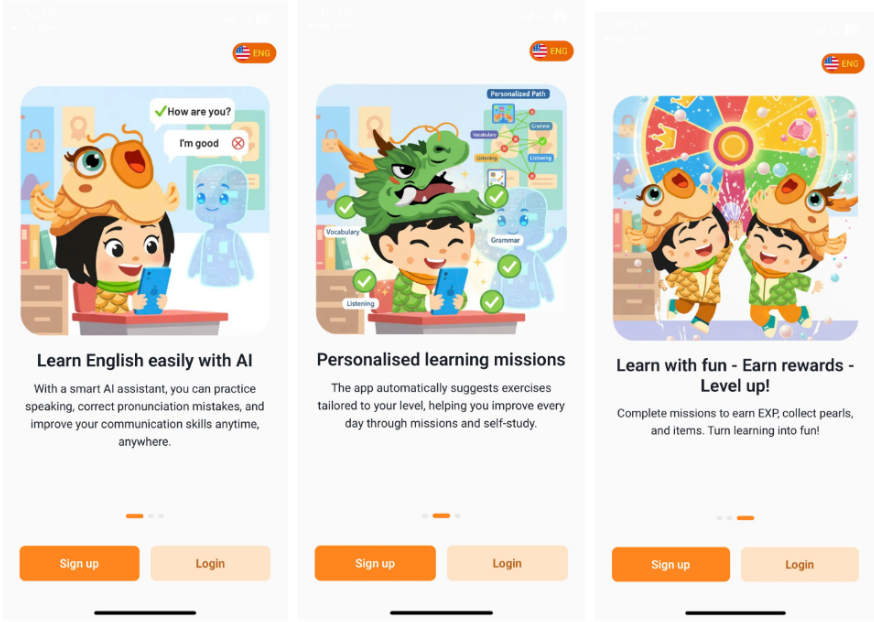
Step 3: Tap on the icon To change the display language between English and Vietnamese.
2.1. REGISTRATION INSTRUCTIONS
Step 1: Press the button. To switch to the new account creation screen.
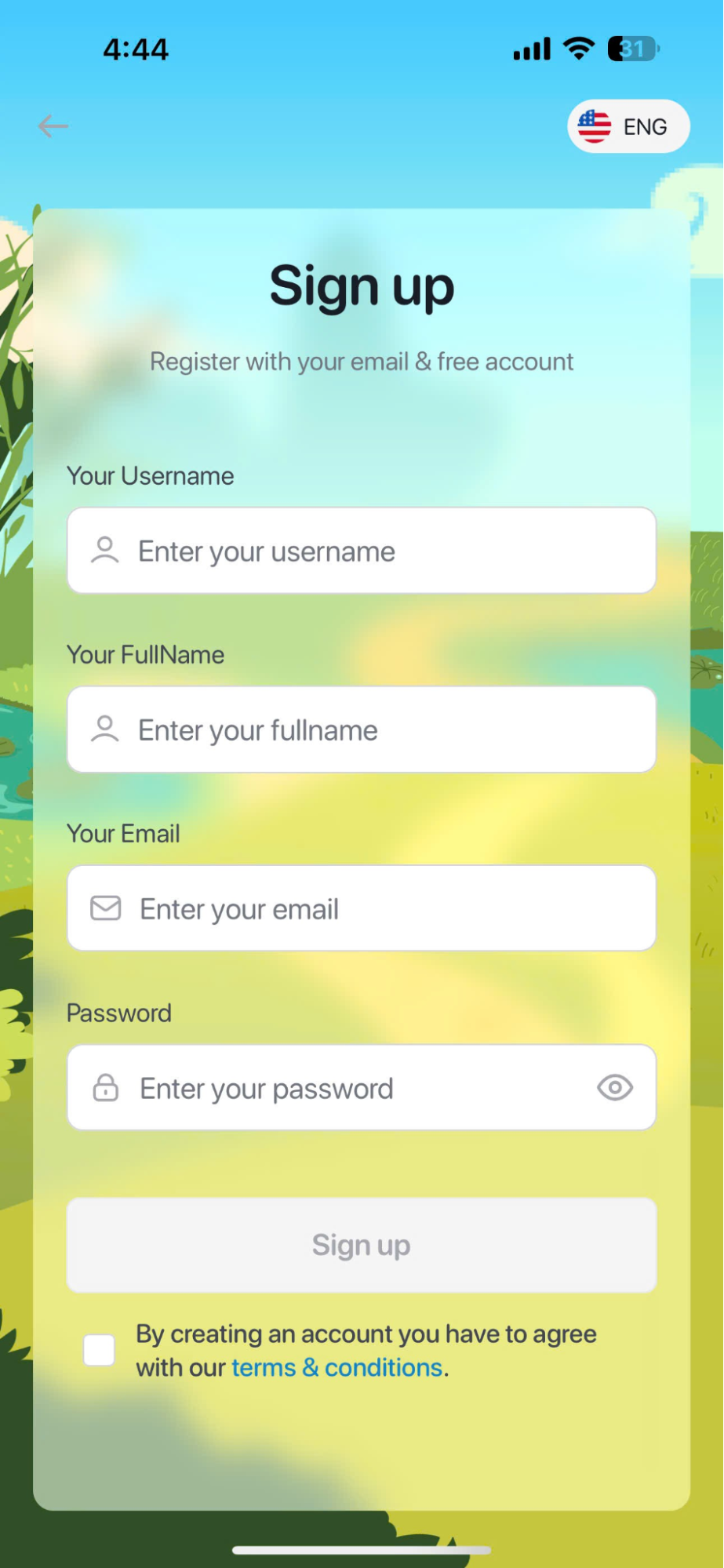
Step 2: Enter your full account information, including:
- Username: Login name.
- Full NameFull name.
- Email: Email address.
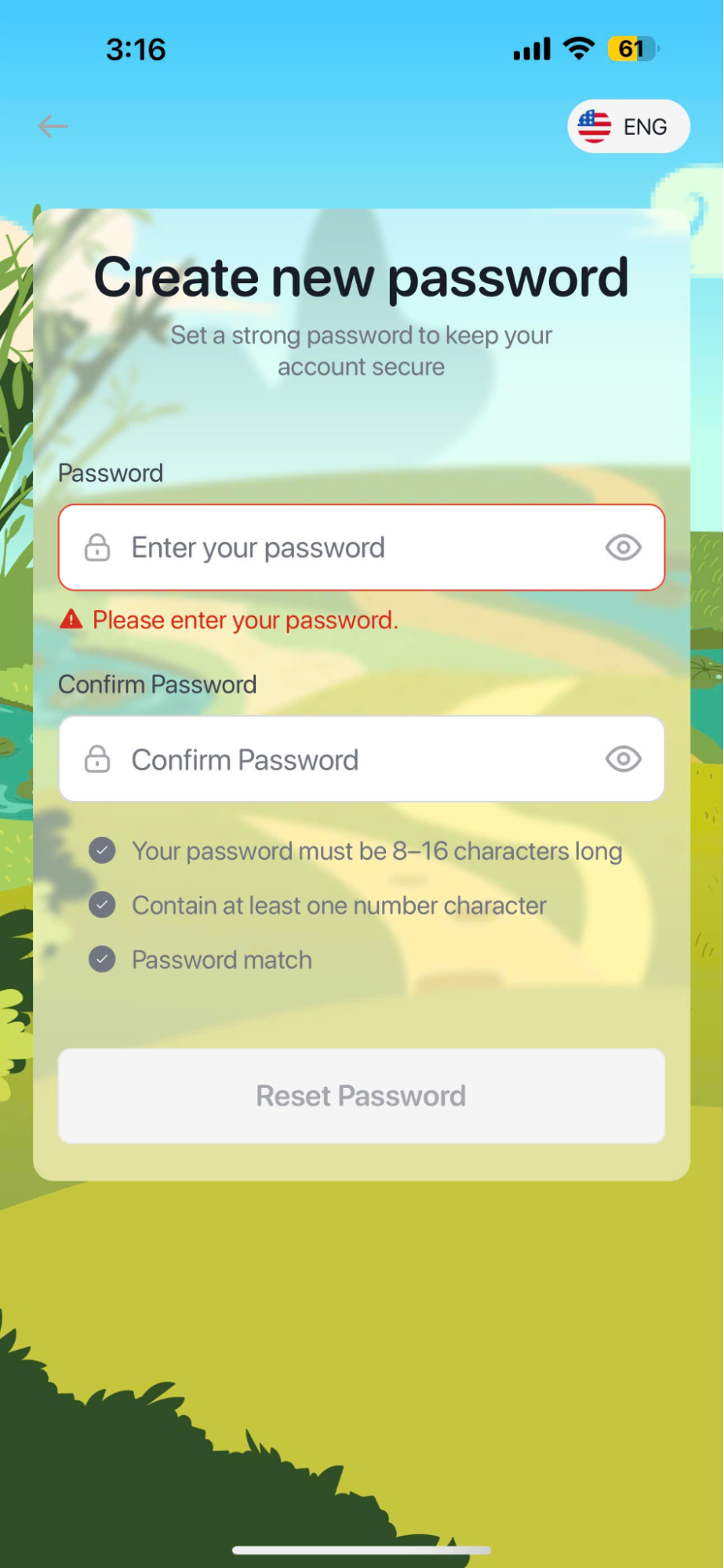
- Password: The password must be between 8 and 16 characters and include at least one digit.
- Confirm Password: Re-enter your password.
Note: The information entered in the Password and Re-enter Password fields must be the same.
Step 3: After filling in all the information, users click on the "Terms and Policies" link to understand the terms related to using the application. If they agree to the terms, they check the box.
Step 4: Press the Register button.
To complete account creation.
Note: After clicking the Register button, some information may be invalid. Please re-enter the required information to ensure it is correct.
2.2. LOGIN INSTRUCTIONS
Step 1: The login screen offers two ways for users to perform the action.
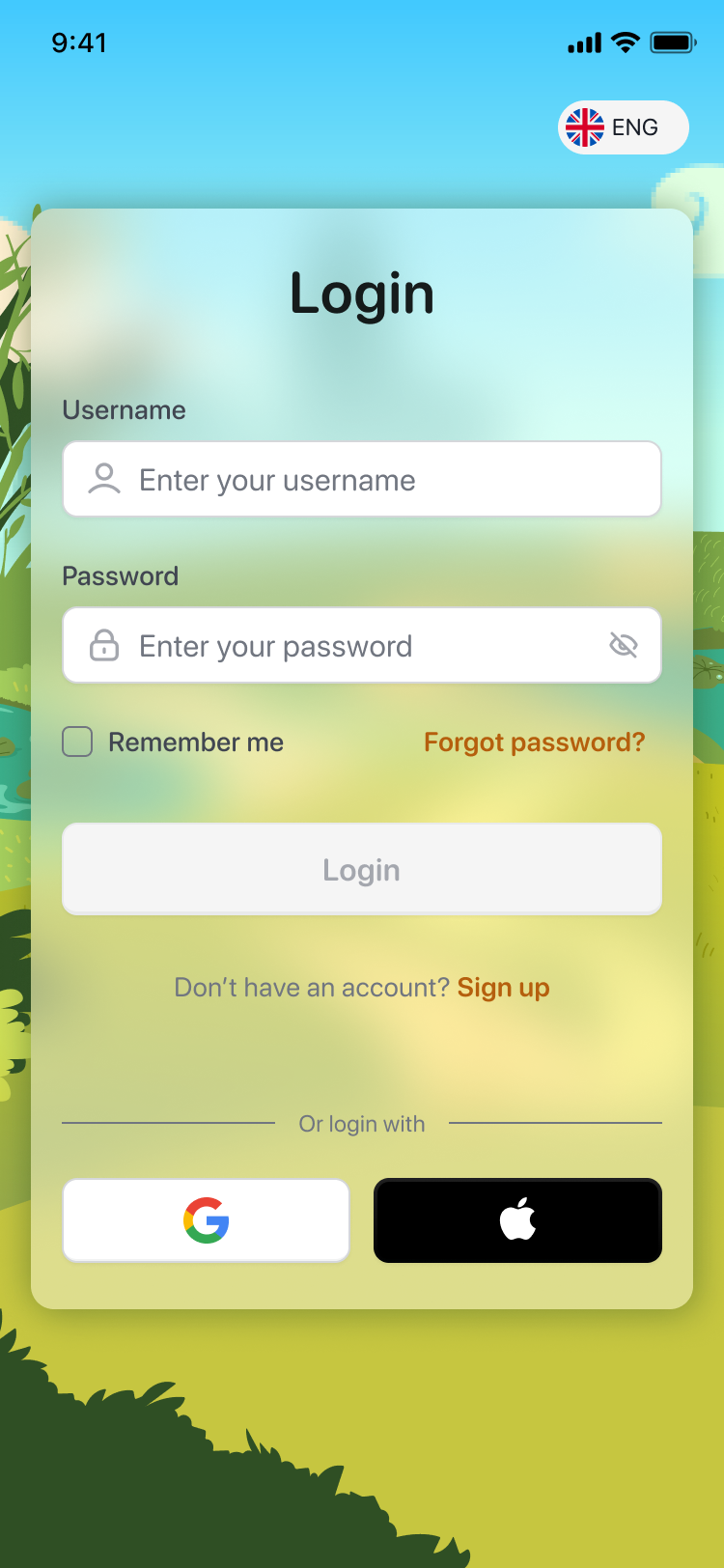
Method 1:Enter your full account information, including:
- Username: Login name.
- Password: Password.

Method 2:Sign in quickly using your Google or Apple account.
Note: The user selects [Continue] for the system to proceed with authentication.
Step 2: Press the button  to complete logging into the application.
2.3. INSTRUCTIONS FOR RESETTING YOUR PASSWORD
Step 1: If you forget your password, click here. 
Step 2: Enter the email address you registered with the app and press the button.
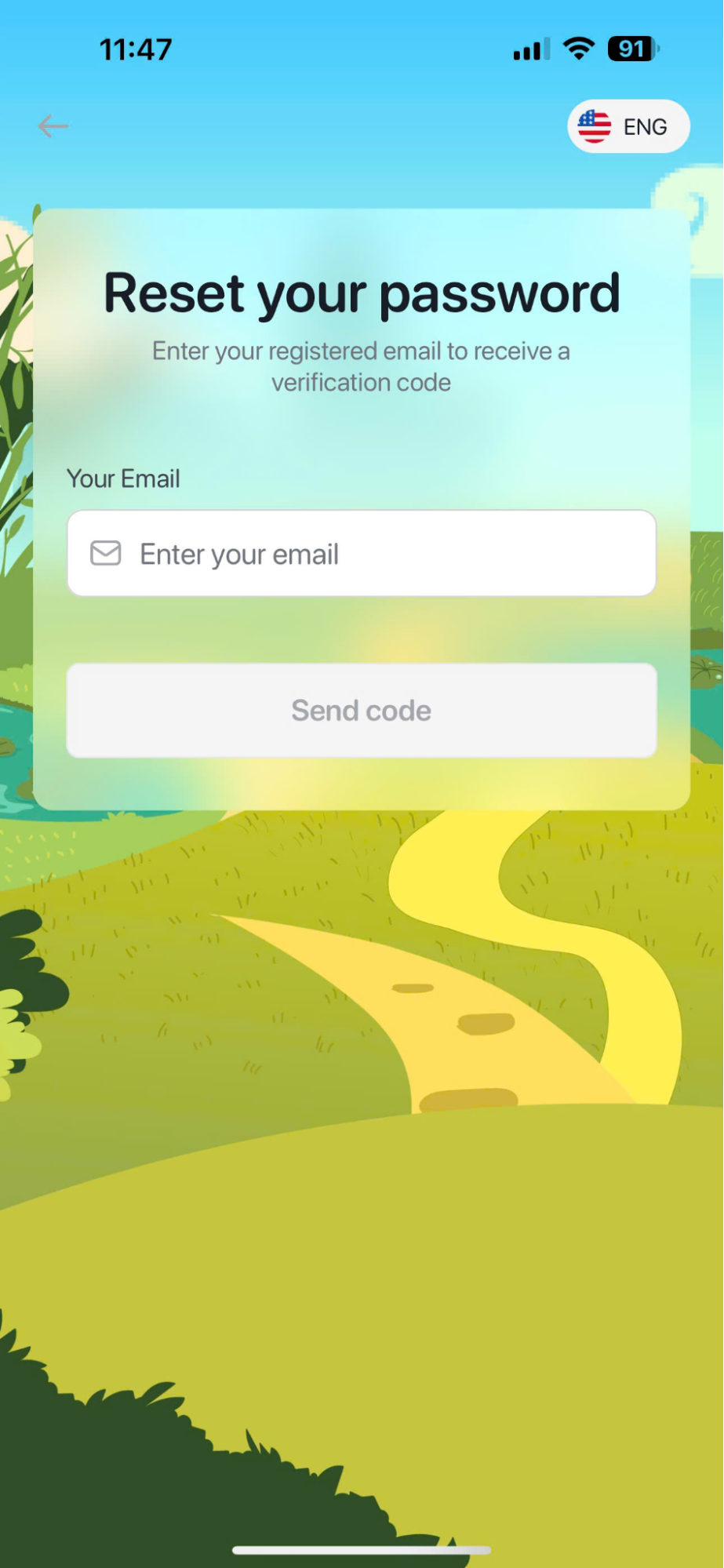
Step 3: Access your personal email inbox and enter the 6-digit code.
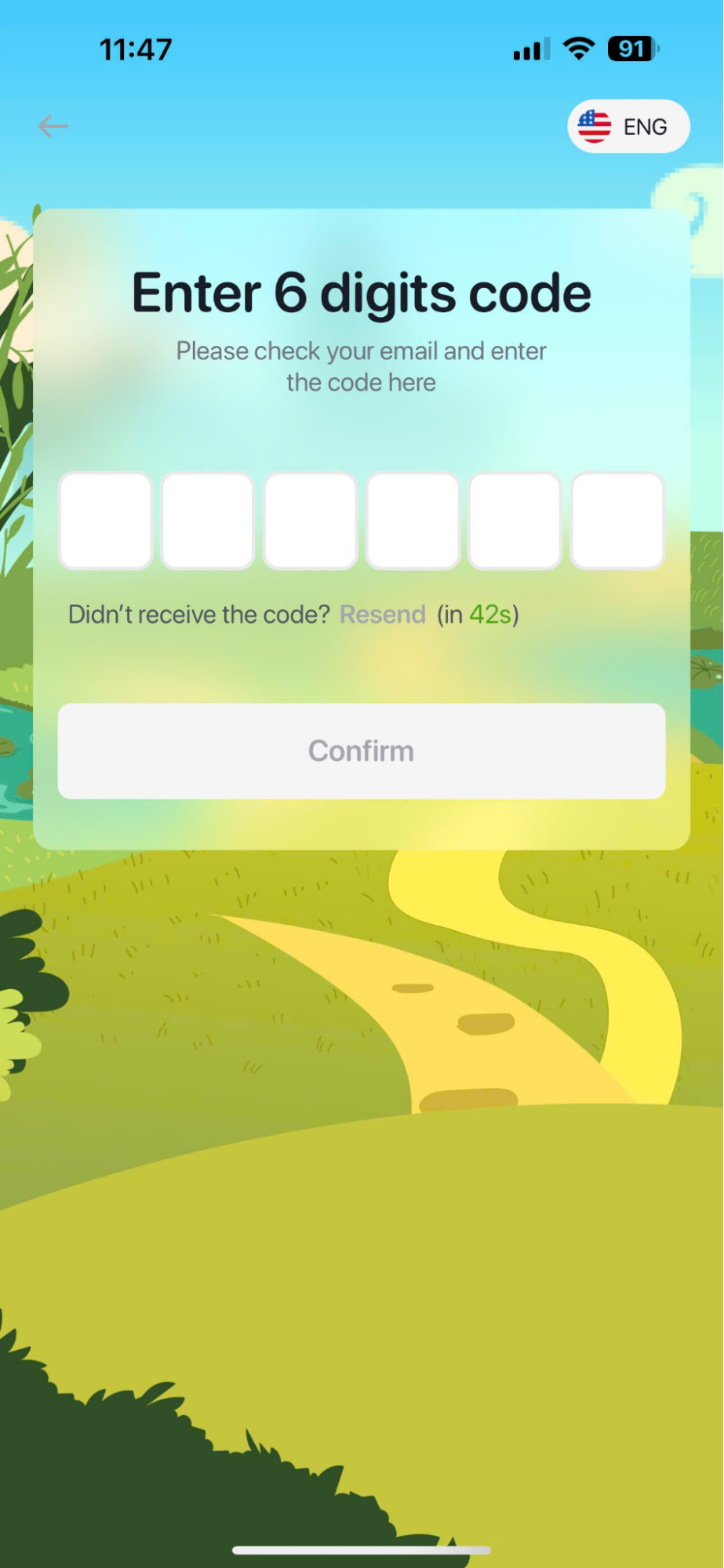
Note: If the verification code is not received or has expired, the user should press the button.Resend to request the code be resent.
Step 4: Press the button To confirm the verification code.
Step 5: The user enters the new password and presses the button. To complete setting a new password.
3. ACCOUNT INFORMATION
Step 1: InAccount information screen; fill in all the required information.
- Boy/Girl: Gender.
- Name: Display name in English, with a maximum length of 20 characters.
- Grade: Class.
- Your birthday: Date of birth.
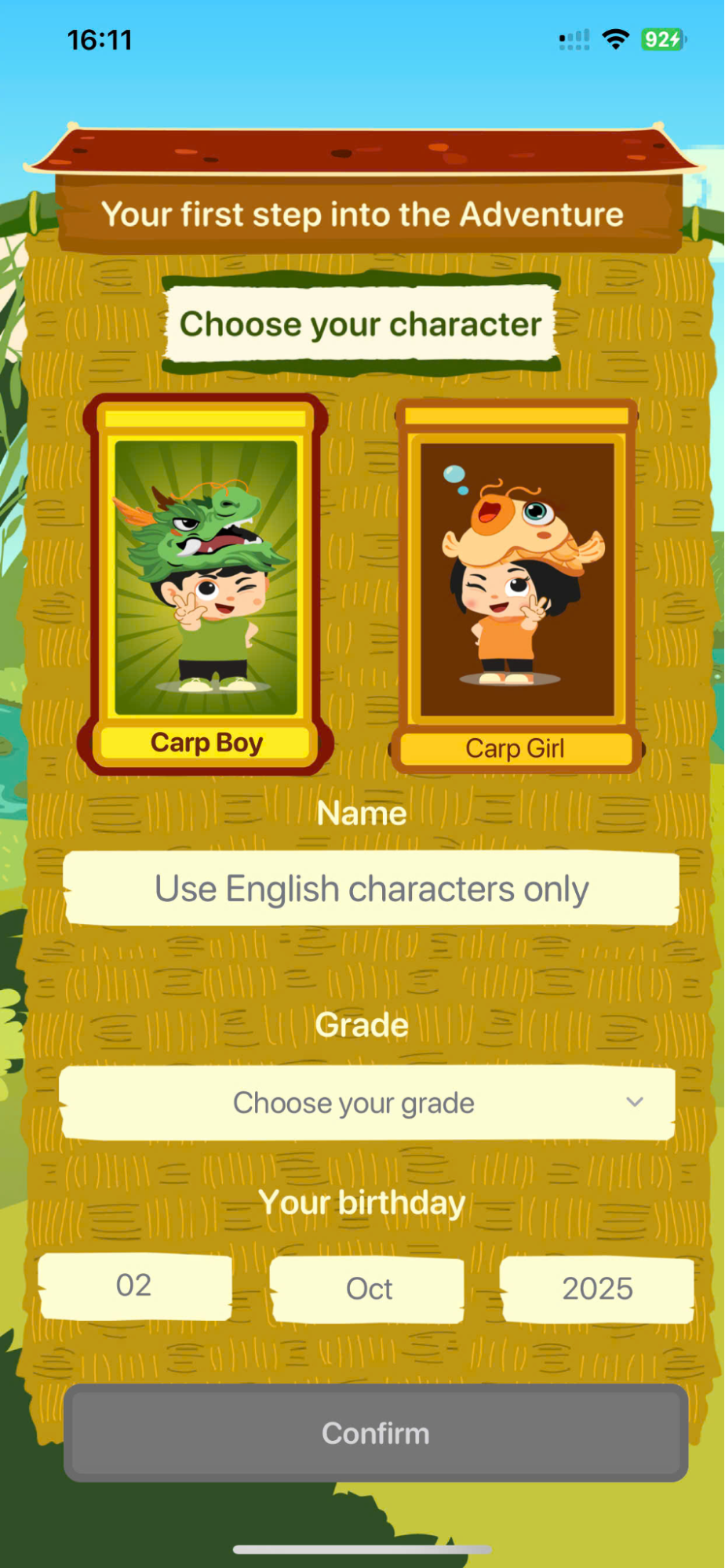
Step 2: After filling in all the information, press the button. To confirm the information.
4. HOME SCREEN
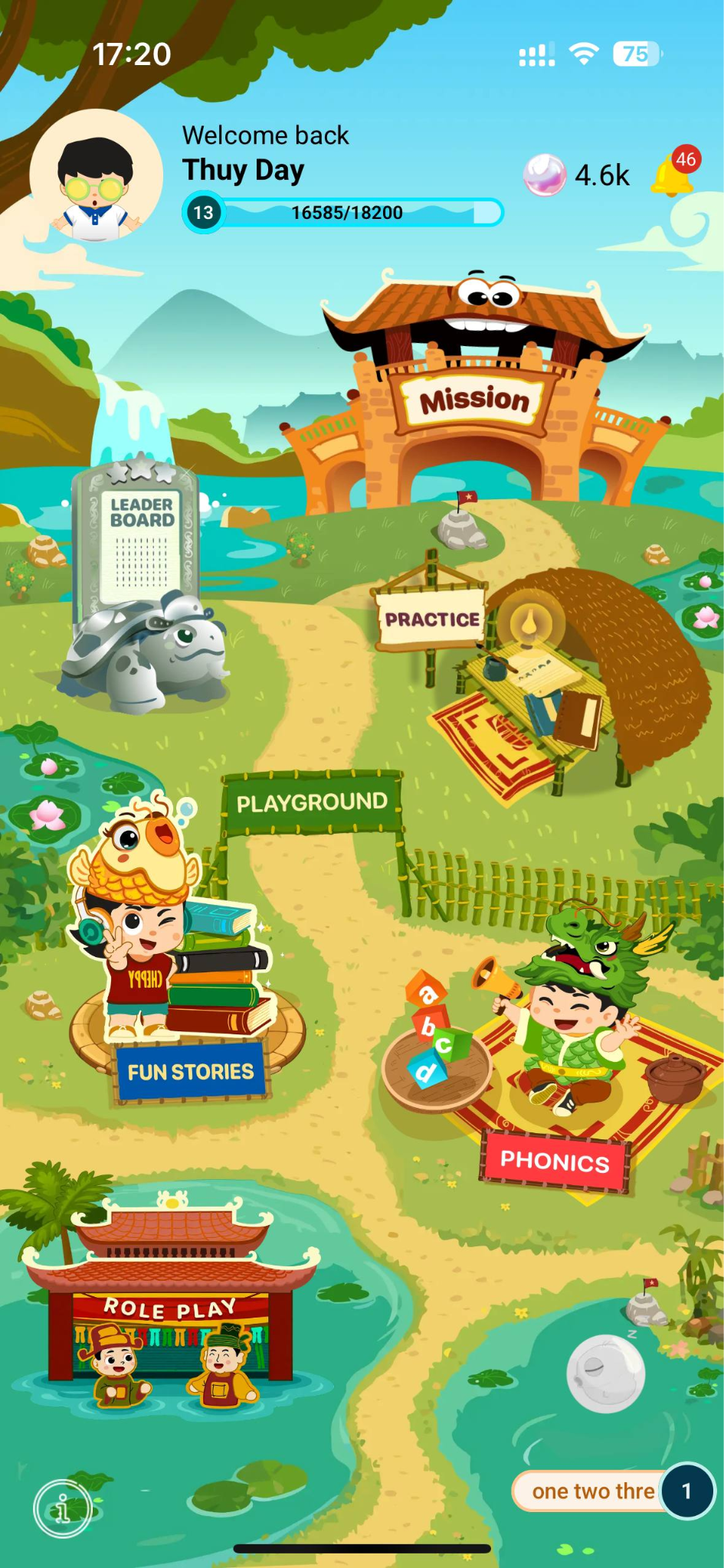
- Purpose: This section provides users with quick access to learning areas within the app.
| STT | Icon | Function | Describe |
|---|---|---|---|
| 1 |  | My Profile (Personal information) | - View and manage users' personal information. - Track streaks (consecutive learning days), EXP (experience points), gems, and learning progress reports. |
| 2 |  | Notification (Notification) | View and receive latest news |
| 3 |  | Reward (Award) | Receive rewards after completing tasks and use them to purchase items. |
| 4 |  | Mission (Mission) | Display the learning tasks that learners need to complete.. |
| 5 |  | Practice (Practice) | It helps players review incorrect answers, reinforce their knowledge, and practice their skills. |
| 6 |  | Leaderboard (Rankings) | Display student rankings by grade and grade level. |
| 7 |  | Fun Stories (Fun Stories) | Help learners practice listening and reading English through interactive stories, listening and reading comprehension exercises, and post-reading challenges. |
| 8 |  | Phonics (Phonics) | Help learners practice pronunciation and become familiar with different sounds. |
| 9 |  | Role Play (Role Play) | Help learners practice communication through simulated scenarios. |
| 10 |  | Streak pet (Streak Pet) | This section displays students' learning progress and pet-raising activities. |
5. MY PROFILE
Step 1: From the main screen, tap your profile picture in the upper right corner of the screen.
Step 2: In the My Profile screen,Users can view detailed information in the Overview bar, including.
- Display name: Display name.
- Streak Pet: Showcasing the learning series and pets
- Reward: The total number of pearls used to unlock items.
- Progress bar: The progress bar shows the level of EXP progress required to level up.
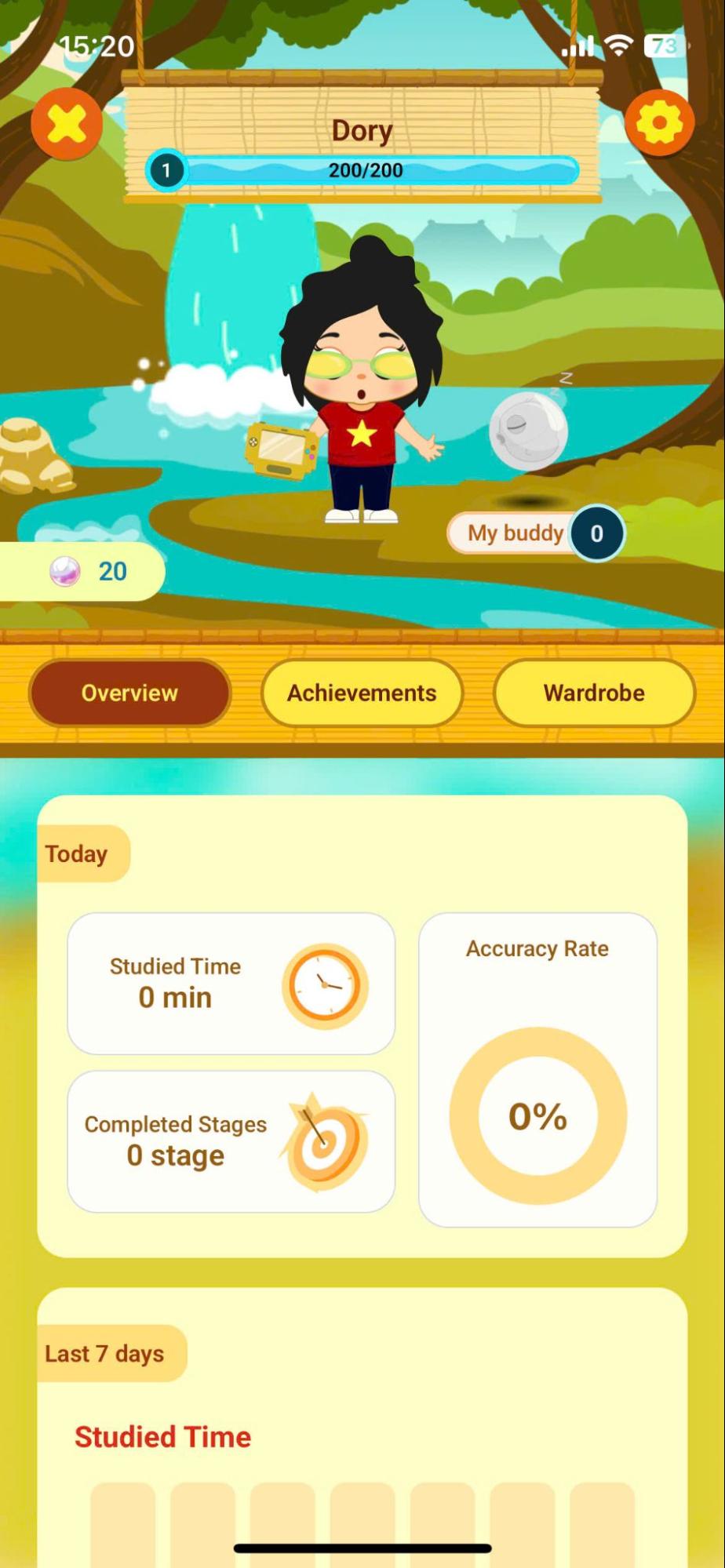
Step 3: Press tab to view the summary report of learning outcomes.
| STT | Chart title | Describe |
|---|---|---|
| 1 | Current academic results | 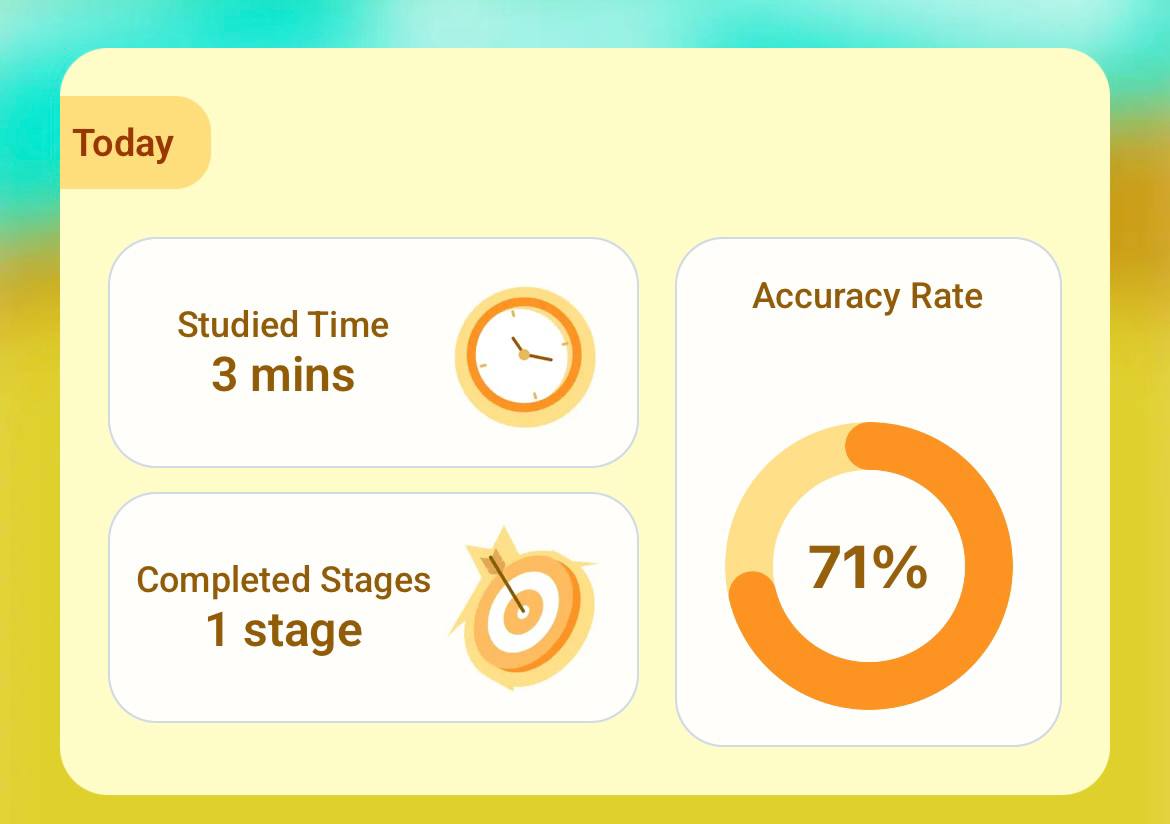 Present an overview of learning outcomes for the current day with the following information: - Studied Time: Total study time - Completed Stages: Total number of stages completed - Accuracy Rate: The percentage of correct answers given on the test. |
| 2 | Academic results for the last 7 days | Study time chart 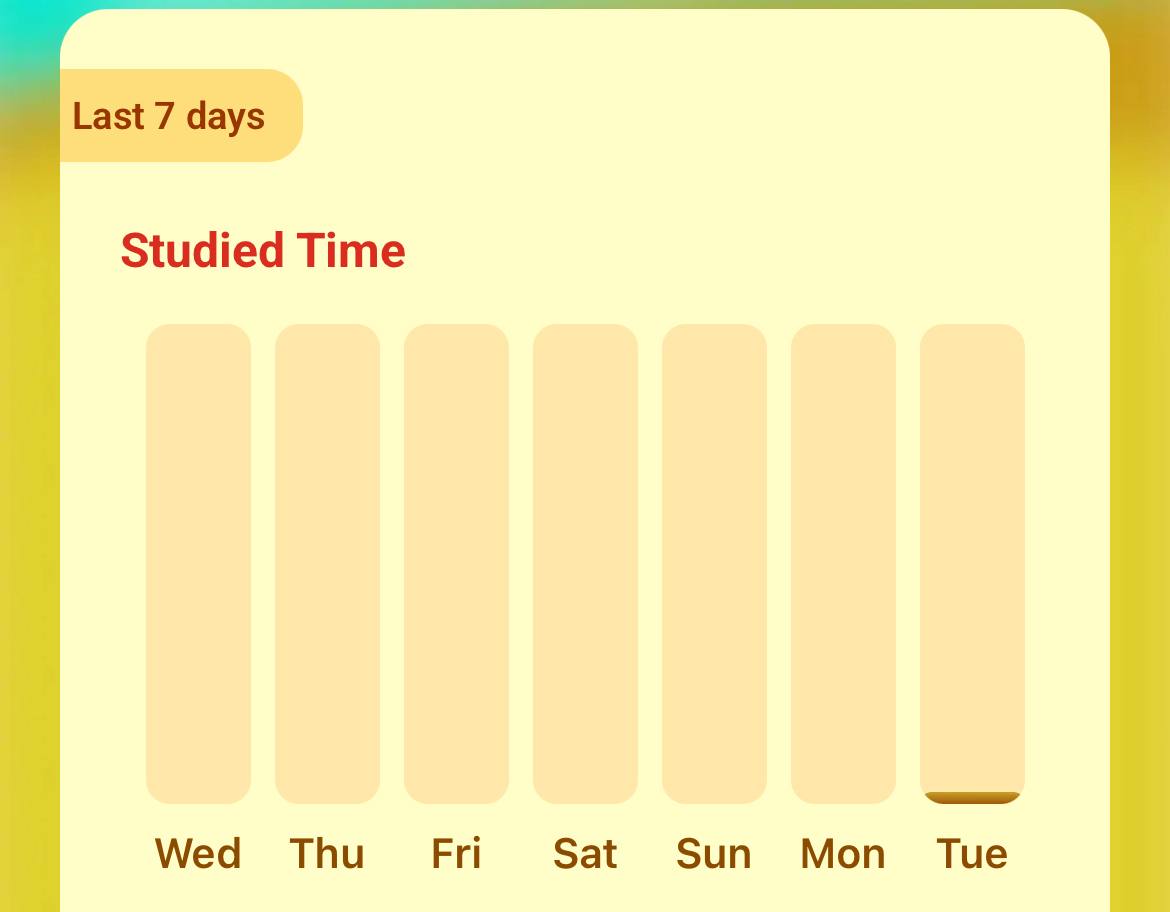 Show the students' daily study time over the past 7 days.NoteWhen you click on the corresponding column, the system displays the detailed time (e.g., 45 mins). |
| 3 | Skill chart | Skill chart 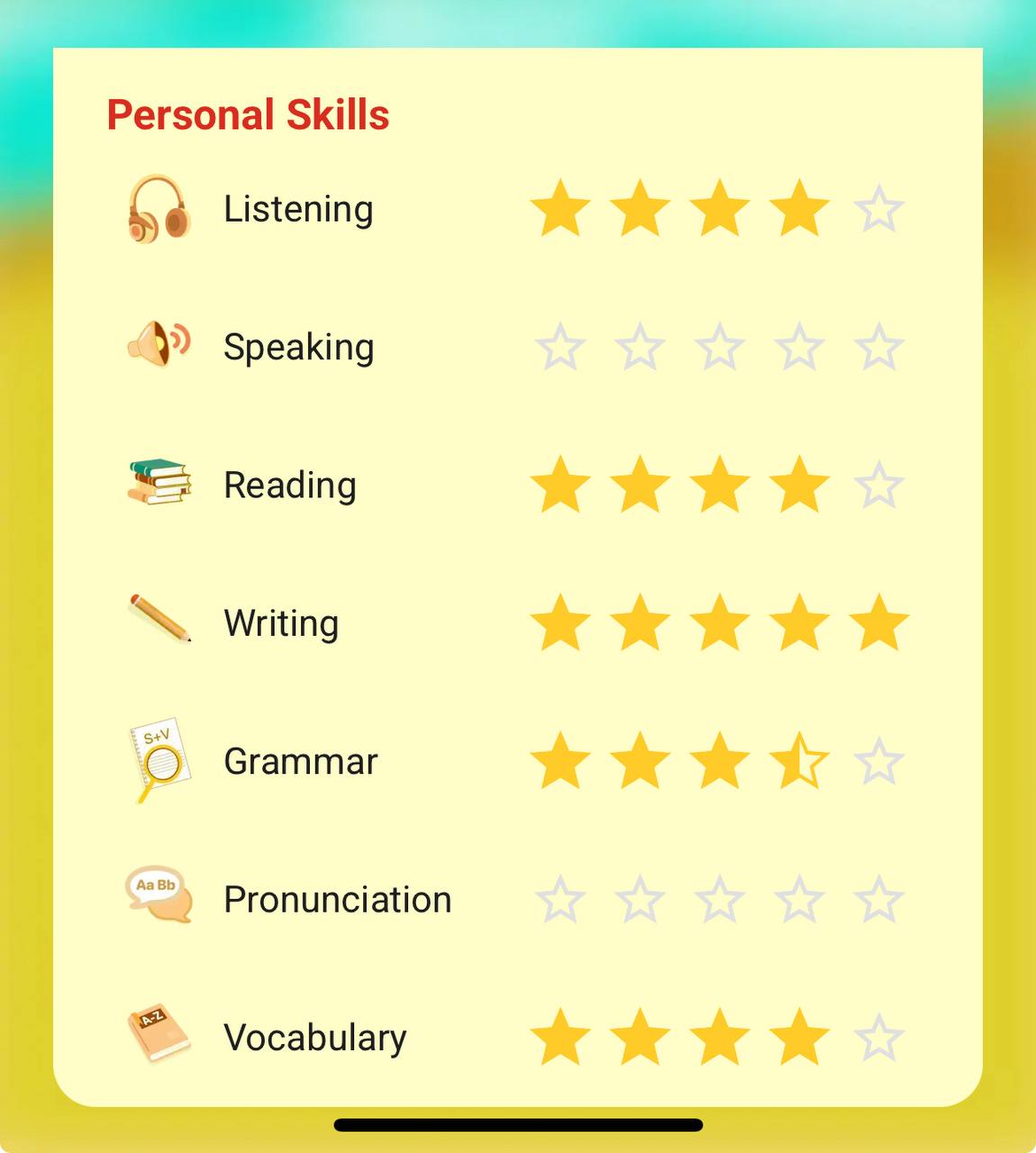 Displays students' proficiency levels in each English skill. -Pronunciation -Listening -Writing -Speaking -Vocabulary -Reading -Grammar -Note: Each skill is rated on a scale of 0 to 5 stars. |
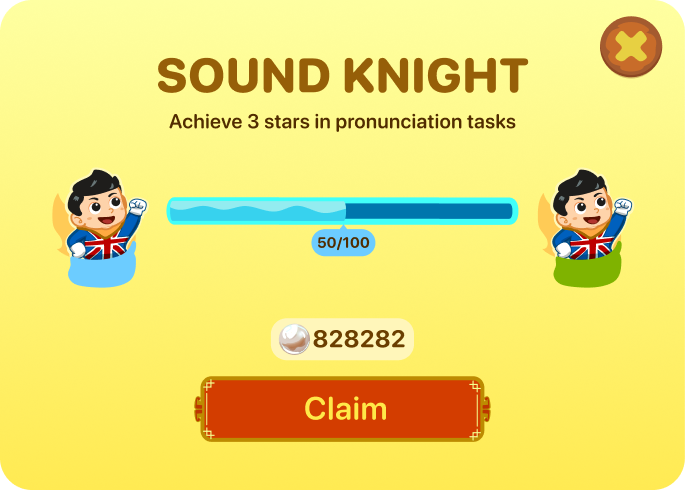
Step 4: Press tab to view achievements and badges earned.
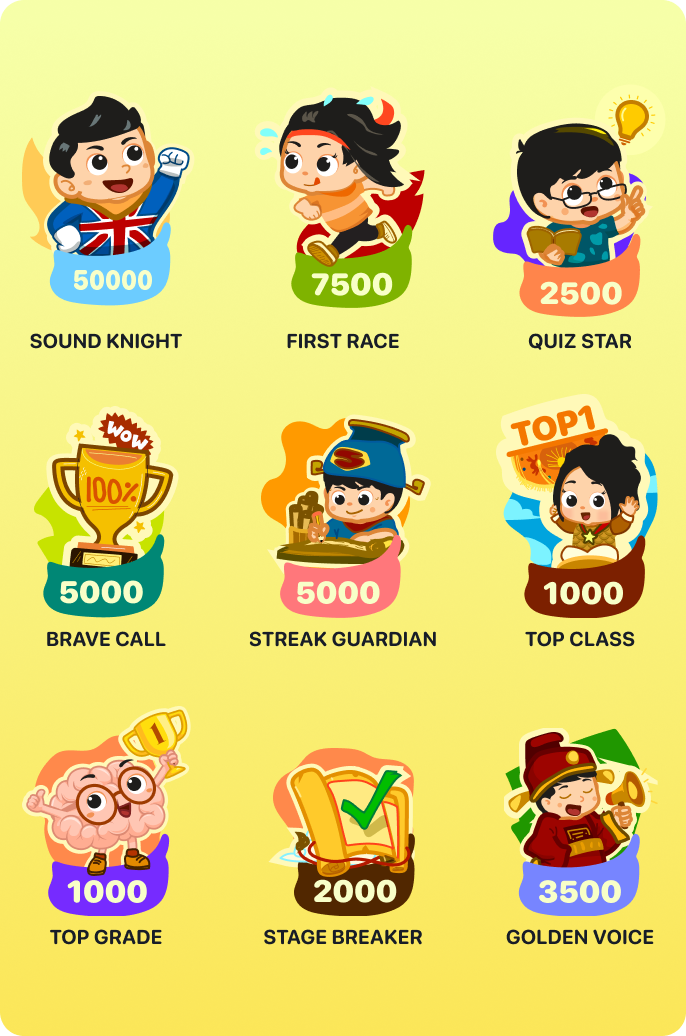
Note: To view detailed information about achievement badges, users click on the corresponding badge icon.
- Name of the emblem.
- The objective to be achieved.
- Progress is shown via a progress bar.
- Rewards received after completing the badge's objective.
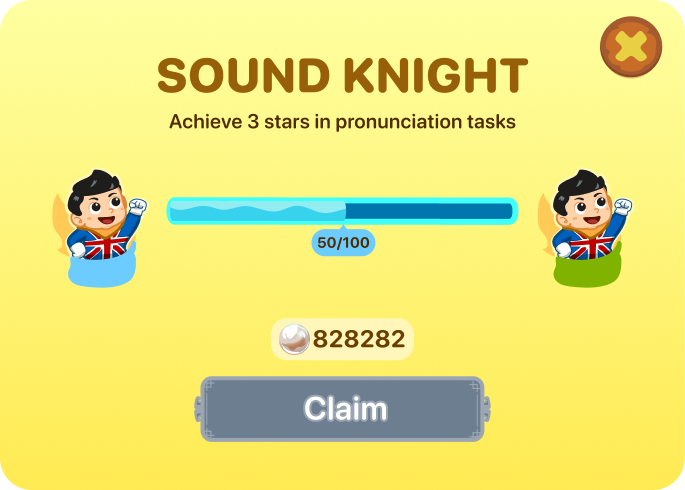
For badges that have not yet been achieved, the user presses the button. To exit the badge details screen.
Step 5: Press tab To open the wardrobe screen.
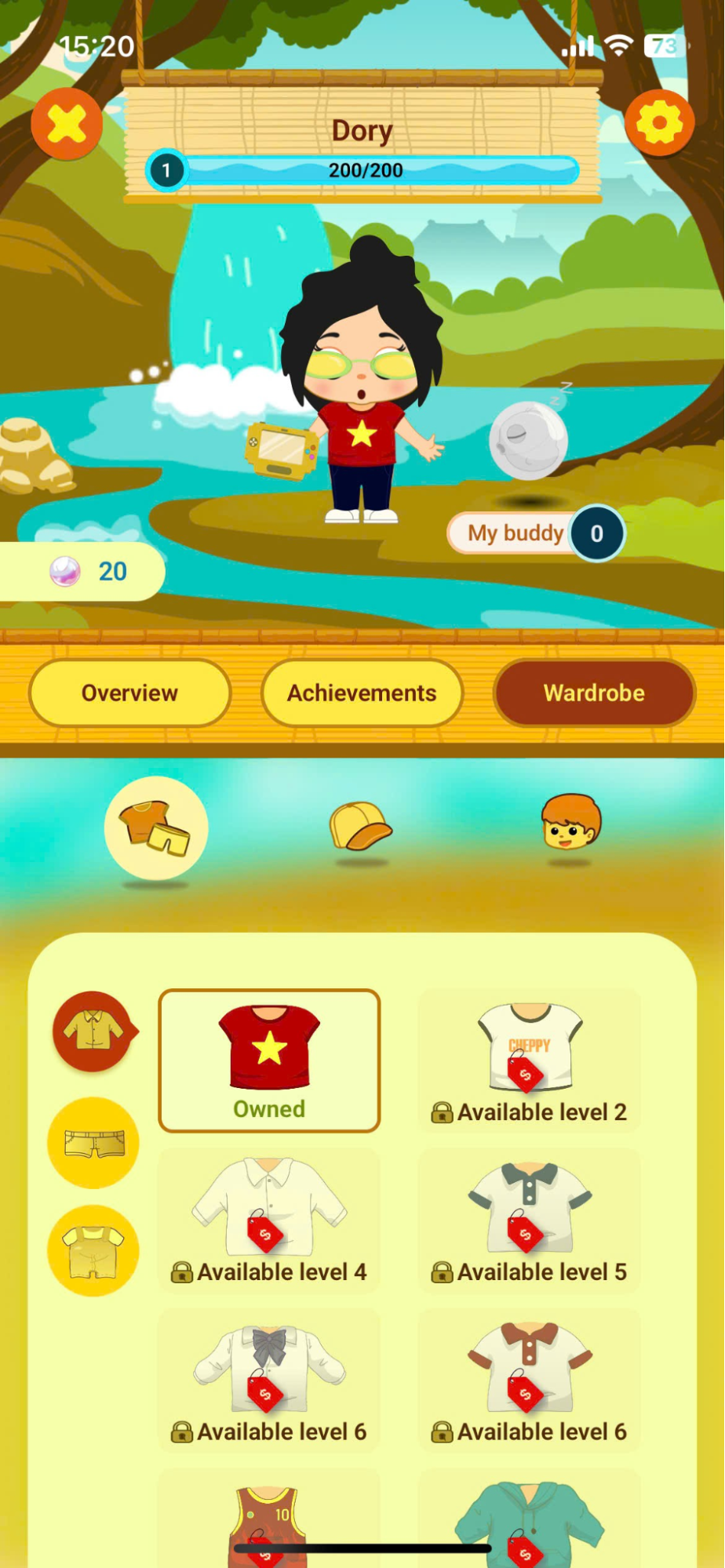
Step 6: Items are categorized by group and user.Scroll down in your inventory to see all the items.

Note: The item's states include:
| STT | Icon | Describe | Operation |
|---|---|---|---|
| 1 | 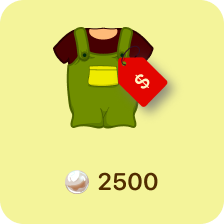 | Item can be unlocked | Select an item and use gems to unlock it. |
| 2 | 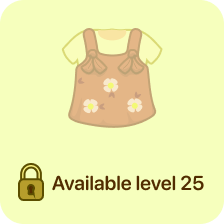 | Item >Not unlocked | Complete the tasks and challenges.To reach the corresponding level to unlock items. |
Step 7: After selecting the items you want to purchase, the user presses the button
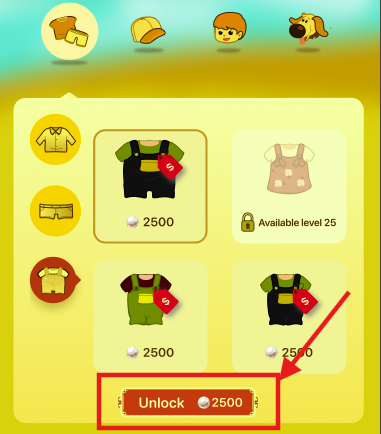
Step 8: Press the button To confirm the purchase of the item.
6. SETTINGS
Step 1: In the My Profile screen, click the icon. .
.
Step 2: After selecting the option, the system displays the settings screen.
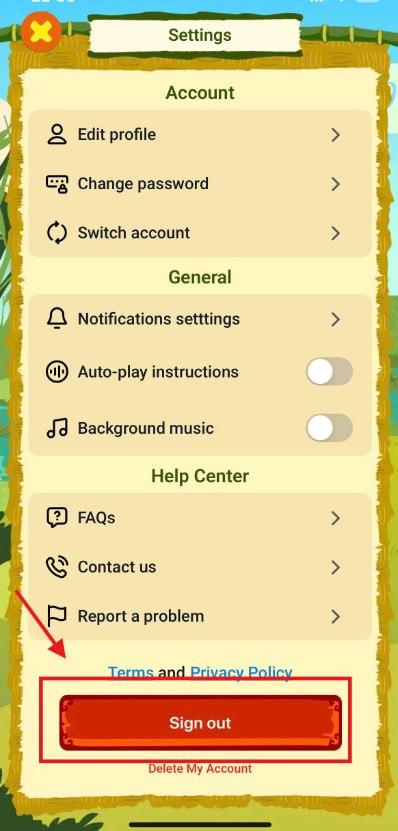
Step 3: Tap the On/Off button to enable or disable Auto-play and Background Music on the interface.
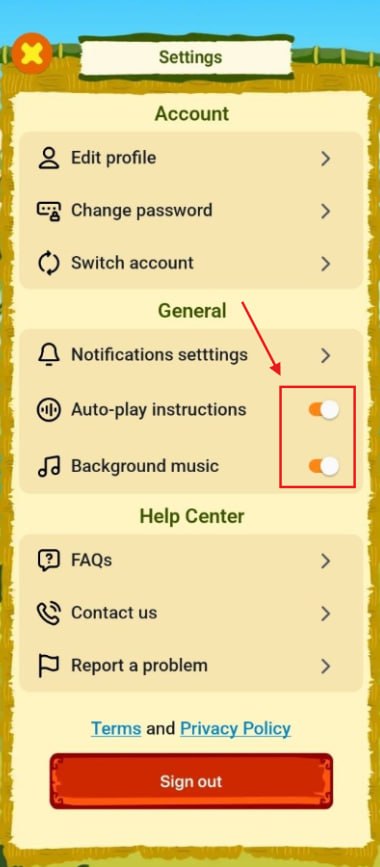
Step 4: To turn on/off the notification, click Notification settings then switch the button on/off
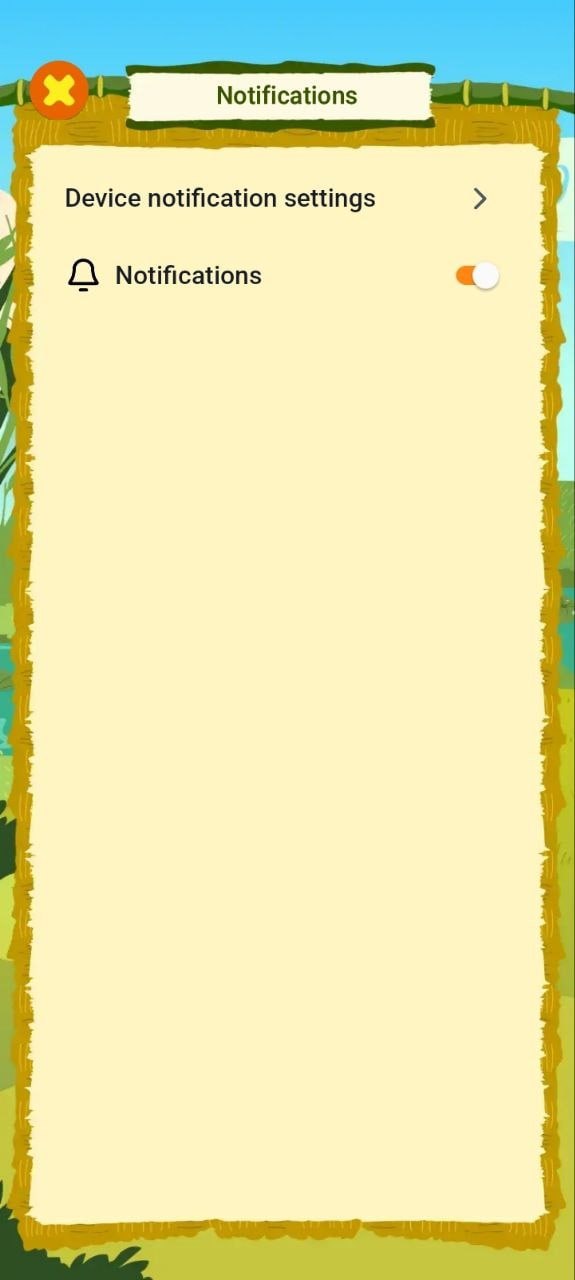
Step 5: Press the button to log out of your account on the app.
6.1. EDIT PROFILE
Step 1: Press the button to edit your account information. 
Step 2: In the Edit profile screen, users can view detailed information, including:
- Username: Login name.
- Display name: Display name.
- Email: Email address.
- Mobile number: Phone number.
- My birthday: Date of birth.
- Gender: Gender.
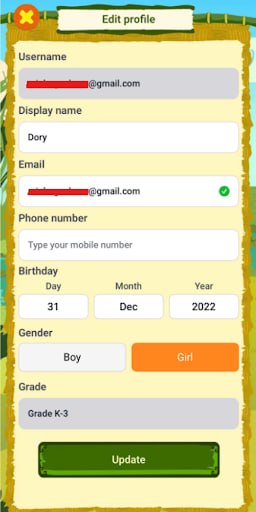
Step 3: After updating the information, the user presses the button. To save the changed information.
Note: If data saving fails, please check:
- Internet connection.
- Fill in all required fields completely.
- Enter the information in a valid format.
- Do not modify the account's default information, including the username.
6.2. CHANGE PASSWORD
Step 1: Press the button to change your password.
Step 2: On the password change screen, users can view detailed information, including:
- Current password: Current password
- New password: The password must be between 8 and 16 characters and include at least one digit.
- Confirm password: Re-enter your new password.
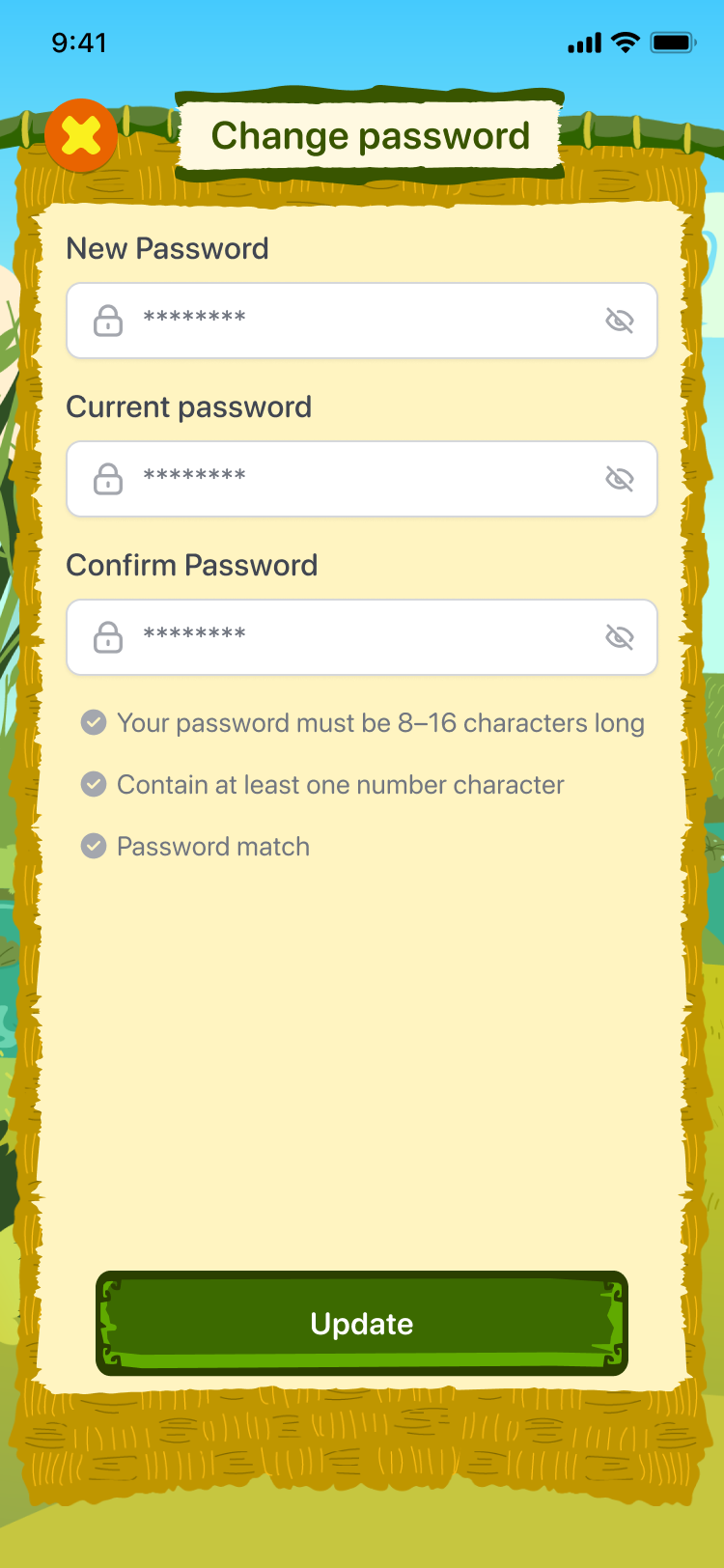
Step 3: Press the buttonTo save the new password.
6.3. FAQs (Frequently Asked Questions)
Step 1: Press the button To switch to the frequently asked questions screen.
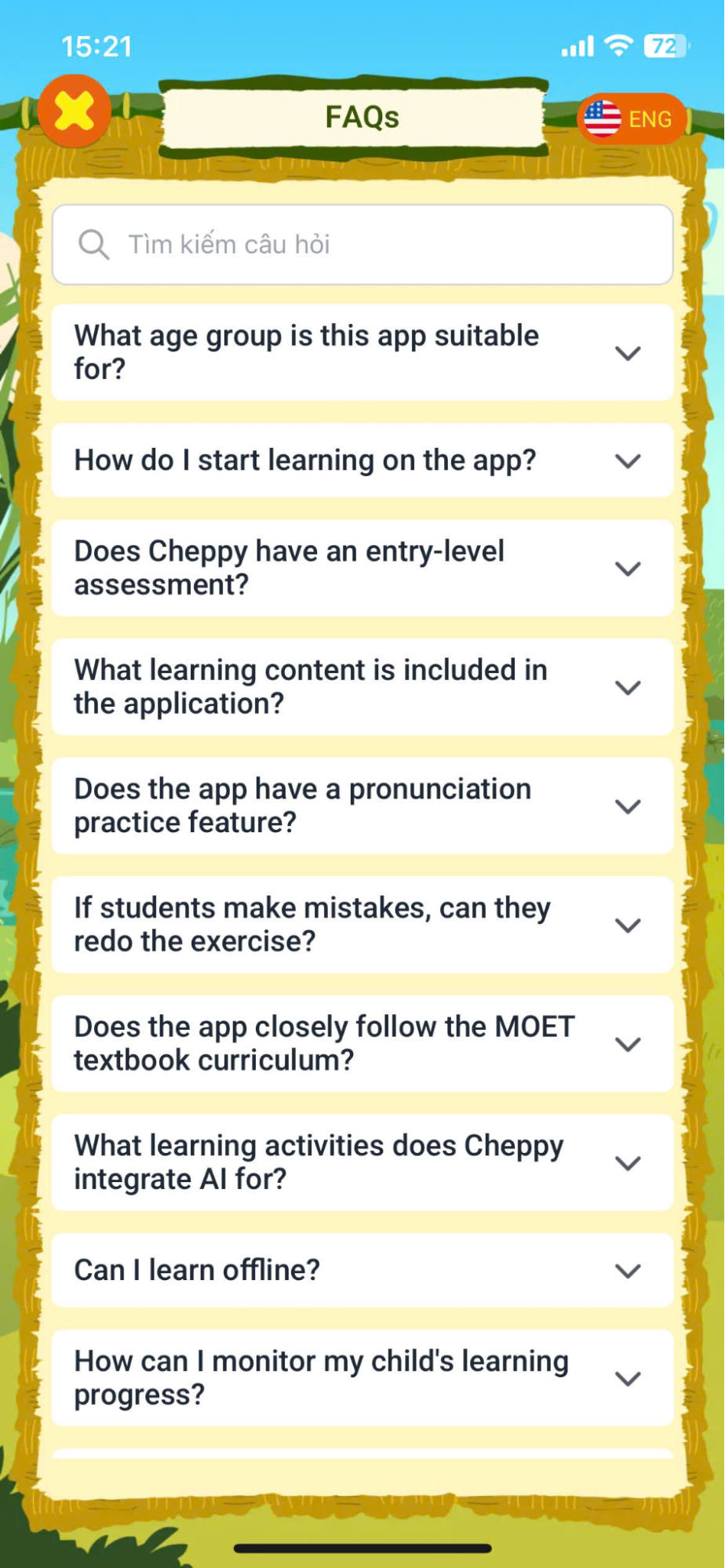
Step 2: Enter keywords to search for relevant questions.
Step 3: Click on the question to see the detailed answer.
6.4. CONTACT US
Step 1: Press the button To switch to the contact information screen.
Step 2: The system will displayThe default email application on the device.
Step 3: After entering your email content, click Send email to the Cheppy app support team.
6.5. REPORT A PROBLEM
Step 1: Press the button To switch to the problem reporting screen.
Step 2: In the Report a problem screen, users enter detailed information, including:
- Your email address:
- Type of problem: The type of problem.
- Description: Describe the problem.
- Attachments: Attached images (in png or jpeg format)
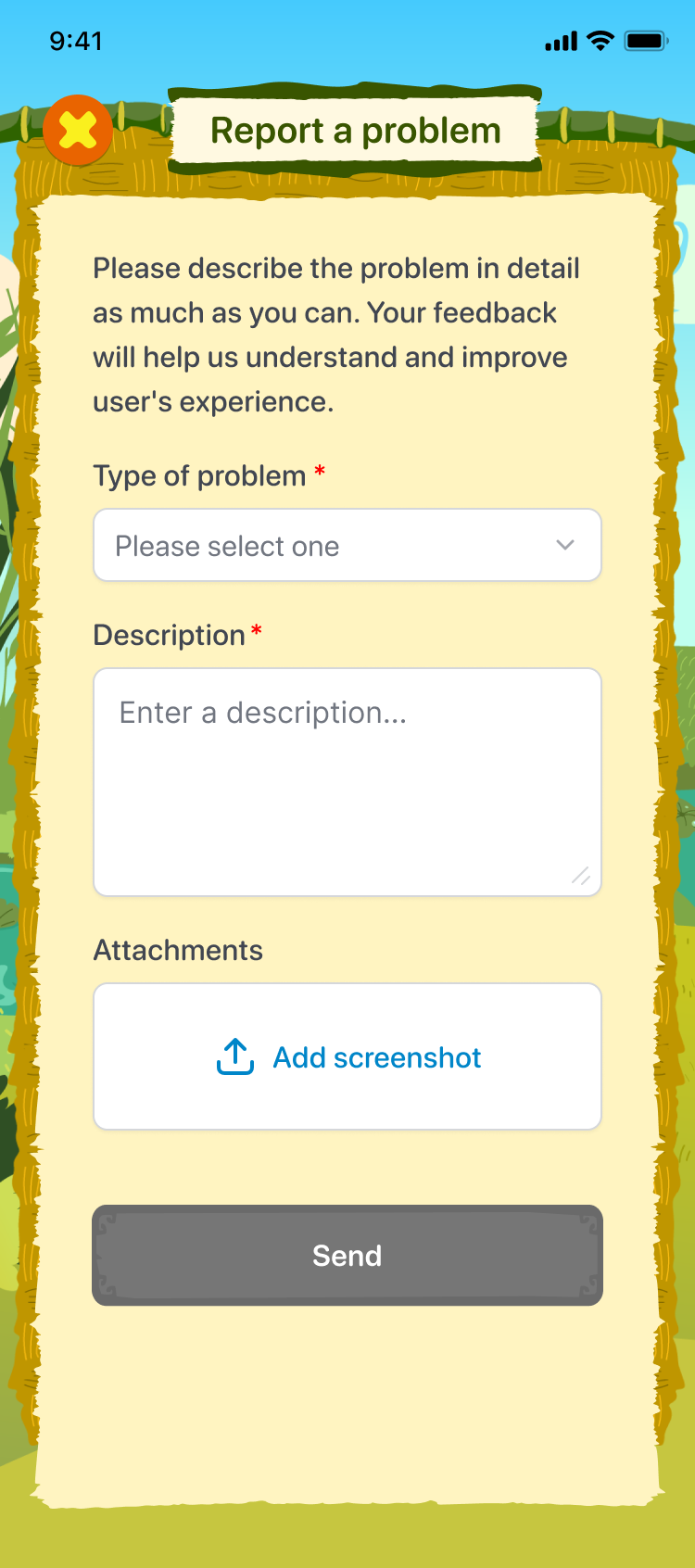
Step 3: After completing the information, press the button. to submit the report.
7. LEADERBOARD
Step 1: On the main screen, click on the Leaderboard area icon.
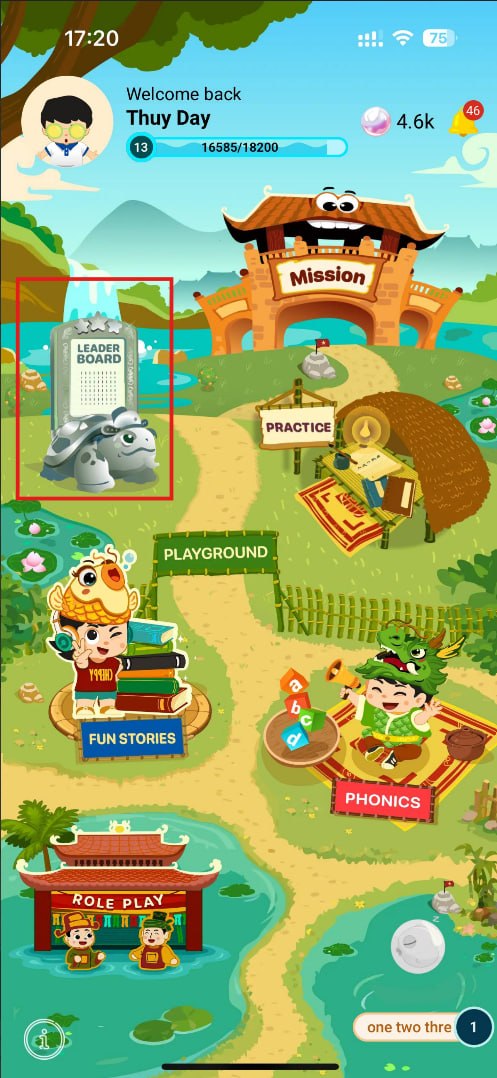
Step 2: On the Leaderboard screen, users can view rankings sorted by Level and EXP (Experience Points).
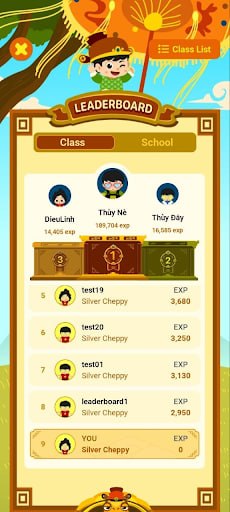
Step 3: Press tab To view the rankings by class.
Step 4: Press the button To display a list of classes attended.
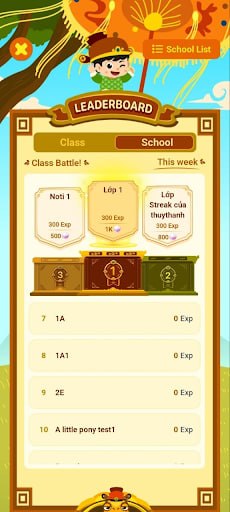
Step 4: Press select a Class to view the rankings.
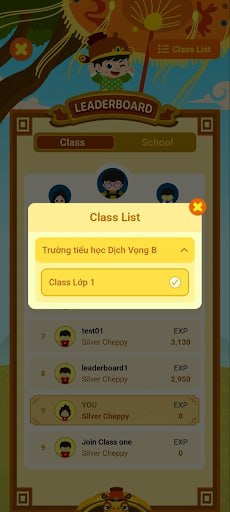
Step 5: Press tab to view the rankings by school
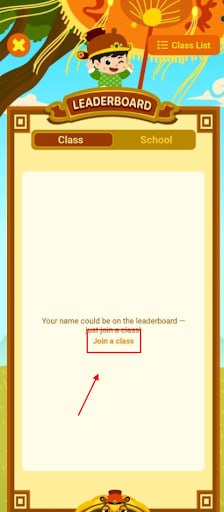
Note: Every week, the top 3 classes will receive rewards based on their ranking. Note: If a student has not joined any classes, their class and grade-level rankings will not be available. Students are advised to join a class to view their rankings.
8. MISSION
Step 1: On the main screen, click the Mission area icon.
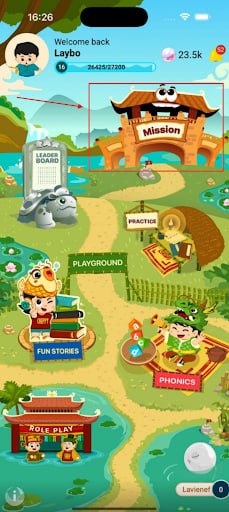
Step 2: At the Mission interface, the system displays the Mission map in the order in which missions were most recently assigned by the teacher, with the most recently assigned mission appearing at the end.
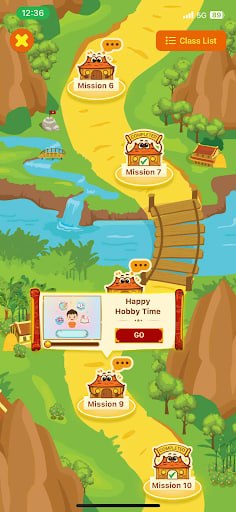
Note: If the user has not yet joined the class, please press the button to switch to the Join class area screen and follow the instructions to join the class, or press the button
 to access other areas within the app.
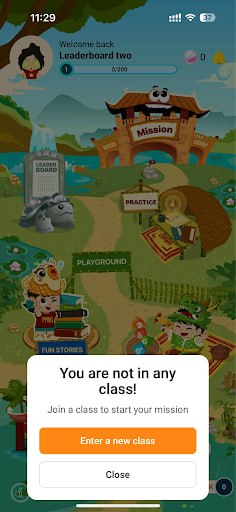
8.1. JOIN CLASS
Step 1: Step 1: At the Mission interface, click button 
Step 2: Tap button  to join a new class.
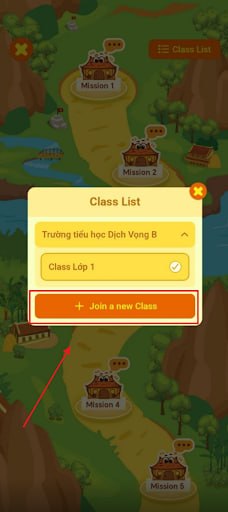
Case 1: Students with a class code can join the class in either of the following two ways:
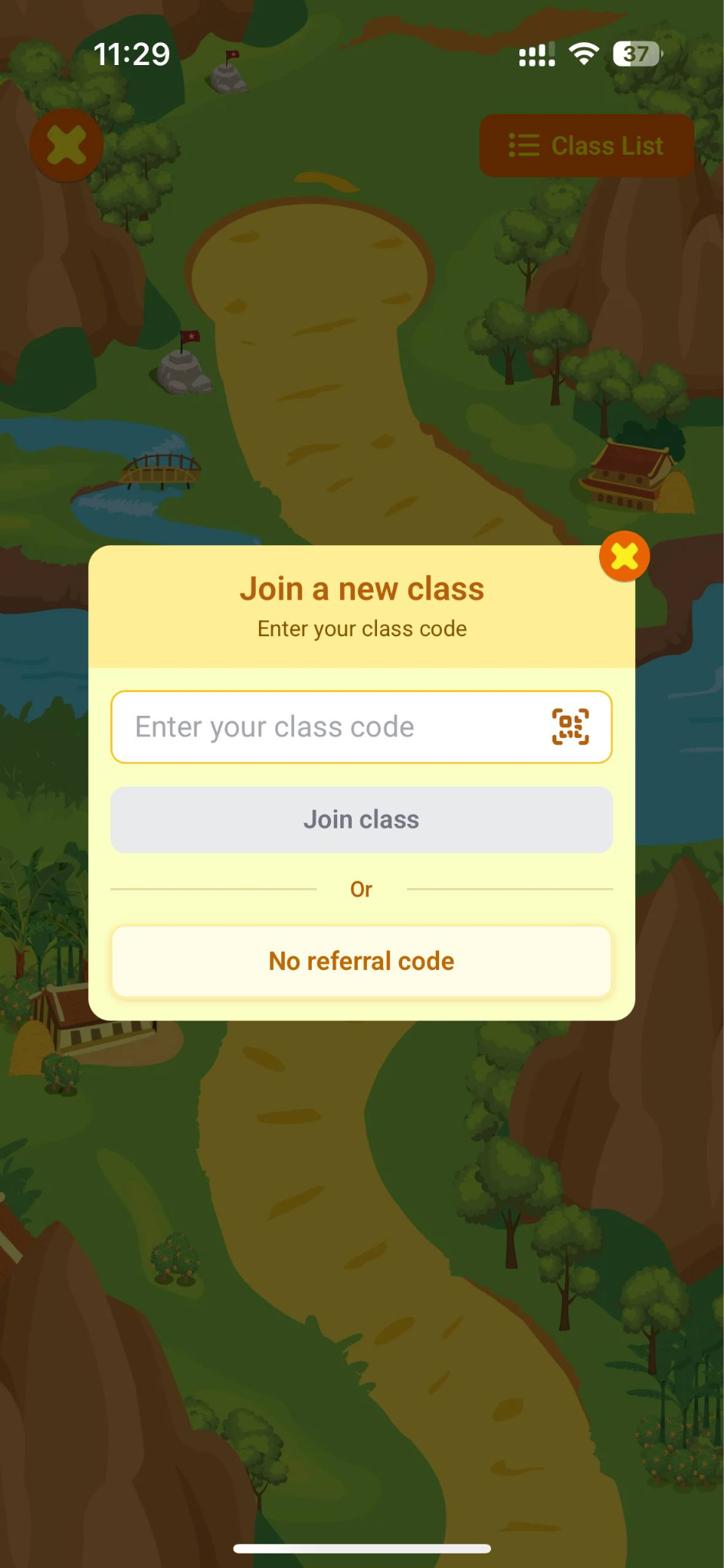
Method 1: Enter the class code provided by the teacher corresponding to the participating school.
Method 2: Click on the icon  to scan the provided class’s code
Case 2: For students without a class code, tap  to receive class code from Cheppy
2.1. Enter your email address and tap Send code
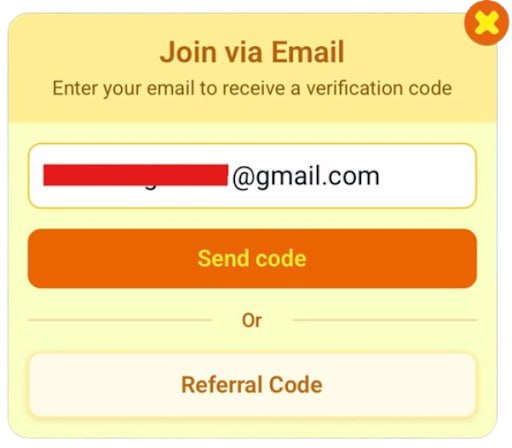
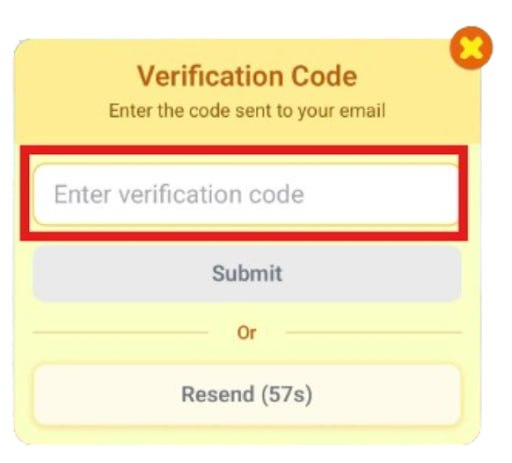
2.2. Enter verification code sending to your email and tap Submit
2.3. Tap Study now to discover more.
Note: If the new class is not displayed after the teacher successfully adds it, the user should check and provide the teacher with the correct account information. If the class is still not displayed after checking the information, please contact Cheppy's support team via the Contact us section.
Step 3: Press the button to attend the class.
Note: If you receive an invalid notification, please double-check the class code provided by the teacher. If you have entered the correct class code but still receive an error message, please contact Cheppy app support via the Contact us section.
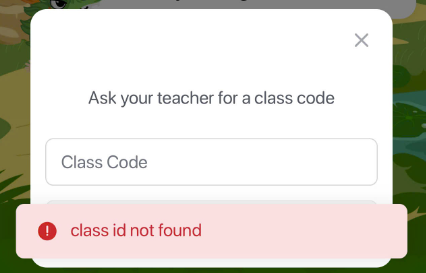
Step 4: After successfully entering the class code, press button to begin exploring the learning areas of the app.
8.2. DOING EXERCISES
Step 1: At the Mission interface, the system displays the Mission map in the order in which missions were most recently assigned by the teacher, with the most recently assigned mission appearing at the end.
Note: For Cheppy classes, students can explore new missions on the map after completing all current class missions.
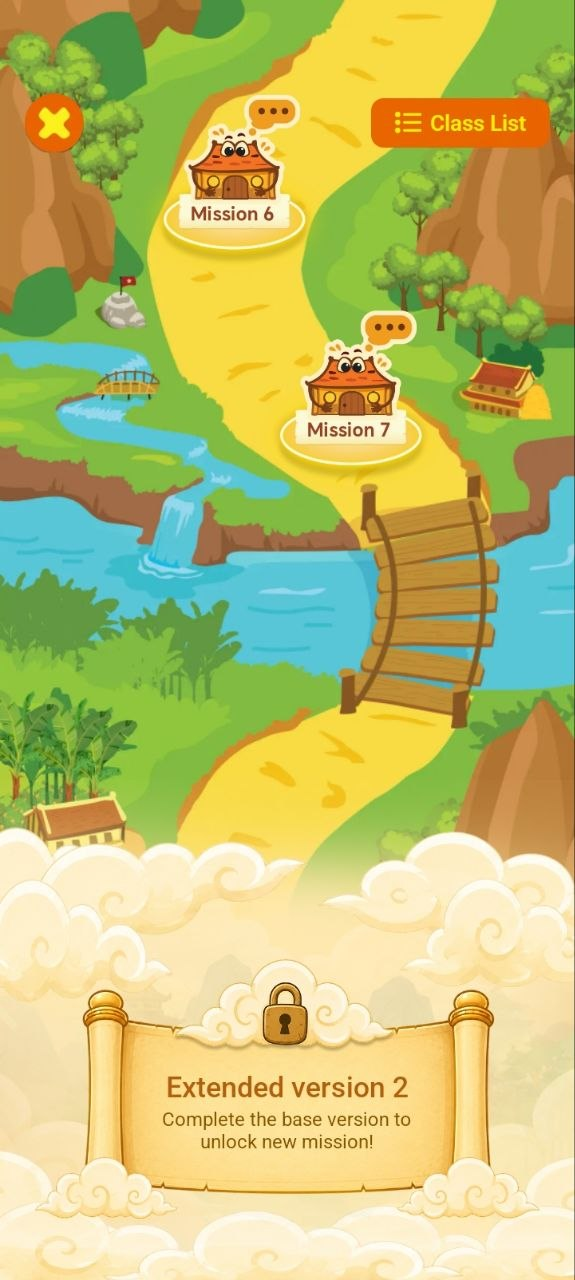
Note: Mission status icons including:
| STT | Icon | Status | Describe |
|---|---|---|---|
| 1 |  | Not yet unlocked | Mission is inaccessible because the Stage has expired or the unlock date has not yet arrived. |
| 2 |  | In progress | Users are completing the Stages. |
| 3 |  | Complete | The user has completed all the Stages and has been credited with points. |
Step 2: Press the button To display a list of classes attended.
Step 3: Select the class from the list.
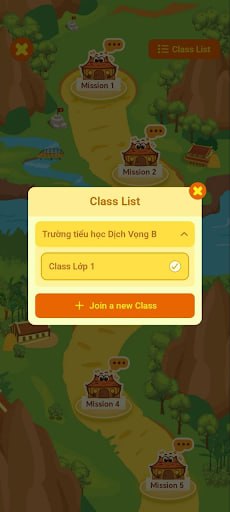
Step 4: Click a mission to see the detailed information.
Step 5: Click Go to start the mission and see the stage list.
8.3. STAGES
Step 1: The stage screen displays Exercise list.
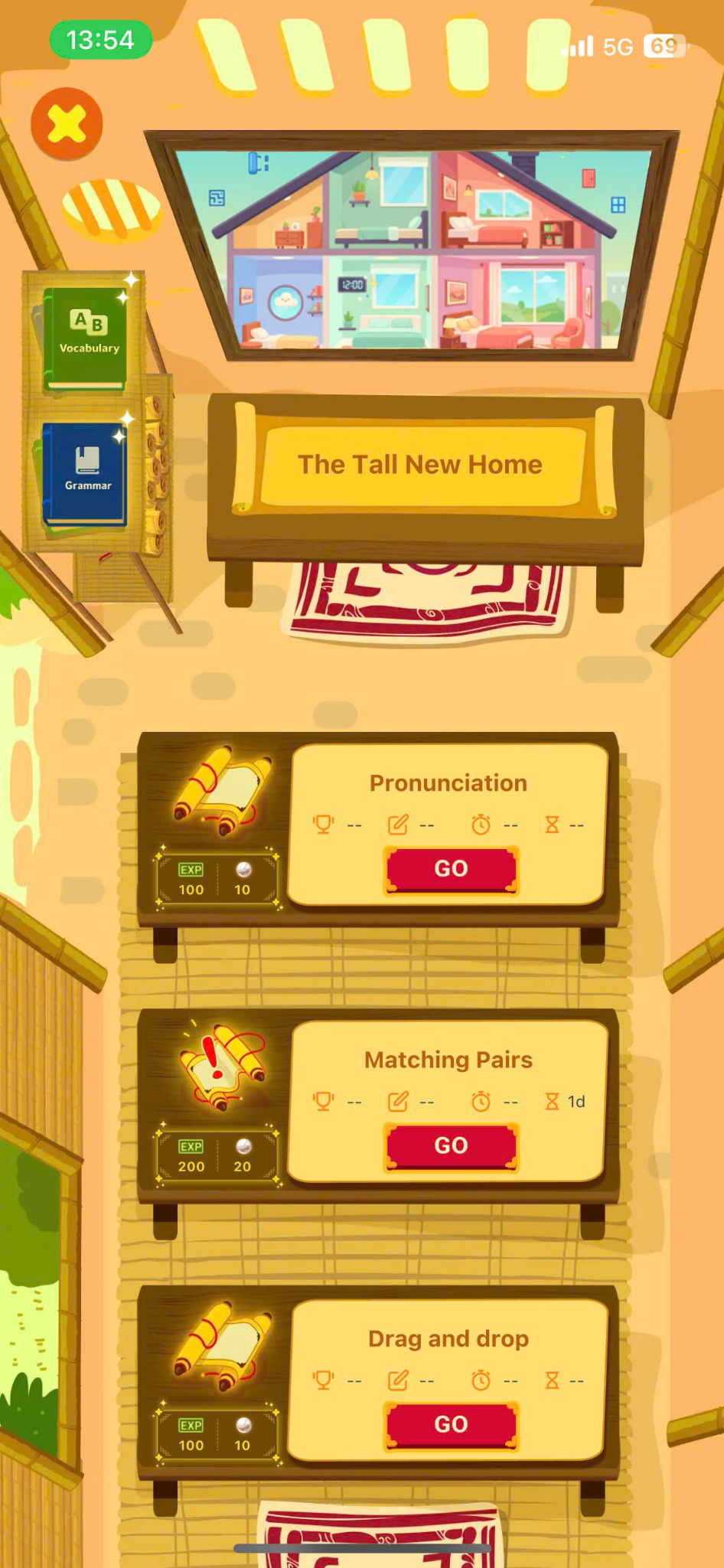
Note: Exercise status icons including:
| STT | Icon | Status | Describe |
|---|---|---|---|
| 1 |  | Complete | The user has completed the Stage and received points. |
| 2 |  | The deadline is approaching. | The user hasn't completed the Stage yet, and the deadline is less than 1 day away. |
| 3 |  | Under construction | Stage is unlocked, users canStart working to get points recorded. |
| 4 |  | Not yet unlocked | Stage is inaccessible because the unlocking period has expired or the unlocking date has not yet arrived. |
Step 2: User can click on  or
or  to review words/grammars of the stage
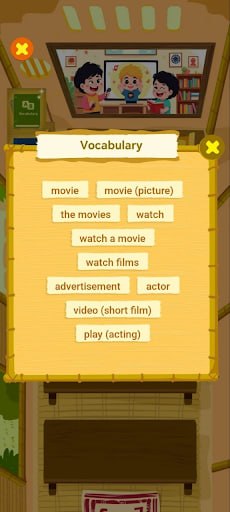
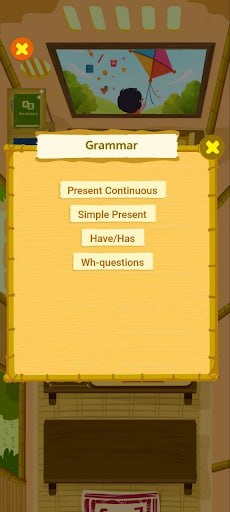
Step 3: Select the unlocked Stage and click Go.
Step 4: On the Homework screen, the top bar contains information to assist the user:
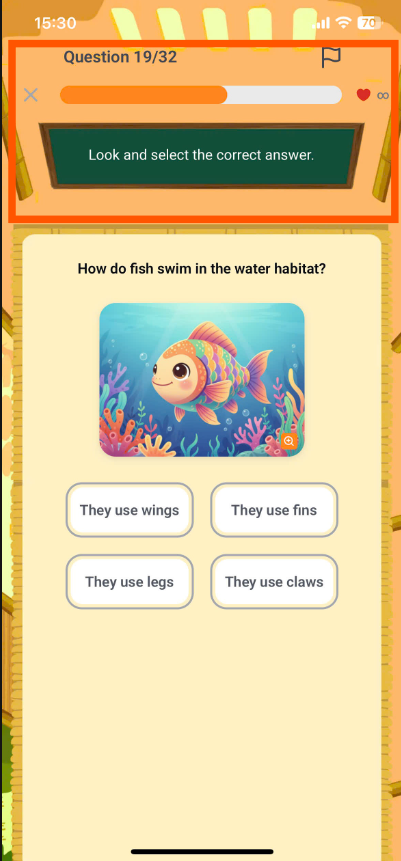
| STT | Icon | Describe |
|---|---|---|
| 1 |  | Number of questions |
| 2 |  | Exam time |
| 3 |  | Number of incorrect answers allowed |
| 4 |  | Instructions on how to work with different types of exercises. |
| 5 | What is this fruit? | Question |
| 6 |  | Exit the assignment screen. |
| 7 |  | Confirm the answer |
Note: After clicking on the iconThe user receives the following confirmation message.
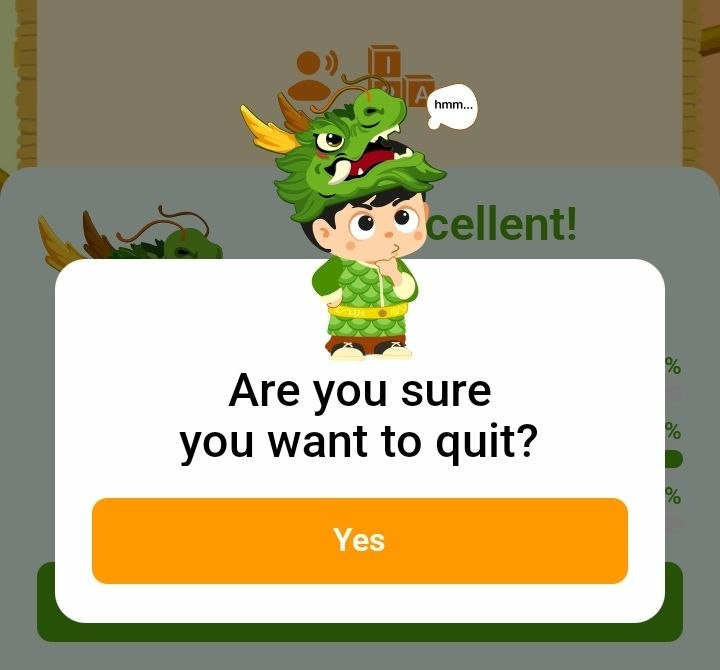
In the case of pressing the button The entire question-answering process will not be recorded, meaning the user will not receive any rewards or experience points for that Stage.
Step 5: In the Exercises screen, users can interact and answer questions across a variety of exercise types.
Step 6: After completing the exercise, the system displays a "Completed" screen containing the necessary information.
- Correct answers: The number of correct answers out of the total number of questions.
- EXP: Experience Points
- Pearls: reward
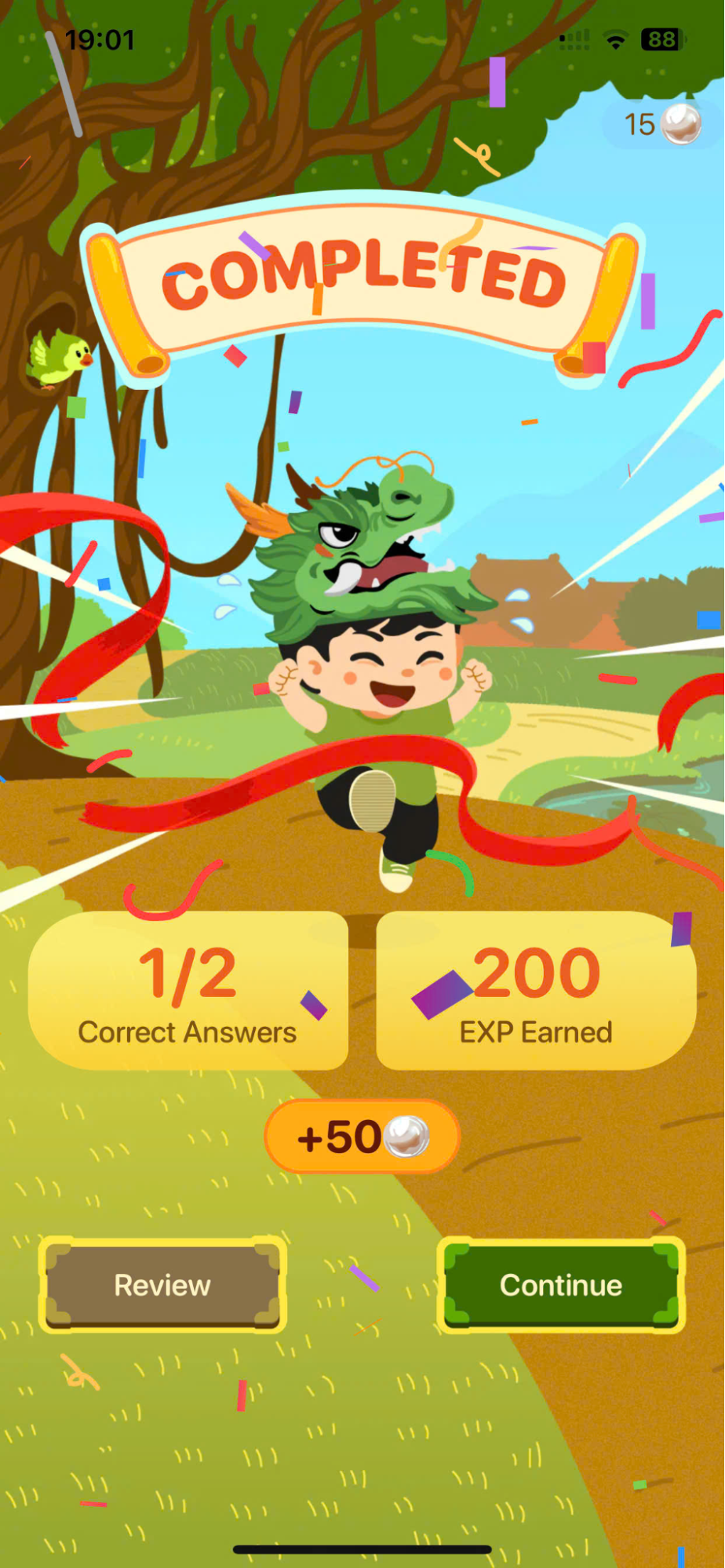
Note: For each completed Stage, the system will record a different reward.
In the case of the first attempt,the system awards points based on the number of correct answers.
In the case of subsequent attempts,the system awards points based on the results achieved. If a user answers a question correctly that they answered incorrectly in the previous round, they will receive additional bonus points for that question.
If the Stage of the class has been reworked,The system only records points and does not calculate rewards.
If the time runs out or too many questions are answered incorrectly, the user will not be able to continue the exercise, and the system will record the stage as incomplete with a score of 0. Press the button. to return to the deliveryStage map area.
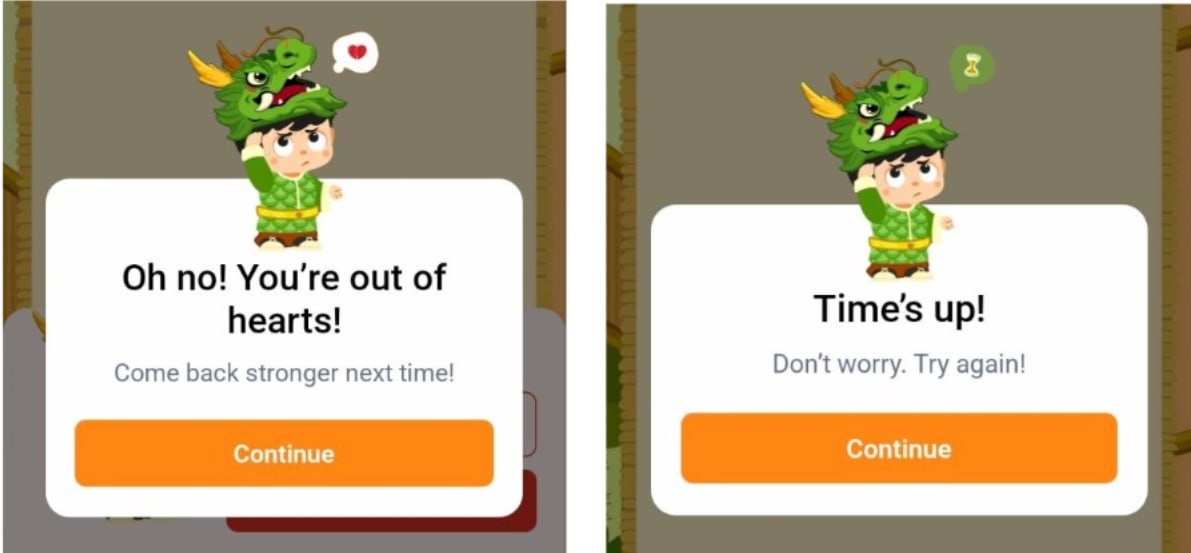
Step 7: On the Completed screen, the user presses the button. To watch and recreate the stage.
Or press the button to complete the next stages.
8.4. PRONUNCIATION EXERCISES
Step 1: Follow the instructions for the corresponding question type.
Image format:Observe the sentence content and the image on the screen.
Audio Format:Press the button to listen to the sample audio file or click button
  to listen slower
Note: Users can view the sentence they need to pronounce by clicking on the icon.
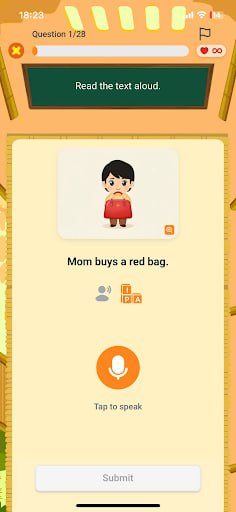
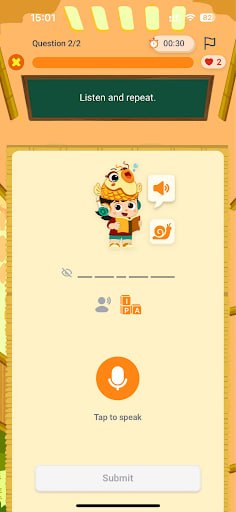
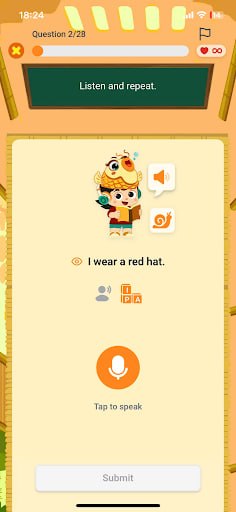
Step 2: Press the button to start recording.
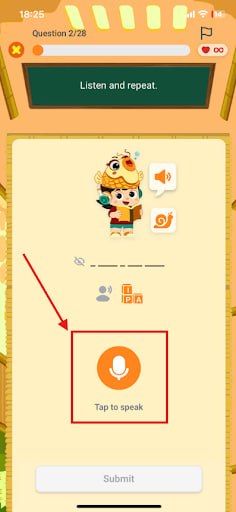
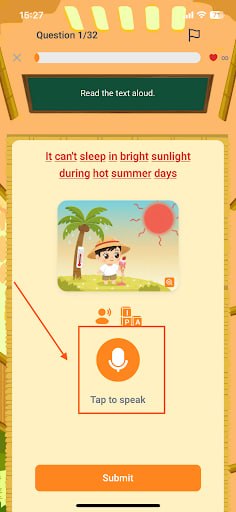
Note: You can click at the button  to view the IPA of the sentence.
Step 3: Press the button to stop recording.
Note: You can click at the button
to stop recording.
Note: You can click at the button  to listen to your recording before submitting.
Step 4: Once finished, press the button. To confirm the answer, the system will record the answer and provide feedback using different colors to help learners practice their pronunciation skills.
- Green 🟢: Correct pronunciation.
- Yellow 🟡: Nearly correct.
- Red 🔴: Needs further improvement.
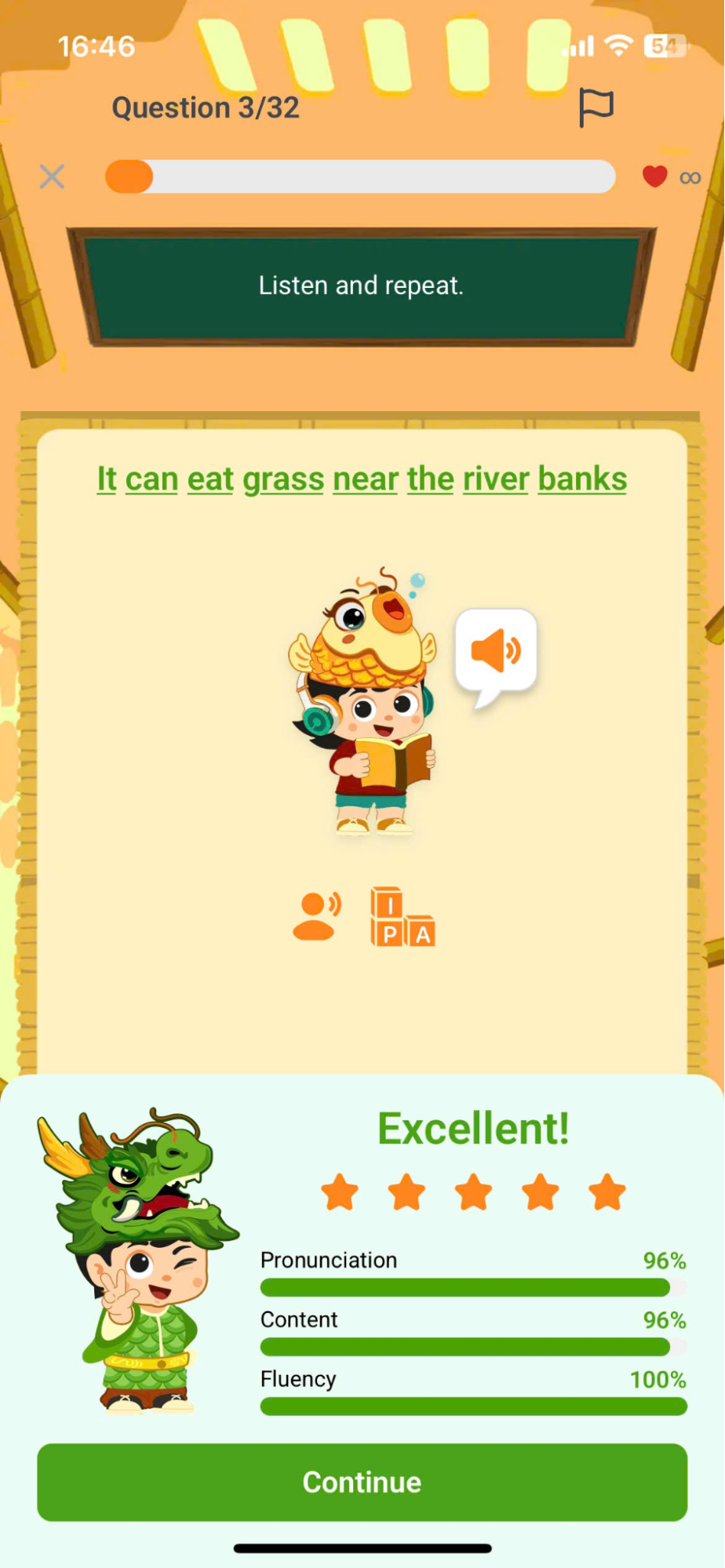
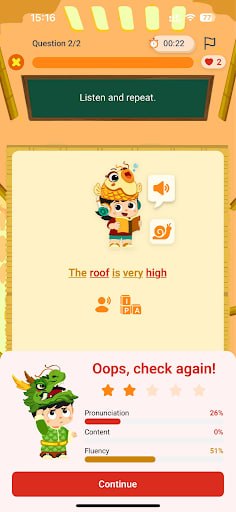
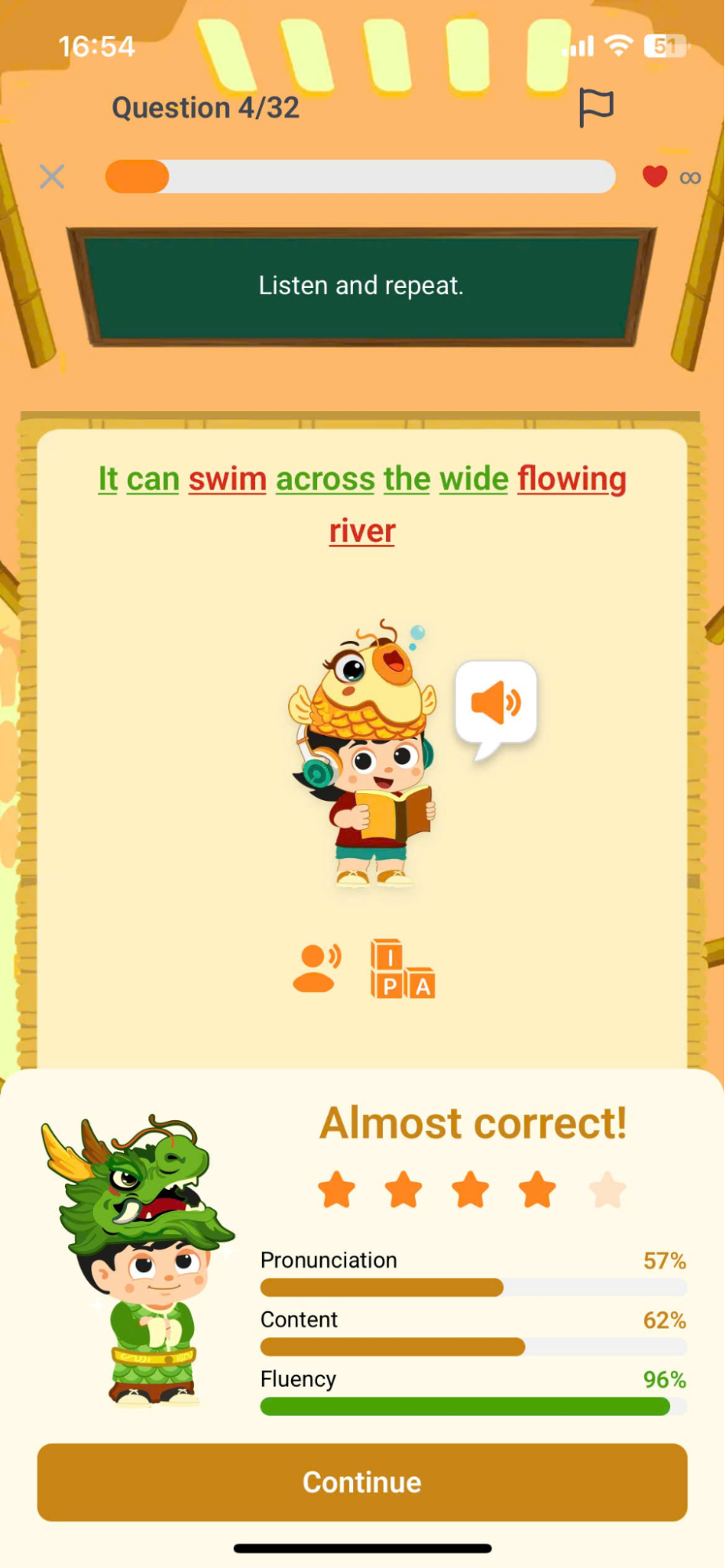
Step 5: Click on a word in a sentence to display a tooltip that helps users correct pronunciation errors.
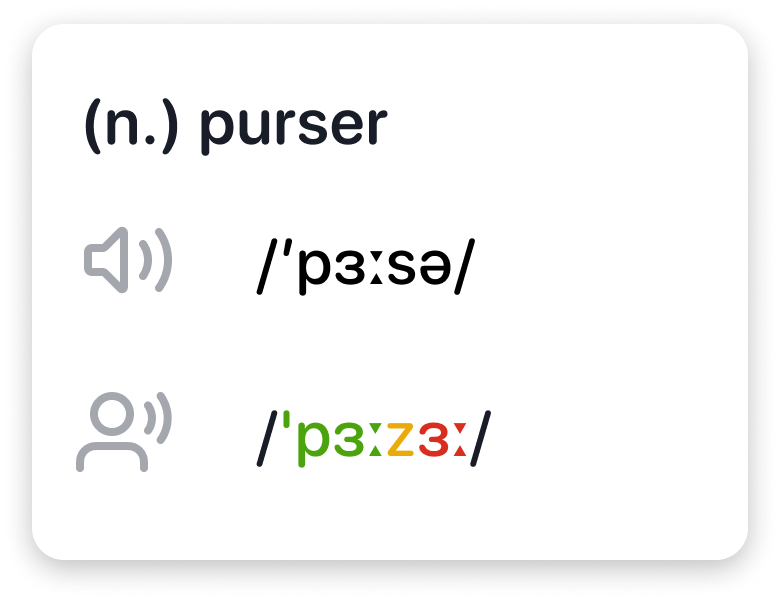
Note: Users can view detailed information including:
- Part of speech: Word type.
- IPA (International Phonetic Alphabet): International Phonetic Alphabet.
- Press the button
 to hear the correct pronunciation of the word.
 - Press the button
 to listen to the user's pronunciation.
8.5. MATCHING PAIR (MATCHING EXERCISE)
Step 1: Follow the instructions for the corresponding question type.
Text-Image Format:Match the word or sentence with the corresponding image.
Text-Audio Format:Match words or sentences with their corresponding sounds.
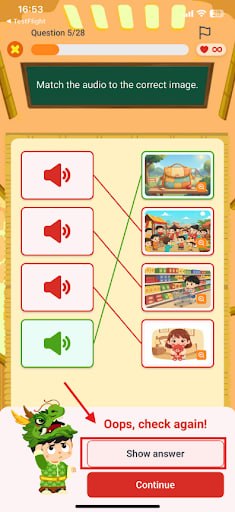
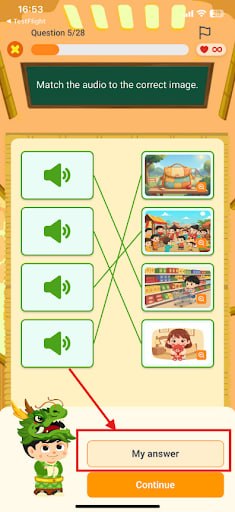
Audio – Image format:Match the audio with the corresponding image or click button to listen slower audio
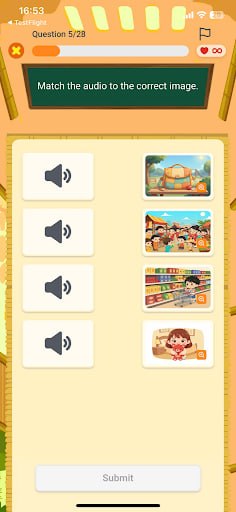
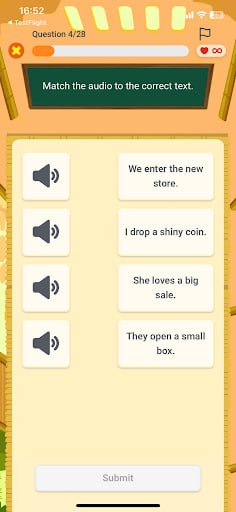
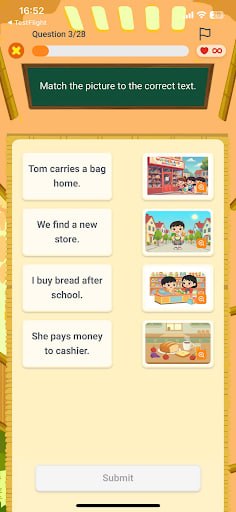
Step 2: Click on the box containing the word/sentence, image, or sound in either column to match them into a suitable pair.
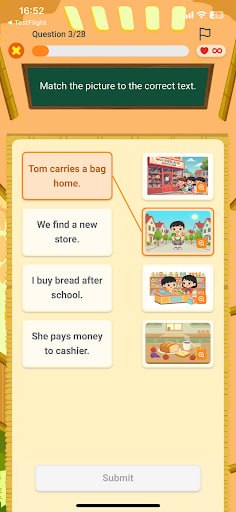
Note: If you wish to select a different connector pair, please click on the selected pair.
Step 3: Once finished, press the button.
to confirm the answer.
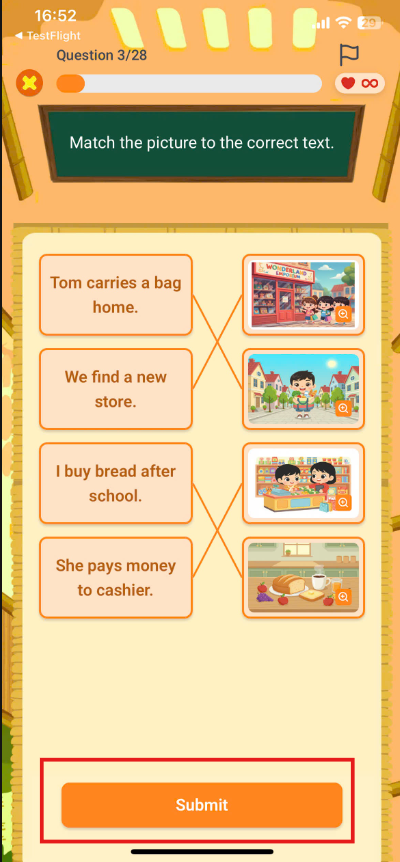
Note:
- If incorrect, User can press
 To display the teacher's answer, press [button/button].
 to compare with your own results.
8.6. DRAG AND DROP
Step 1: Follow the instructions for the corresponding question type.
Text-Image Format:Complete the sentence based on the image displayed on the screen.
Text-Audio Format:Click on the icon to listen to the entire sentence or click button to listen slower audio
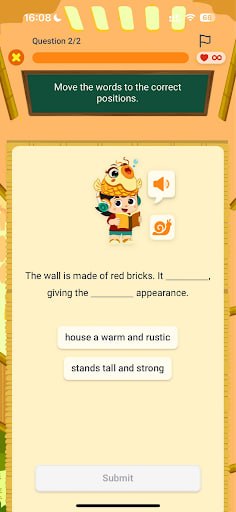
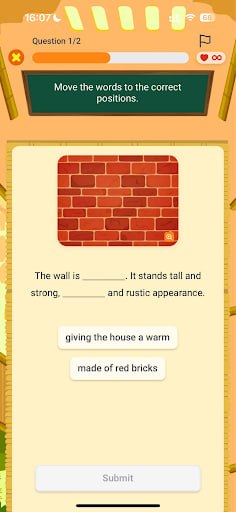
Step 2: Click on the word in the list that appears below the audio or image file.
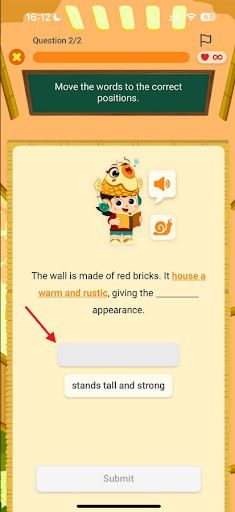
Note:If the position changes, please click on the selected word to discard the answer, then select a different word from the list.
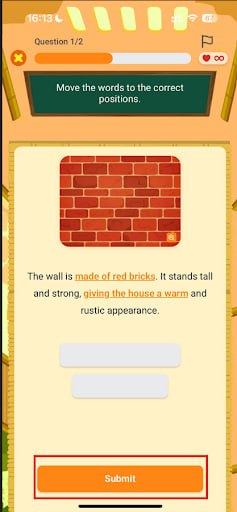
Step 3: Once finished, press the button.
to confirm the answer.
8.7. DROP DOWN (CHOOSE THE WORD)
Step 1: Follow the instructions for the corresponding question type.
Image format:Observe the sentence content and the image on the screen.
Audio Format:Press the button
Listen to the sample audio file or click button to listen slower audio
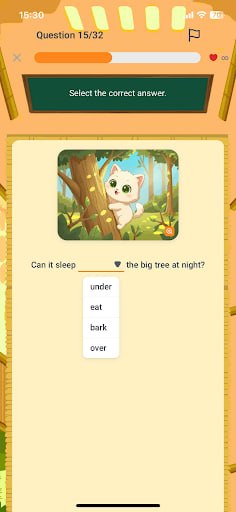
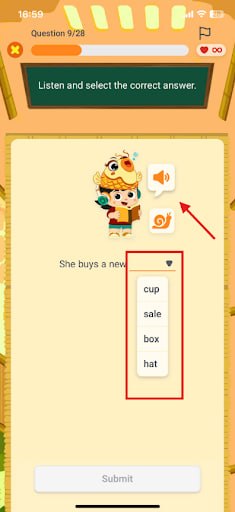
Step 2: Click on the box To choose the appropriate word from the list.
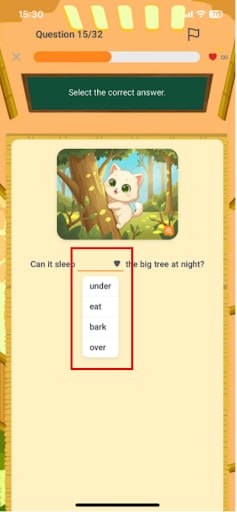
Note:If you wish to change your selection, please click the box to choose a different word from the list.
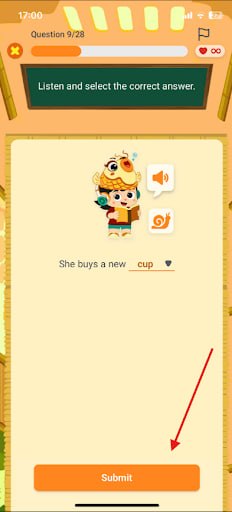
Step 3: Once finished, press the button.
to confirm the answer.
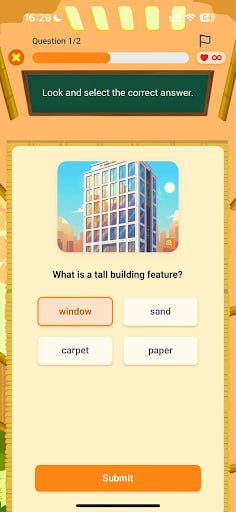
8.8. MULTIPLE CHOICE (MULTIPLE CHOICE)
Step 1: Follow the instructions for the corresponding question type.
Image format:Observe the sentence content and the image on the screen.
Audio Format:Press the button
Listen to the sample audio file or click button to listen slower audio
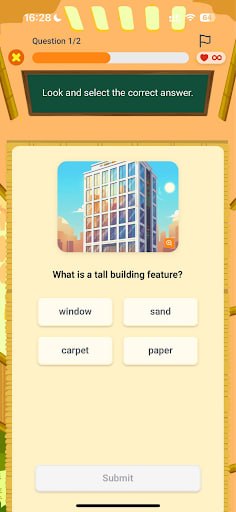
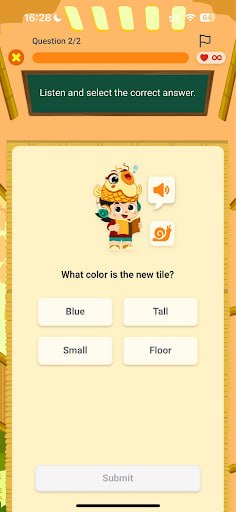
Step 2: Click on the box to make the right choice.
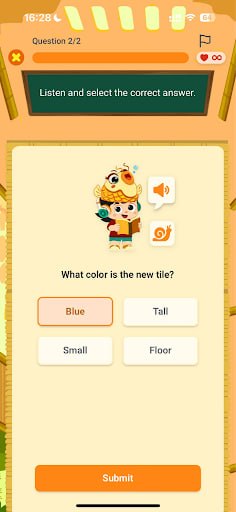
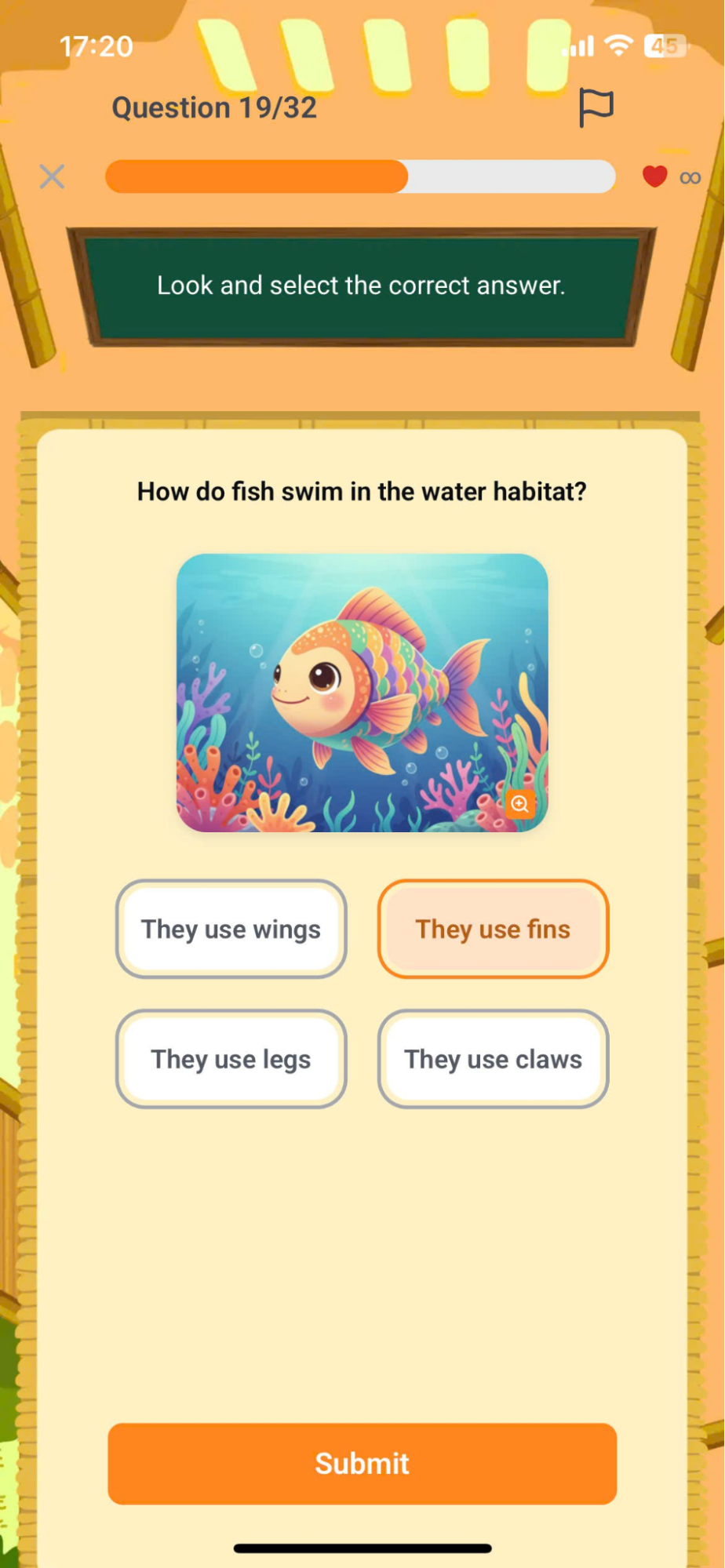
Note:If you wish to change your selection, please click the box to choose a different word.
Step 3: Once finished, press the button.to confirm the answer.
8.9. FILL IN THE BLANK
Step 1: Follow the instructions for the corresponding question type.
Image format:Observe the sentence content and the image on the screen.
Audio Format:Press the buttonto listen to the sample audio file or click button to listen slower audio
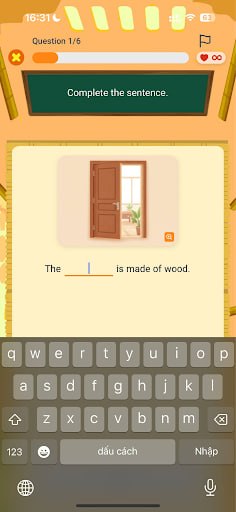
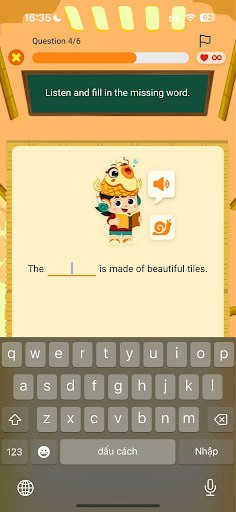
Step 2: Click on the boxand the act of entering characters on the keyboard.
Note:If you wish to change your selection, please click the box to re-enter a different word.
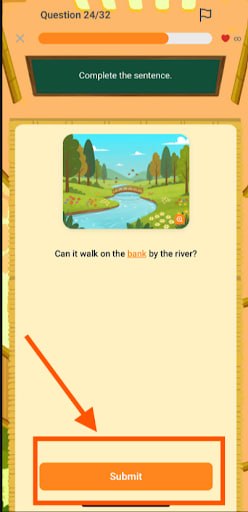
Step 3: Once finished, press the button.to confirm the answer.
8.10. ARRANGEMENT
Step 1: Follow the instructions for the corresponding question type.
Character Type:Arrange the characters to form a complete word.
Word format:Arrange the words into a complete sentence.
Sentence format:Arrange the sentences into a complete dialogue.
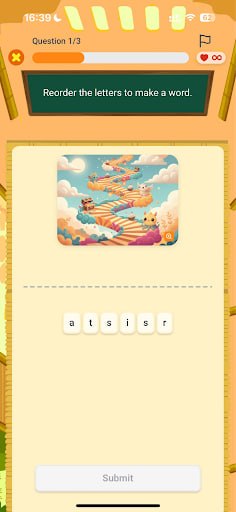
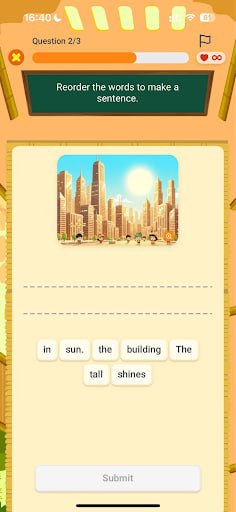
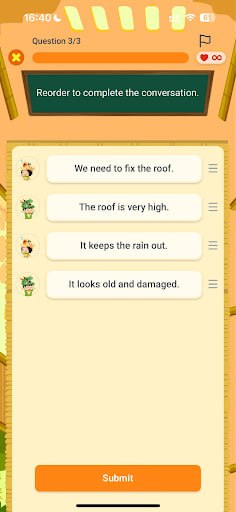
Step 2: Tap on a character or word to sort it. For sorting sentences into a correct conversation, the user needs to press and hold. , move and drop at the desired location.
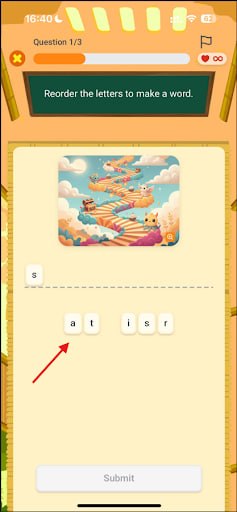
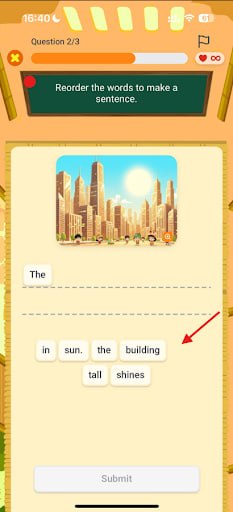
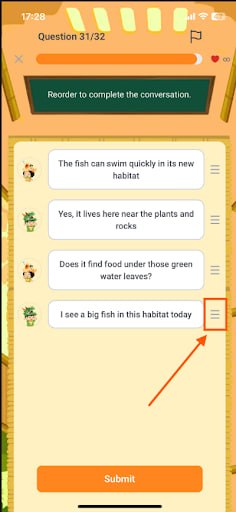
Note:If you need to change your selection, please click on the selected box to remove the answer, then select it again to complete the sorting.
Step 3: Once finished, press the button.to confirm the answer.
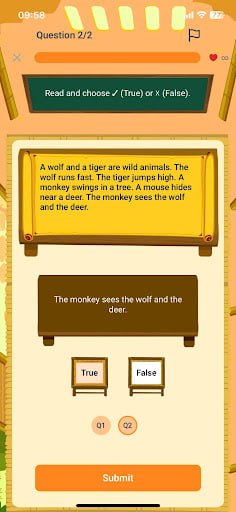
8.11. COMPREHENSION (LISTENING/READING COMPREHENSION)
Step 1: Follow the instructions for the corresponding question type.
Dạng Reading_Multiple choice/Fill in the blank/Drag and drop:Read the passage and the questions on the screen.
Dạng Reading_True Or False: Read the passage and the questions on the screen.
Dạng Listening_Multiple choice/Fill in the blank/Drag and drop:Press the button Listen to the sample audio file.
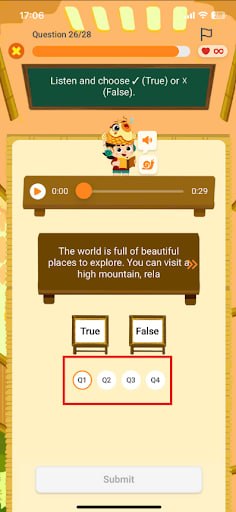
Dạng Listening_True Or False: Read the passage and the questions on the screen.
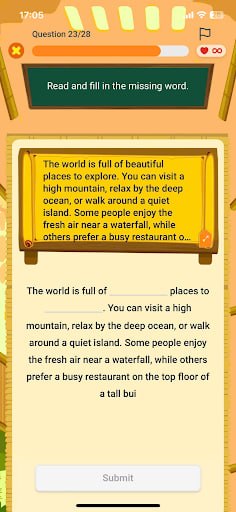
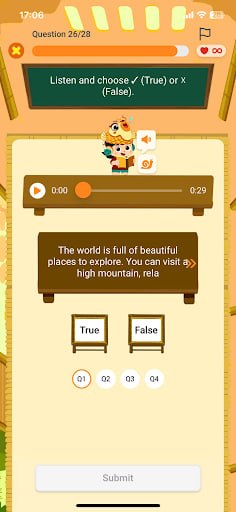
Step 2: For Reading types, to view the full paragraph, click 
Step 3: Select True/False for the statement.
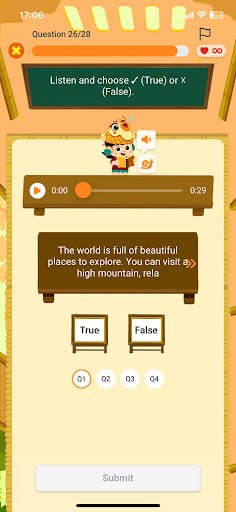
Note:
- If you need to change your selection, please swipe right to return to the previous question, tap the selected box to remove the answer, and then select again to complete the sorting.
- If a question has more than one answer, please swipe left/right to select an answer for all options. You can press [button/click]
 to move to a different viewpoint.
Step 3: Once finished, press the button.to confirm the answer.
9. PRACTICE
Step 1: On the main screen, click the Practice area icon.
Step 2: In the Practice screen, users select the learning area they wish to participate in.
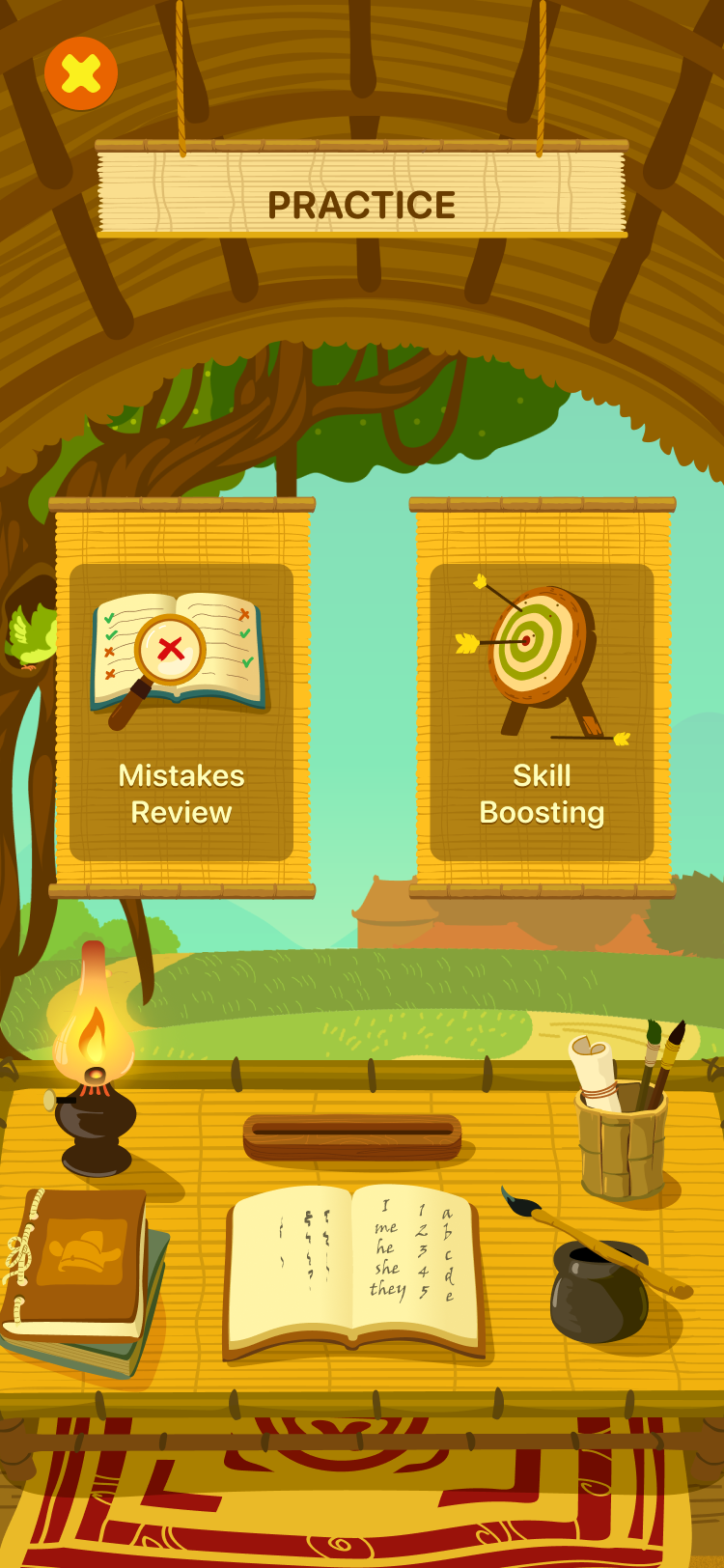
9.1. MISTAKES REVIEW
Step 1: Click on the icon Mistakes Review area.
Step 2: In the Mistakes Review screen, users answer questions they previously answered incorrectly in the Mission area.
9.2. SKILL BOOSTING
Step 1: Click on the icon Skill boosting area.
Step 2: Choose skills that you want to improve.
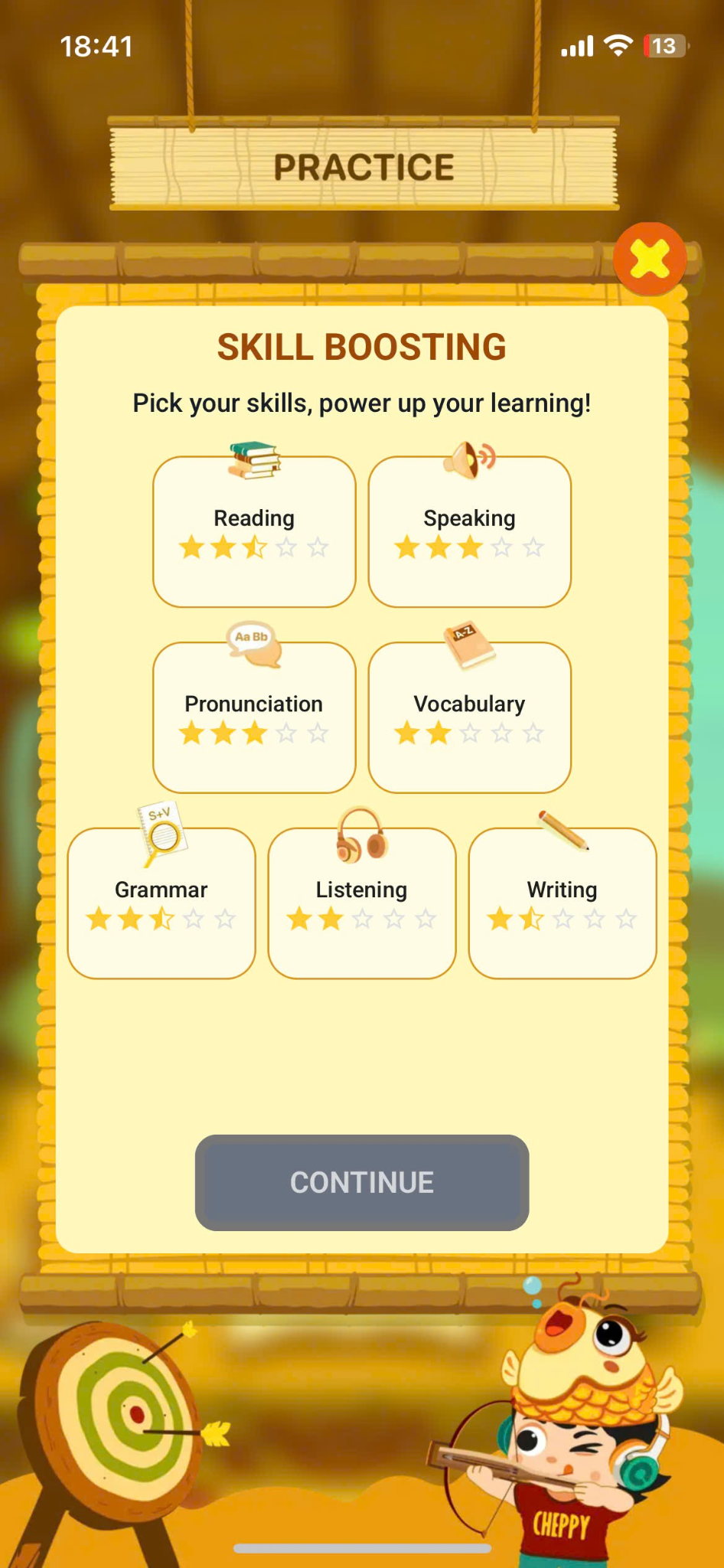
Step 3: In the Skill Boosting screen, the AI system will automatically provide suitable exercises for learners to practice and improve their skills. Users then answer the questions.
10. ROLE PLAY
- Purpose: This area helps learners practice communication through simulated scenarios.
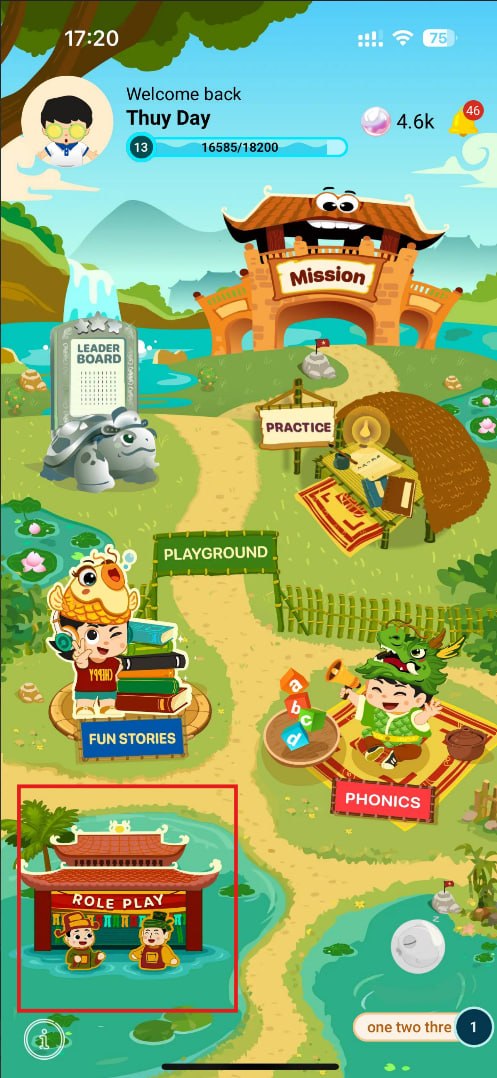
Step 1: In the Homescreen, select the Role Play area.
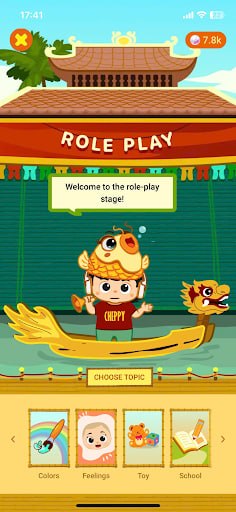
Step 2: In the Role Play area screen, click on your favorite theme to join Cheppy in the role-playing game.
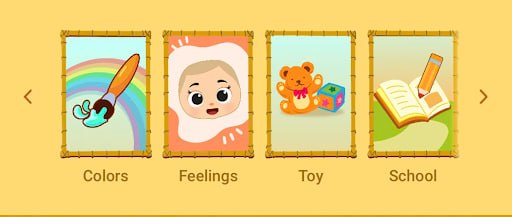
Step 3: View the list of situation cards, each card contains information:
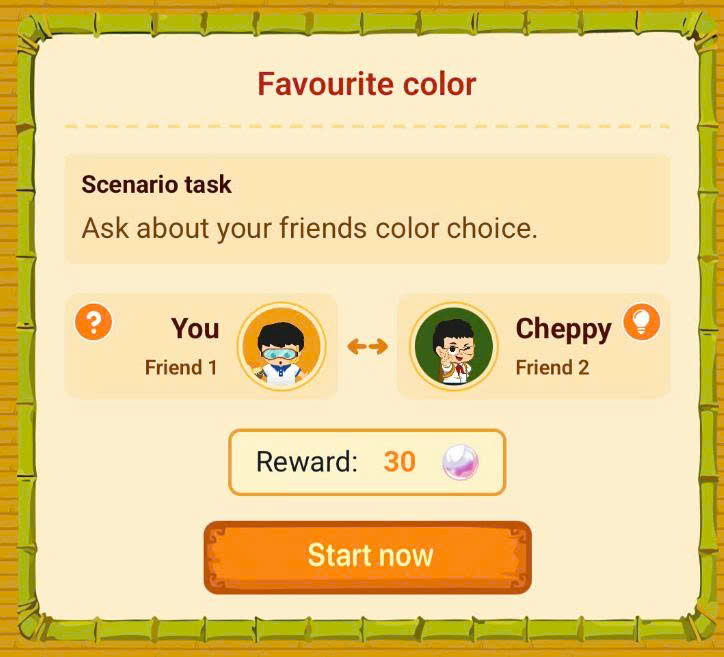
- Scenario name: The name of the scenario.
- Scenario Task: A brief description of what the student will talk about.
- Participants: the answerer  and the questioner
  . Depending on the scenario, you could be the answerer or the questioner
- Reward: The reward (pearls) the student can earn after completing the conversation.
. Depending on the scenario, you could be the answerer or the questioner
- Reward: The reward (pearls) the student can earn after completing the conversation.
Note: - If you are the answerer: Listen to Cheppy character’s questions and answer them. - If you are the questioner: Ask questions to the Cheppy character.
Step 4: Press the button to Switch to the interactive role-playing screen corresponding to the selected card.
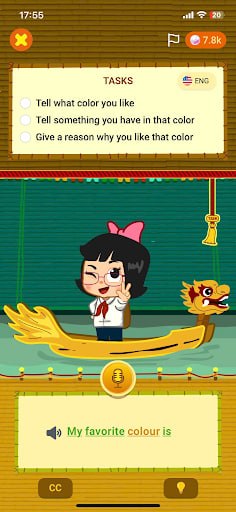
Here, the character played by Cheppy will appear on stage with specific missions to complete.
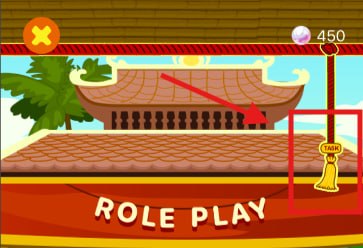
Step 5: Drag the slider at the top of the screen to view the Tasks.
- When a task is completed, the curtain cord will vibrate and an icon will be displayed.

- In the list, unfinished tasks will be displayed with an icon.

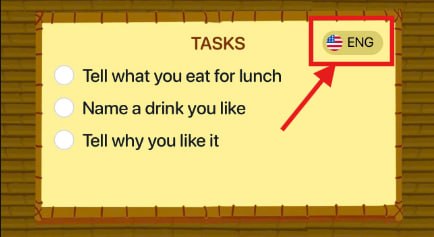
Step 6: Click on the iconTo change the display language between English and Vietnamese.
Step 7: Press the button to record the dialogue.
Step 8: After answering, press the button.To stop recording, the system will record the answer and provide feedback using different colors to help learners practice their pronunciation skills.
- Green 🟢: Correct pronunciation.
- Yellow 🟡: Nearly correct.
- Red 🔴: Needs further improvement.
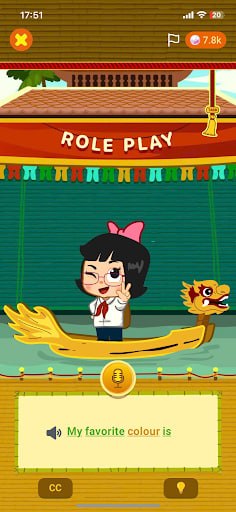
Step 9: Press the button DTo hear Cheppy's dialogue.
After viewing the content, the user presses the button again.To hide the dialogue and continue recording to complete the mission.
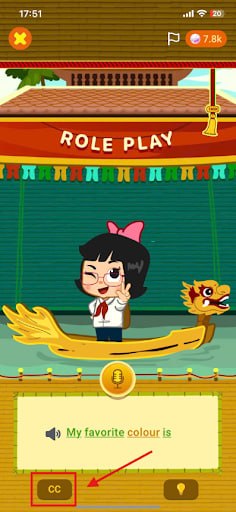
Step 10: Press the button to seeSuggested dialogue.
After viewing the content, the user presses the button again.To hide the hint and continue recording to complete the task.
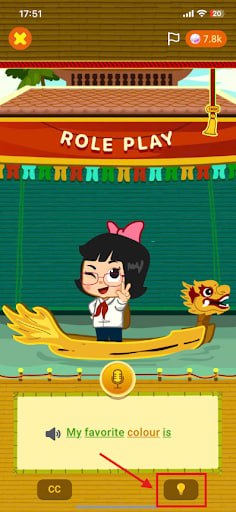
Step 11: Press the buttonTo return to the Role Play area screen.
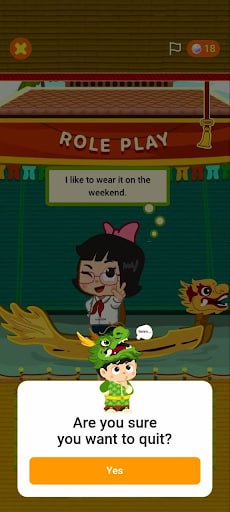
Note: If the task is not completed, the user will not receive the rewards and EXP points.
Step 12: After completing the missions, the system will display the "Mission Completed!" screen.
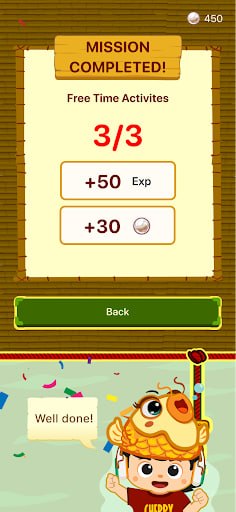
Step 13: Press the button To return to the Role Play area screen.
11. FUN STORY
- Purpose: This area helps learners practice listening and reading English through interactive stories, listening and reading comprehension exercises, and post-reading challenges.
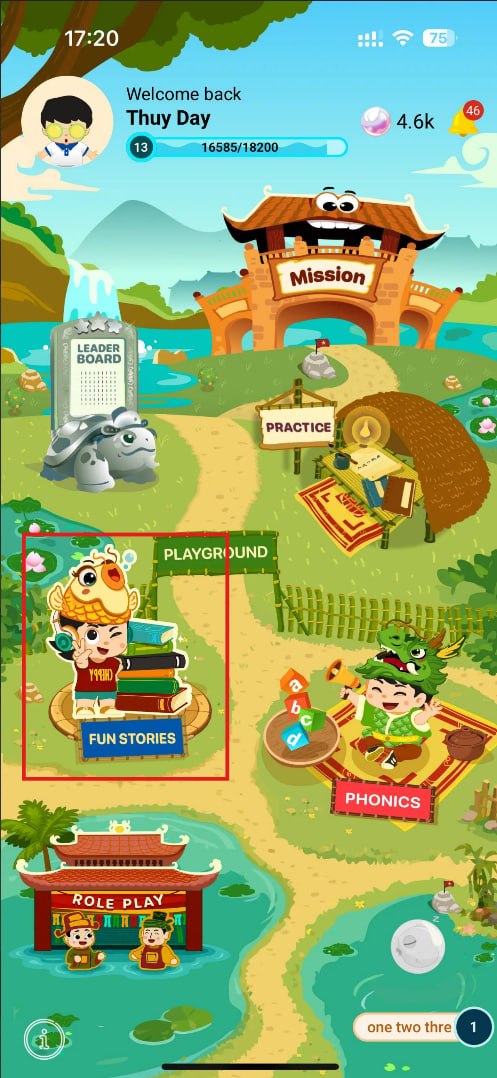
Step 1: In Homescreen, select the Fun Story area.
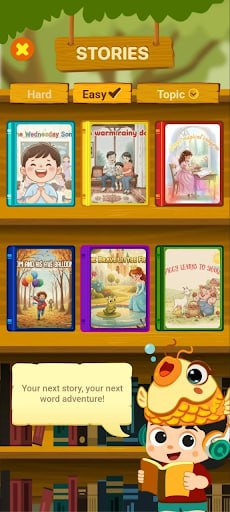
Step 2: Select a level
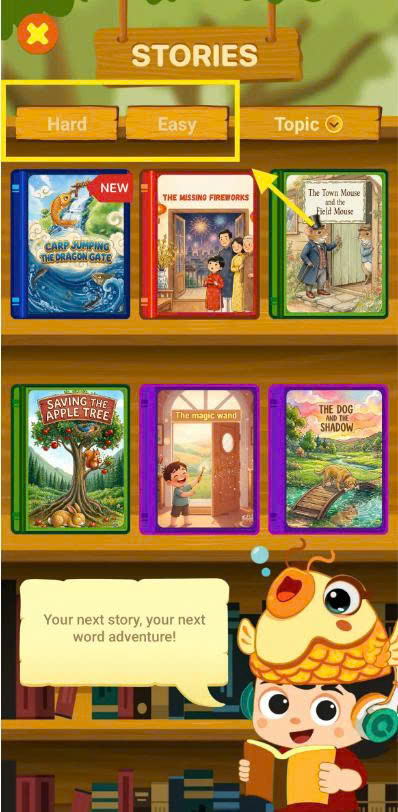
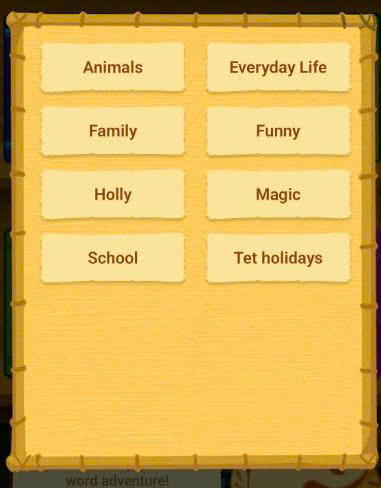
Note: You could filter book list by clicking the button 
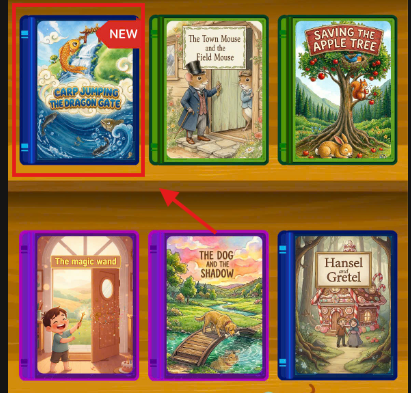
In the Fun Story section, select a book you'd like to read from the bookshelf.
Step 3: On the book screen, users can view detailed information about the story, including:
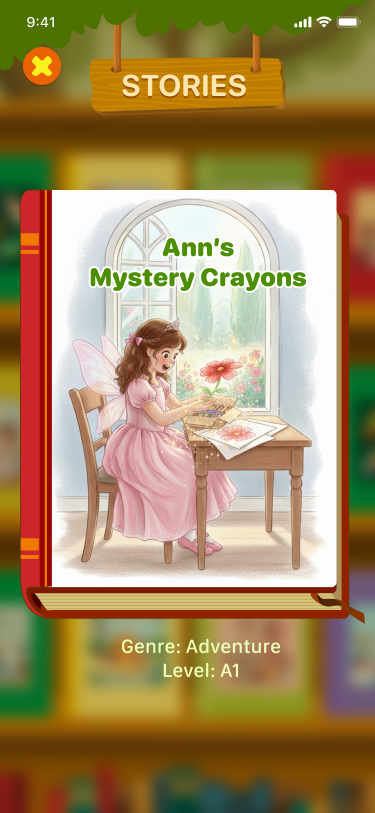
- Title of the story.
- Genre.
- Level according to the European CEFR framework.
Step 4: Select a story to start reading; the AI tutor will automatically read each page.
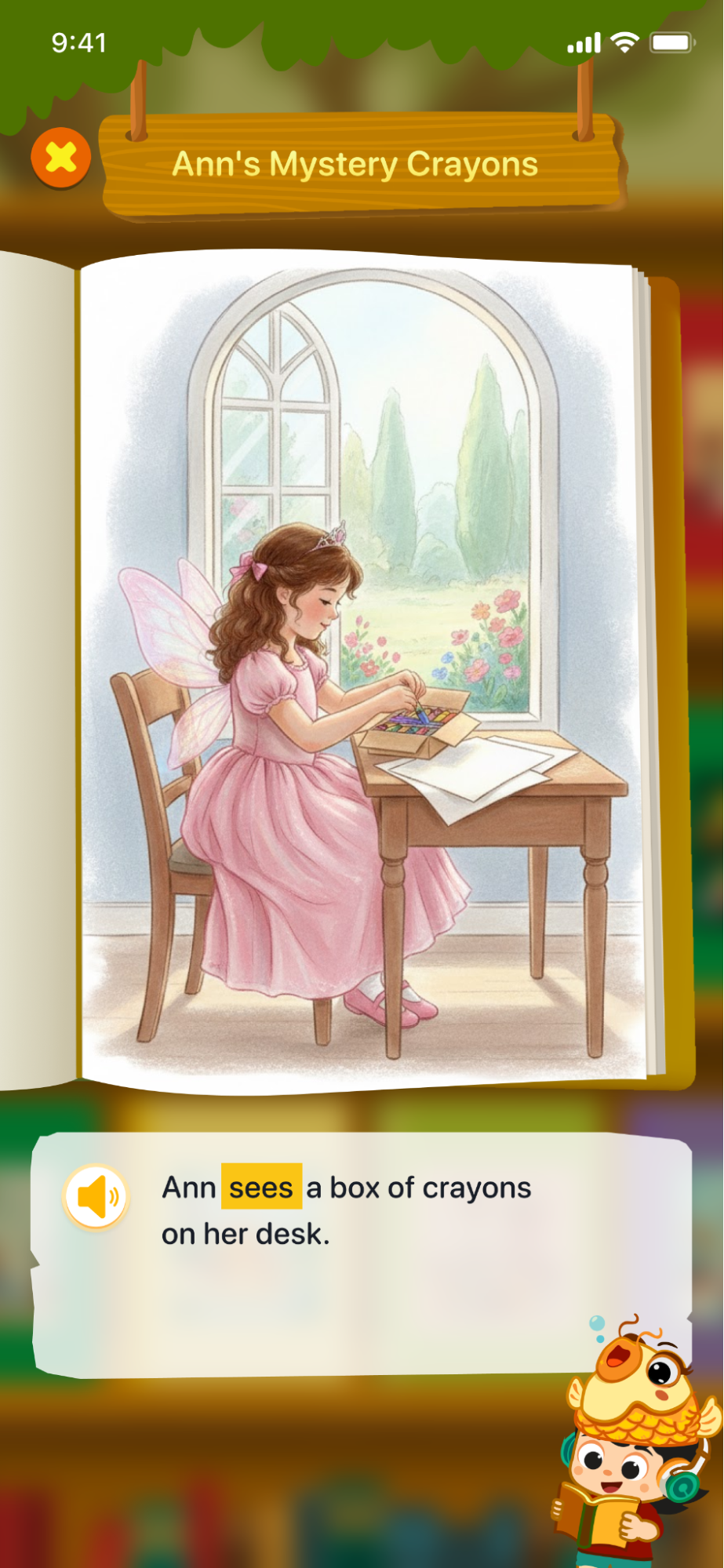
Step 5: Press the button  To listen to the content of the story page again.
Note: User You can listen to it multiple times to fully grasp the content.
Step 6: Swipe from right to left to turn the next page of the story, or swipe from left to right to revisit the previous page.
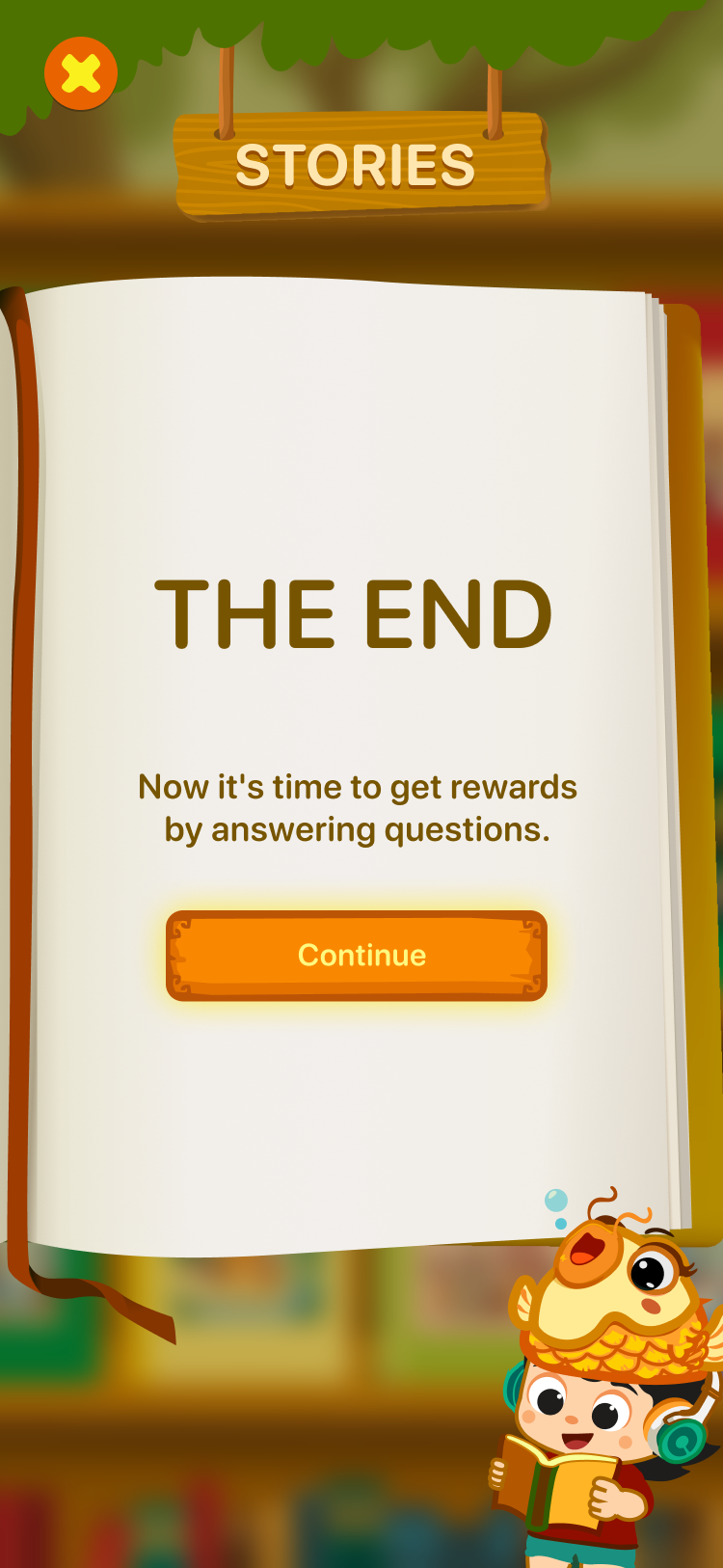
Step 7: After reading the story, the screen will display THE END; press the button  To switch to the screen for answering challenge questions and receiving rewards.
Step 8: On the Reading challenge screen, users can press the button  To see suggestions, or press the button
  Let's move on to the next question.
Step 9: In multiple-choice questions, users select the correct answer.
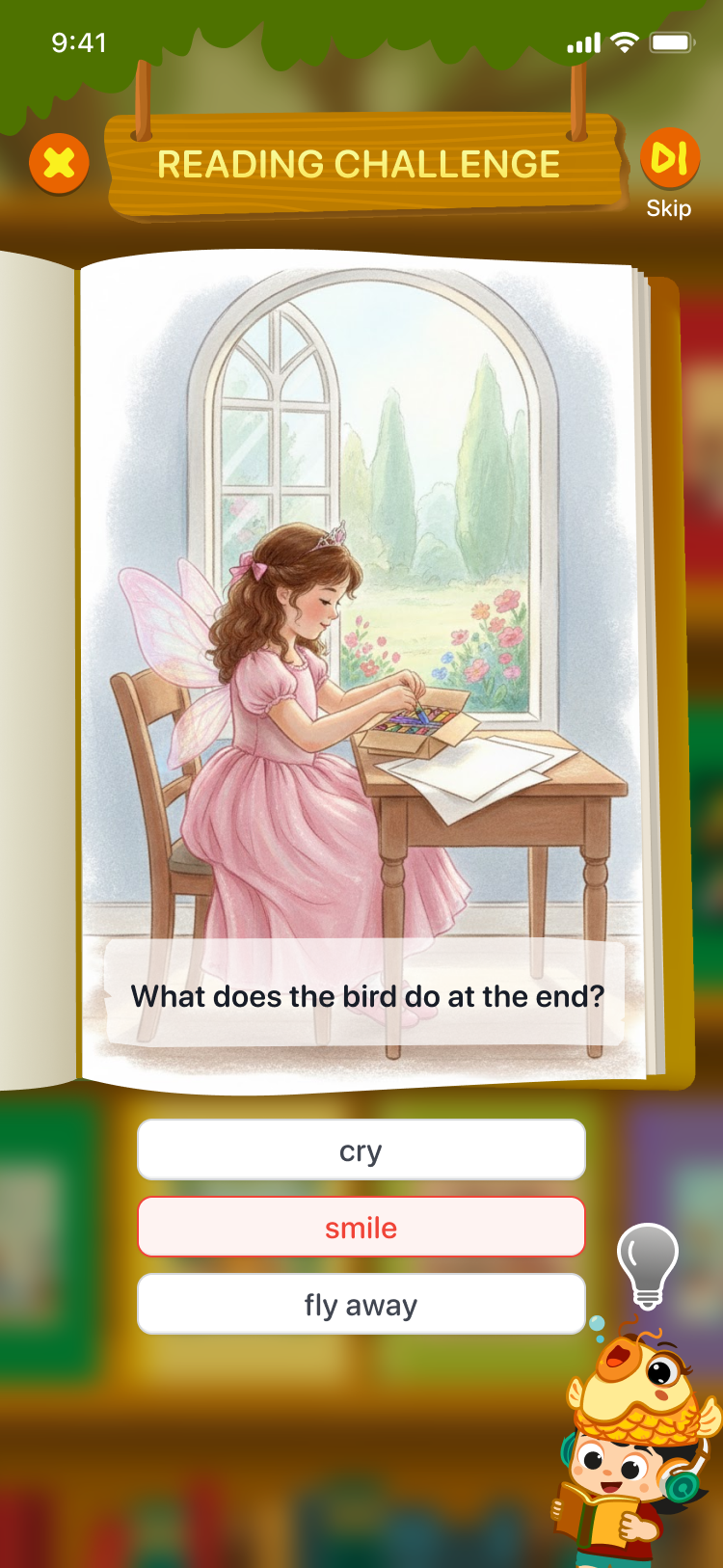
Step 10: For the Pronunciation option, press the button to record the dialogue.
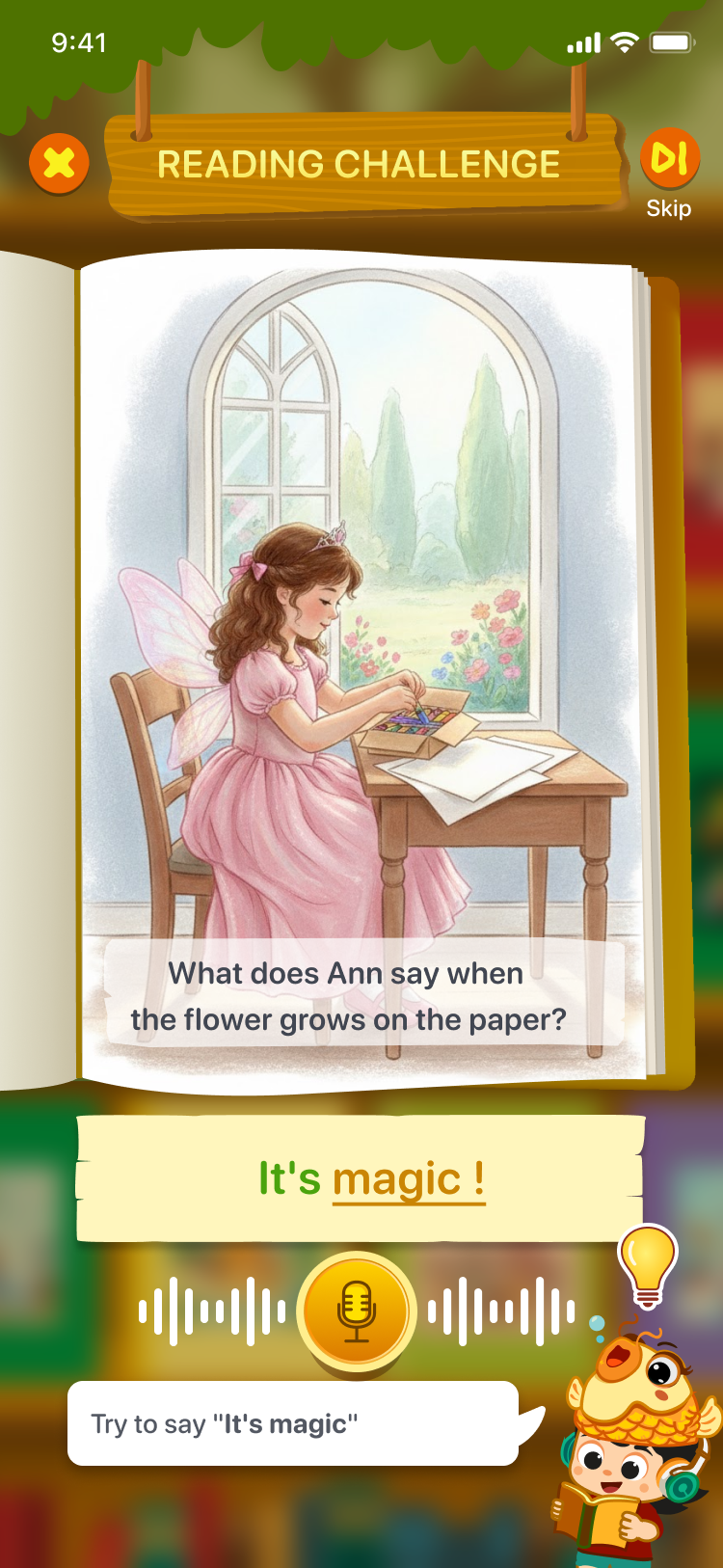
Step 11: Press the button To return to the Fun Story area screen.
Note: If you go back, the entire question-answering process will not be recorded, meaning the user will not receive the reward or experience points for that book.
Step 12: After completing all the questions, the system will display a "Completed" screen and summarize the score as well as the prize the user has received.
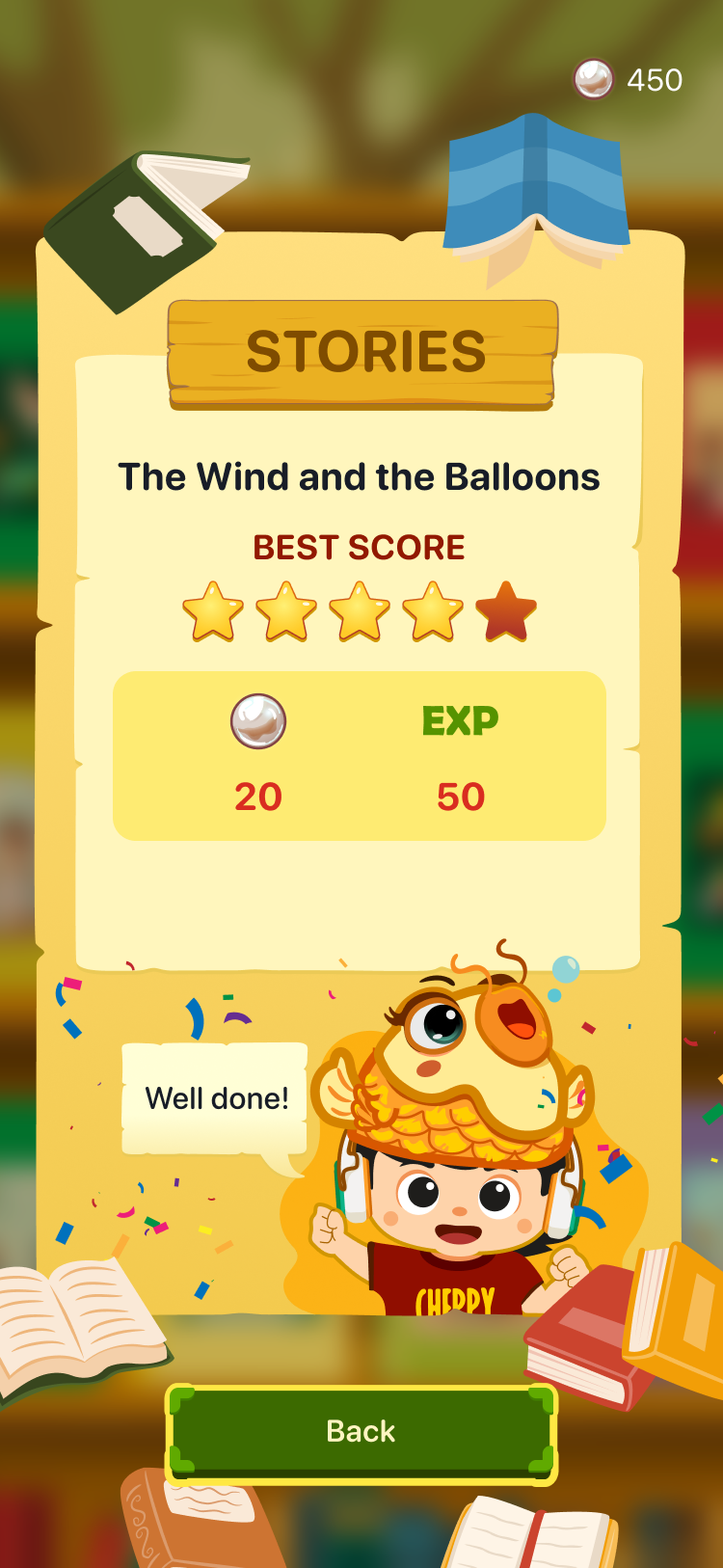
Step 13: Press the button  To return to the Fun Story area screen.
12. PHONICS
- Purpose: The Phonics section helps learners practice pronunciation and become familiar with different sounds.
Step 1: From the Homescreen, select Phonics.
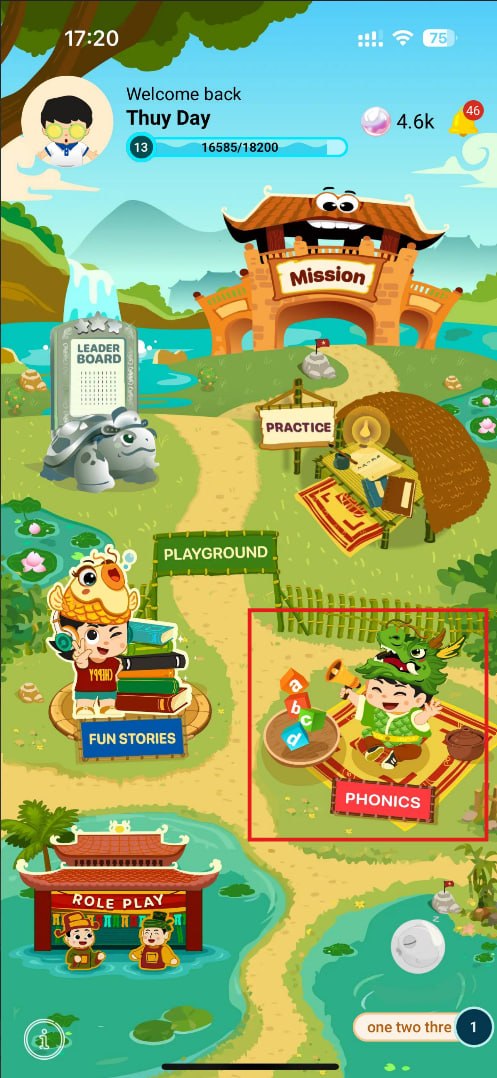
Step 2: Select the sound map you want to learn:
- Sound Seeds: Become familiar with basic vowel sounds.
- Twin Sound Peak: Practice long vowel sounds.
- Sound Teams Bay: Explore and practice familiar consonant combinations.
- Mystic Meadow: Review, expand, and reinforce previously learned Phonics knowledge.
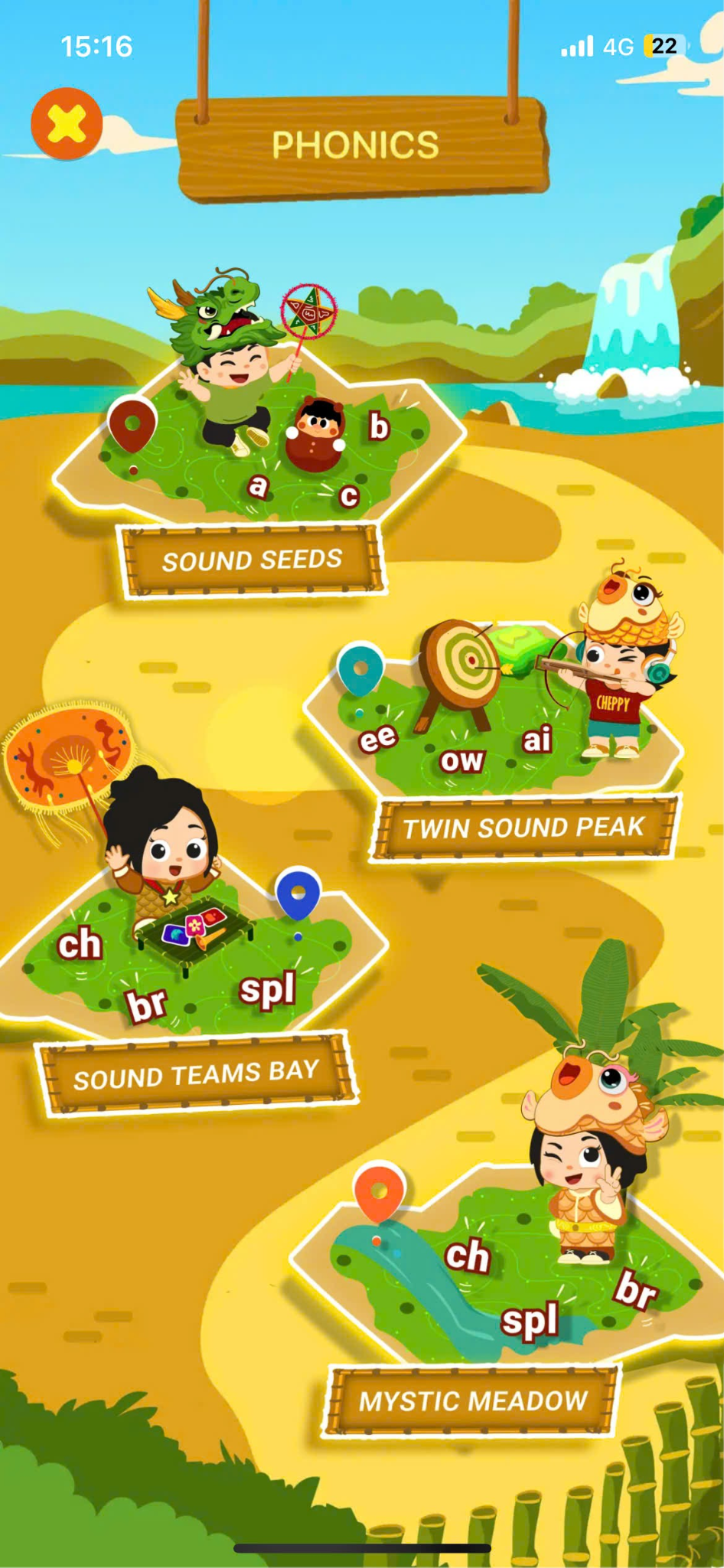
Step 3: Select the sound you want to practice.
Note: Learners are recommended to follow the learning path designed in the app, progressing from easy to difficult for the best learning outcomes.
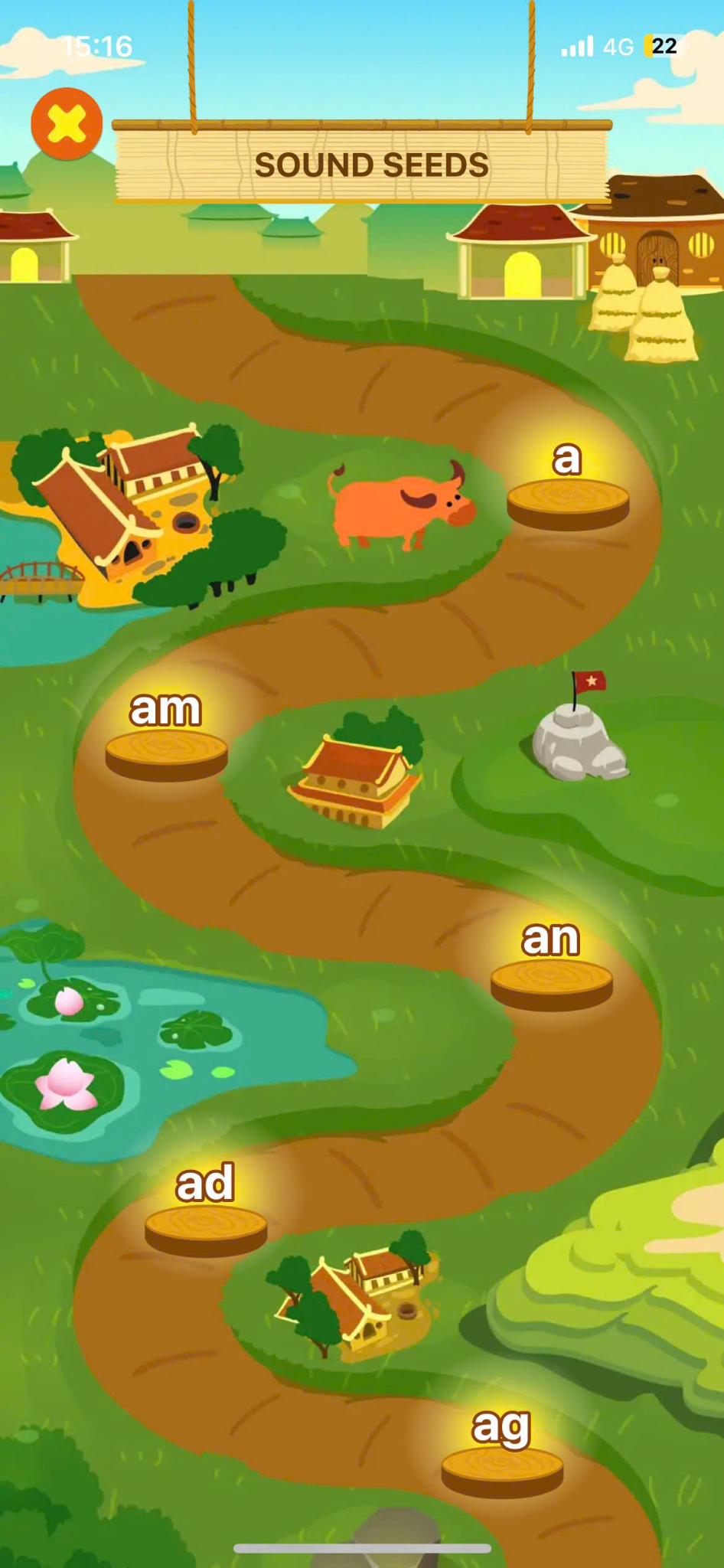
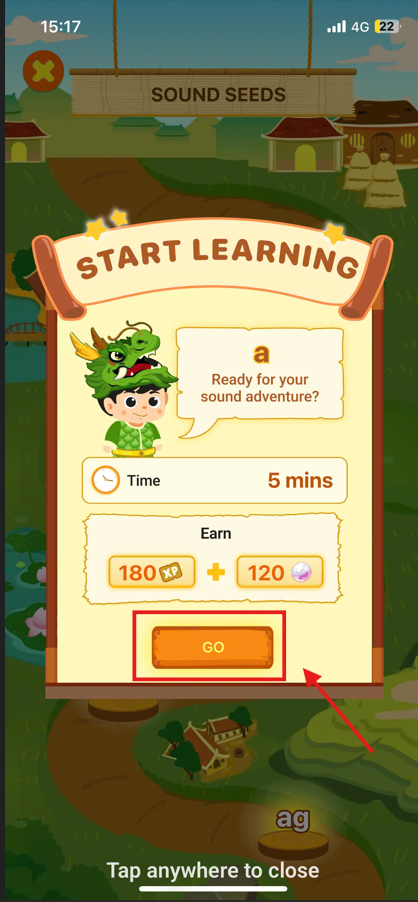
Step 4: Click Go to start the lesson.
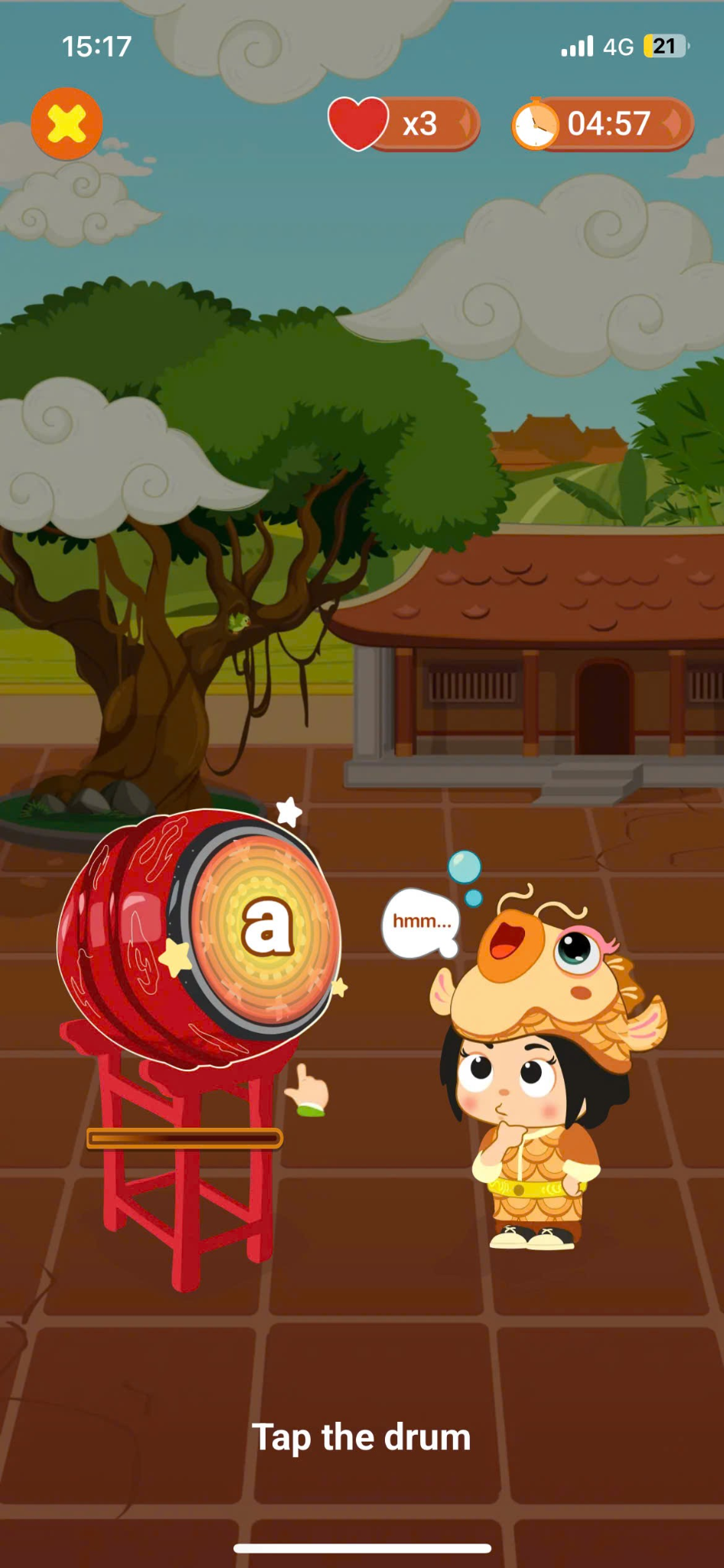
Step 5: On the first screen, tap the drum 5 times to hear the pronunciation of the sound being learned.
Step 6: On the second screen, listen to the sample sound and tap the Record button  to start recording.
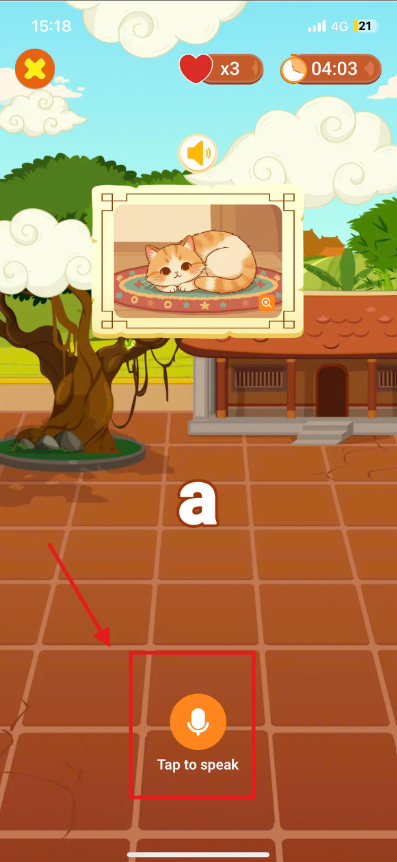
Note: Users can tap the Replay button  or directly tap the sound to listen to the sample audio again.
Step 7: On the third screen, move the letters to arrange them into the correct word.
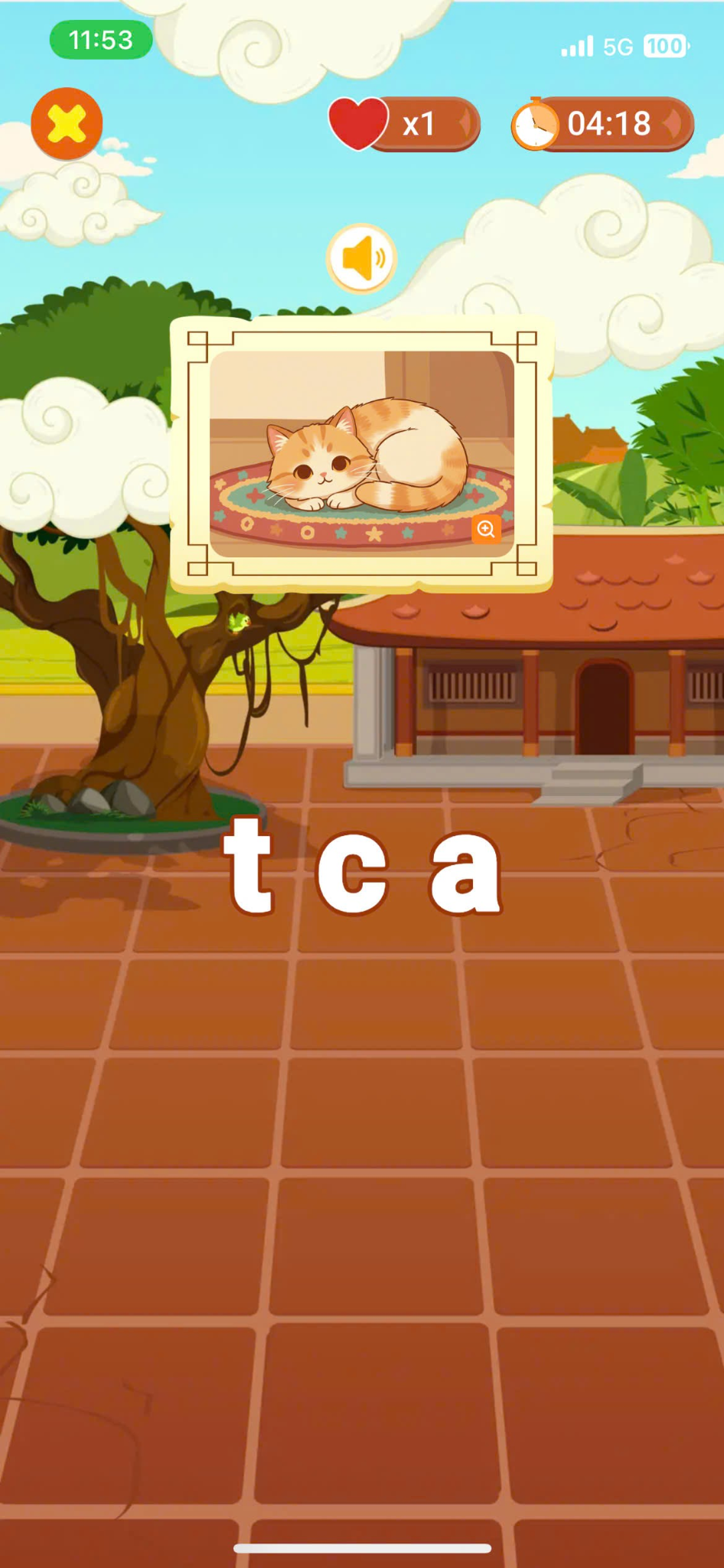
Note:
- Users can tap the button to listen to the pronunciation of the entire vocabulary word again.
- Users can tap each letter to hear the pronunciation of the corresponding letter.
Step 8: On the fourth screen, listen to the pronunciation of the vocabulary word and tap the Record button to record.
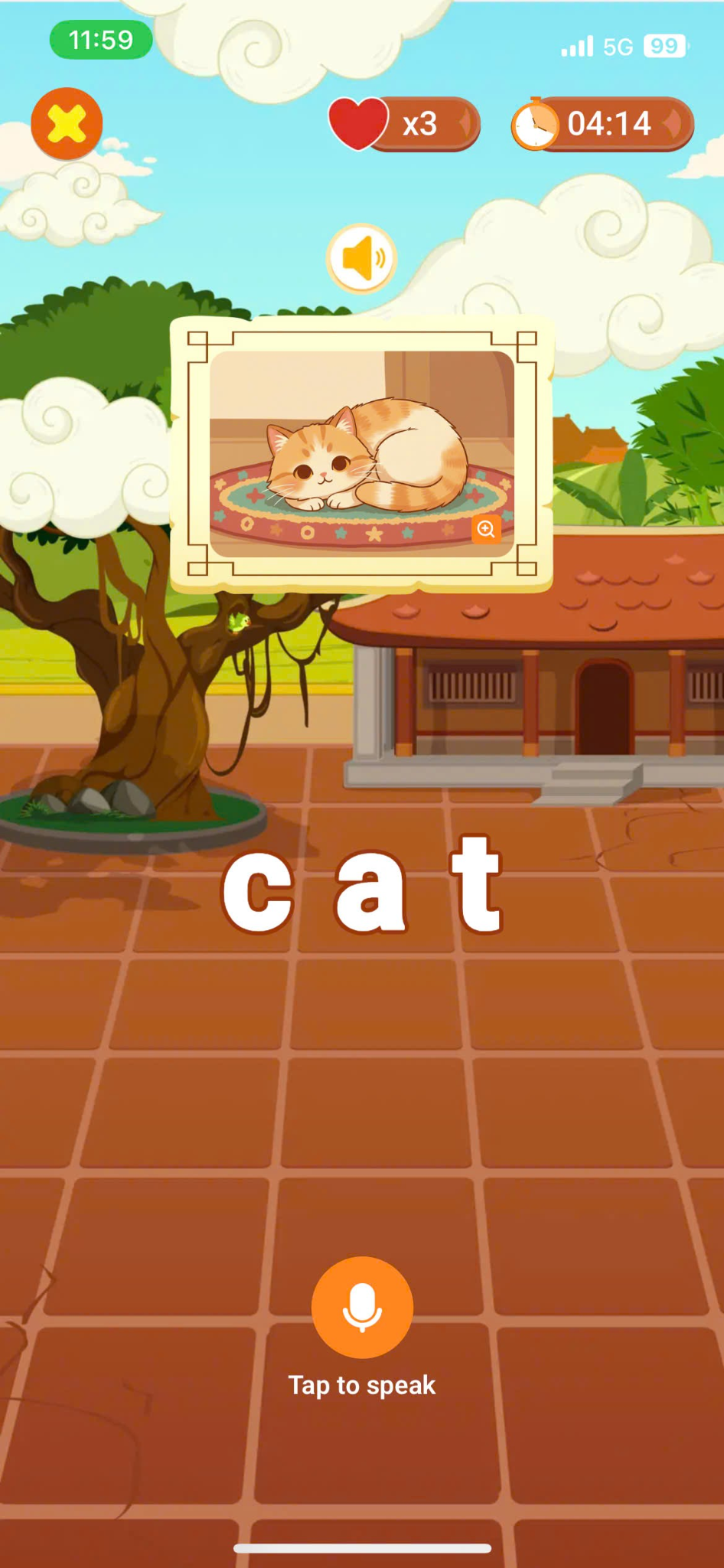
Step 9: On the fifth screen, drag the kite containing the sound that matches the sound in the given vocabulary word.
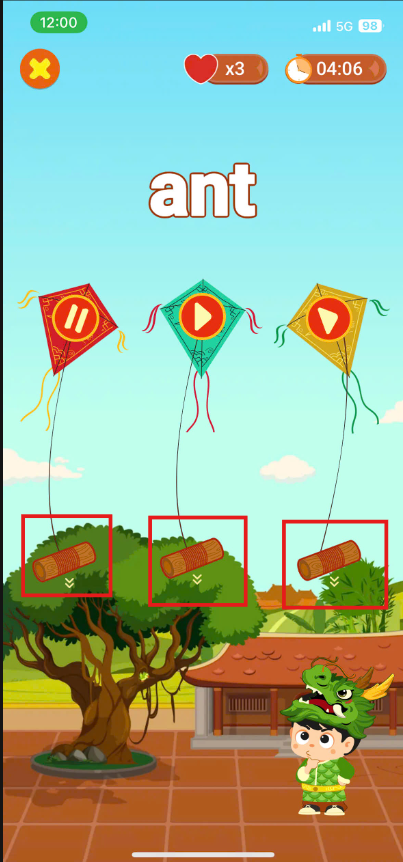
Note: Users can tap the Replay button  to listen to the sample sound of each kite again.
Step 10: On the sixth screen, listen to the vocabulary word and select the position of the target sound in the word: beginning, middle, or end.
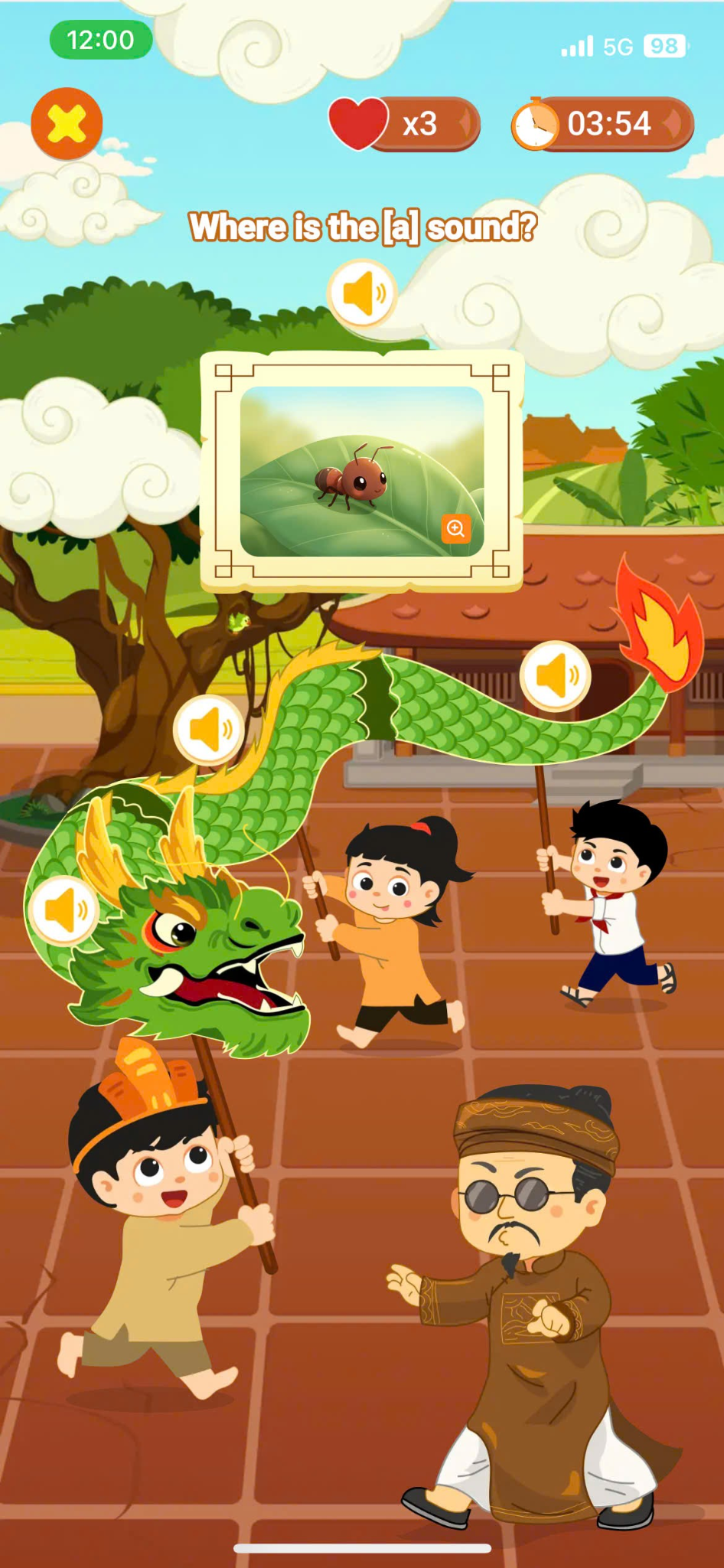
Note: Users can tap the Replay button in each section (beginning/middle/end) to listen to the sample sound for that position again.
Step 11: Click Continue to proceed to the next sounds.
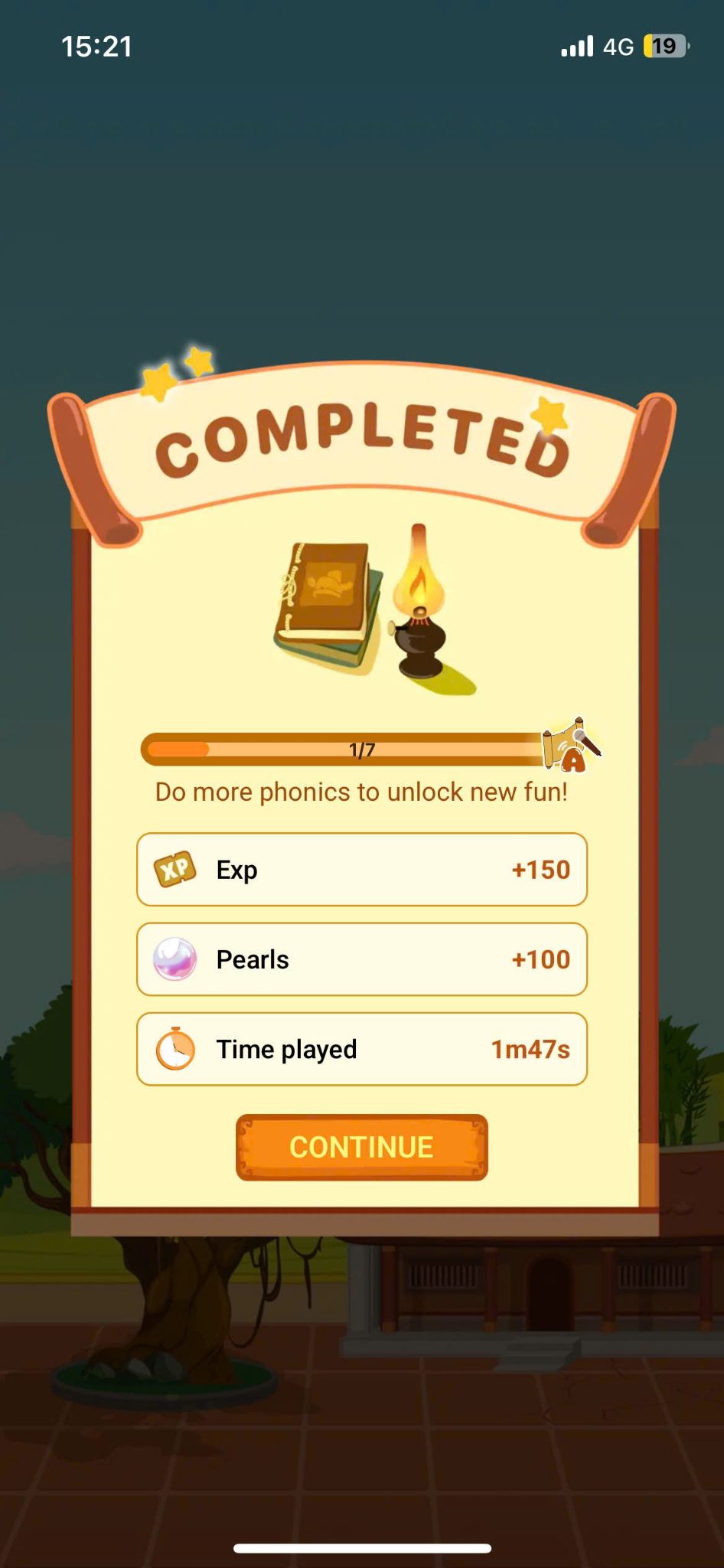
Step 12: After completing a sound group, the system unlocks the corresponding phonics games
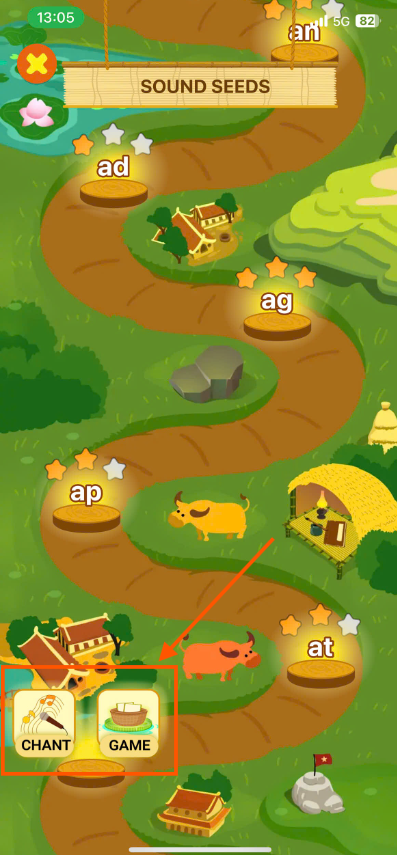
Step 13: Click  or
or  to start the Chant/Poem.
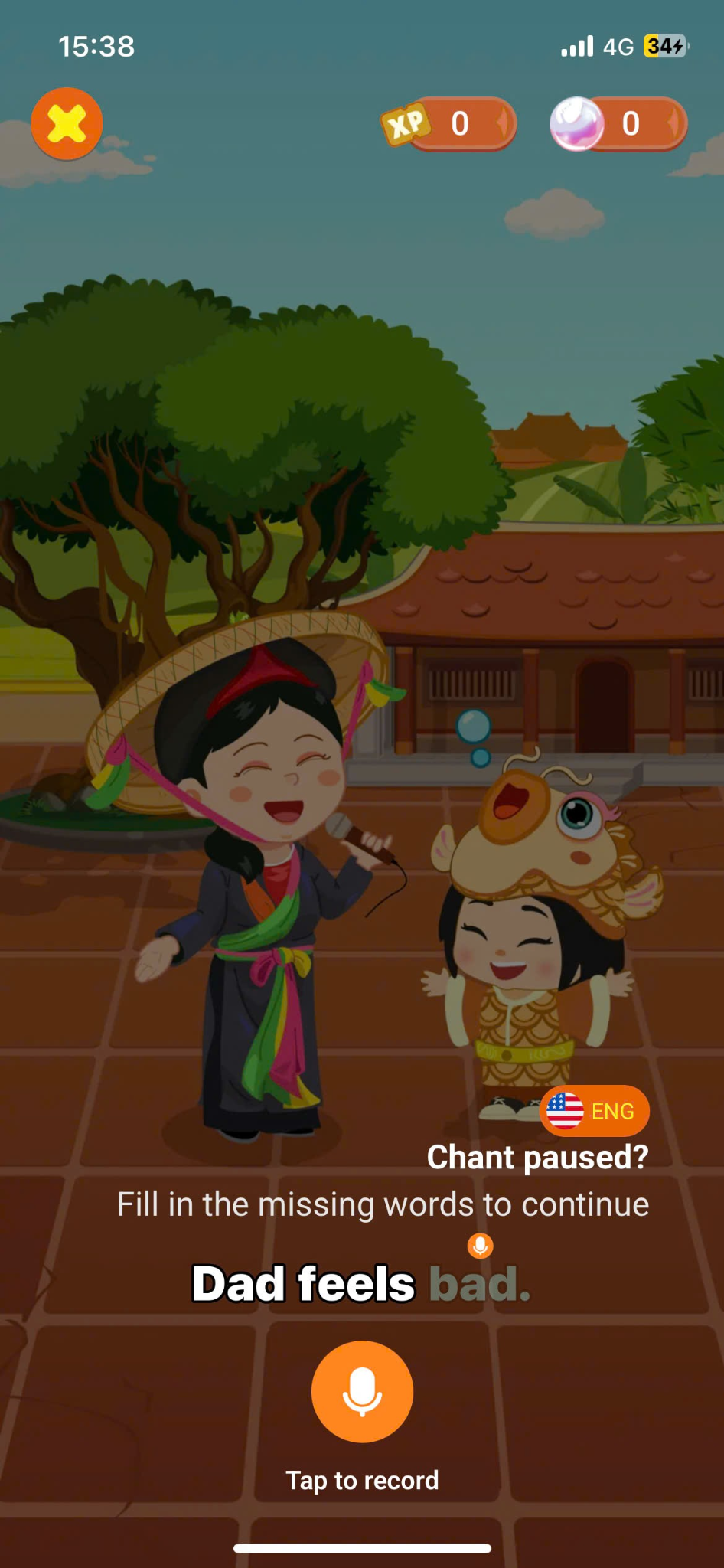
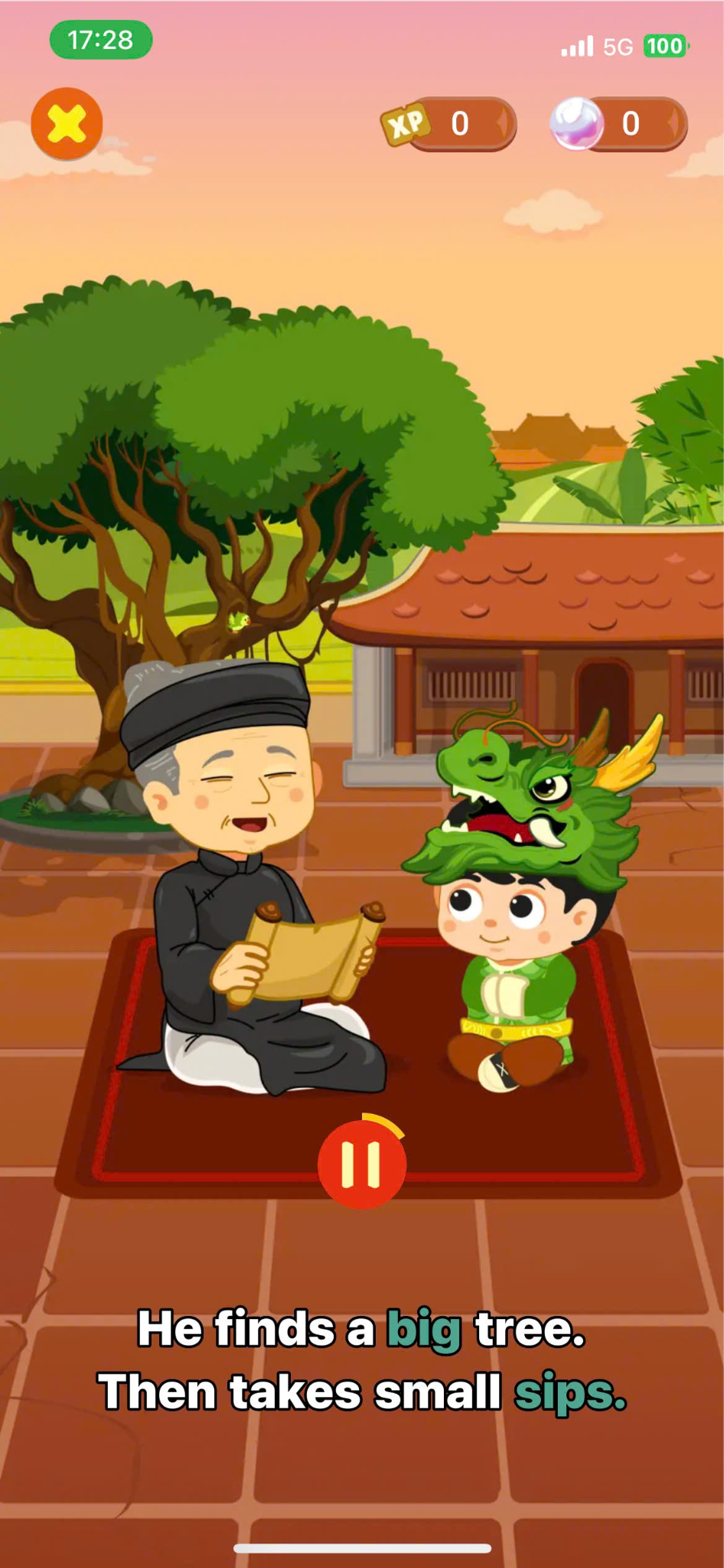
- In these games, you will first listen to the entire song/poem. Once the song/poem ends, click
 to start the karaoke game.
 - During the game, some words will be missing from each sentence. Click the button to record the missing words.
Step 14: Click  to start the Filter word Game.
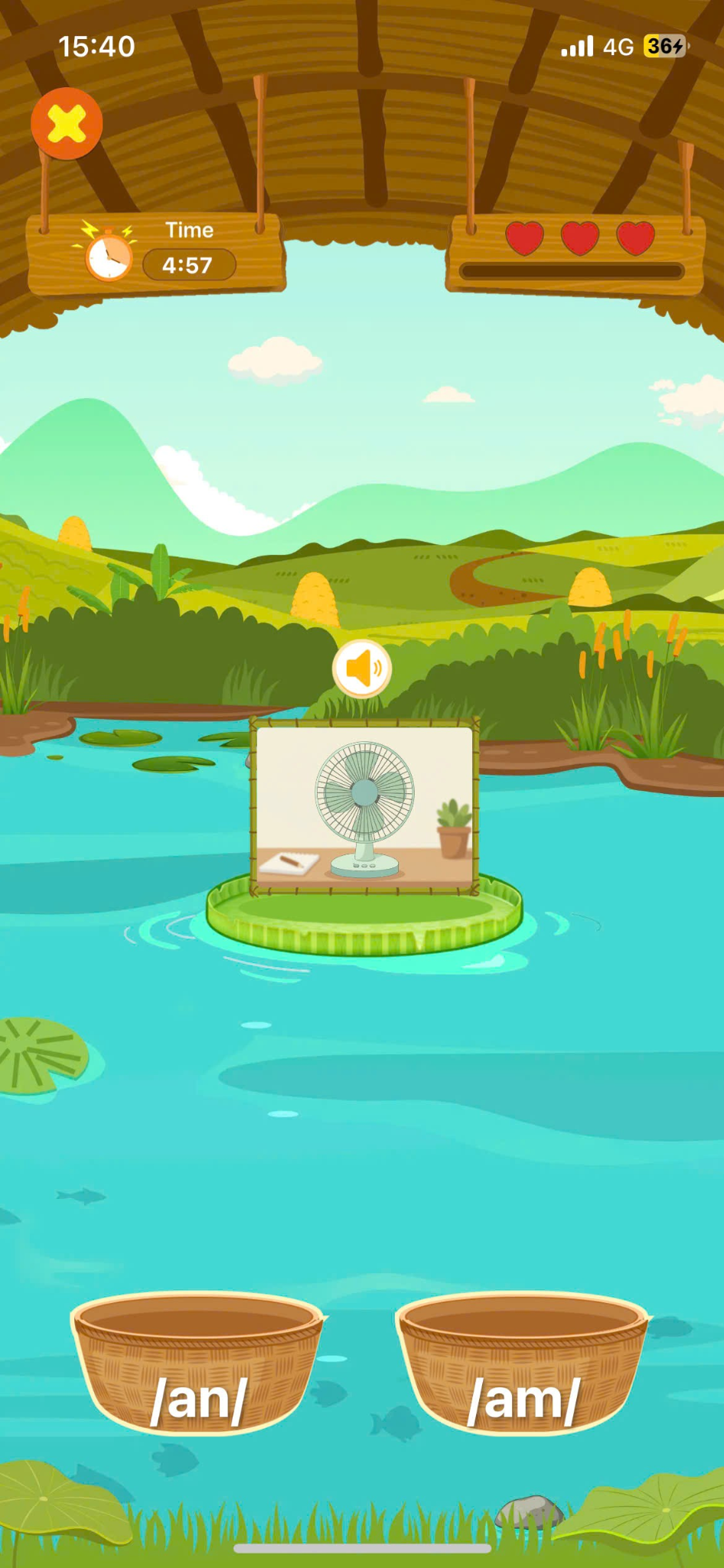
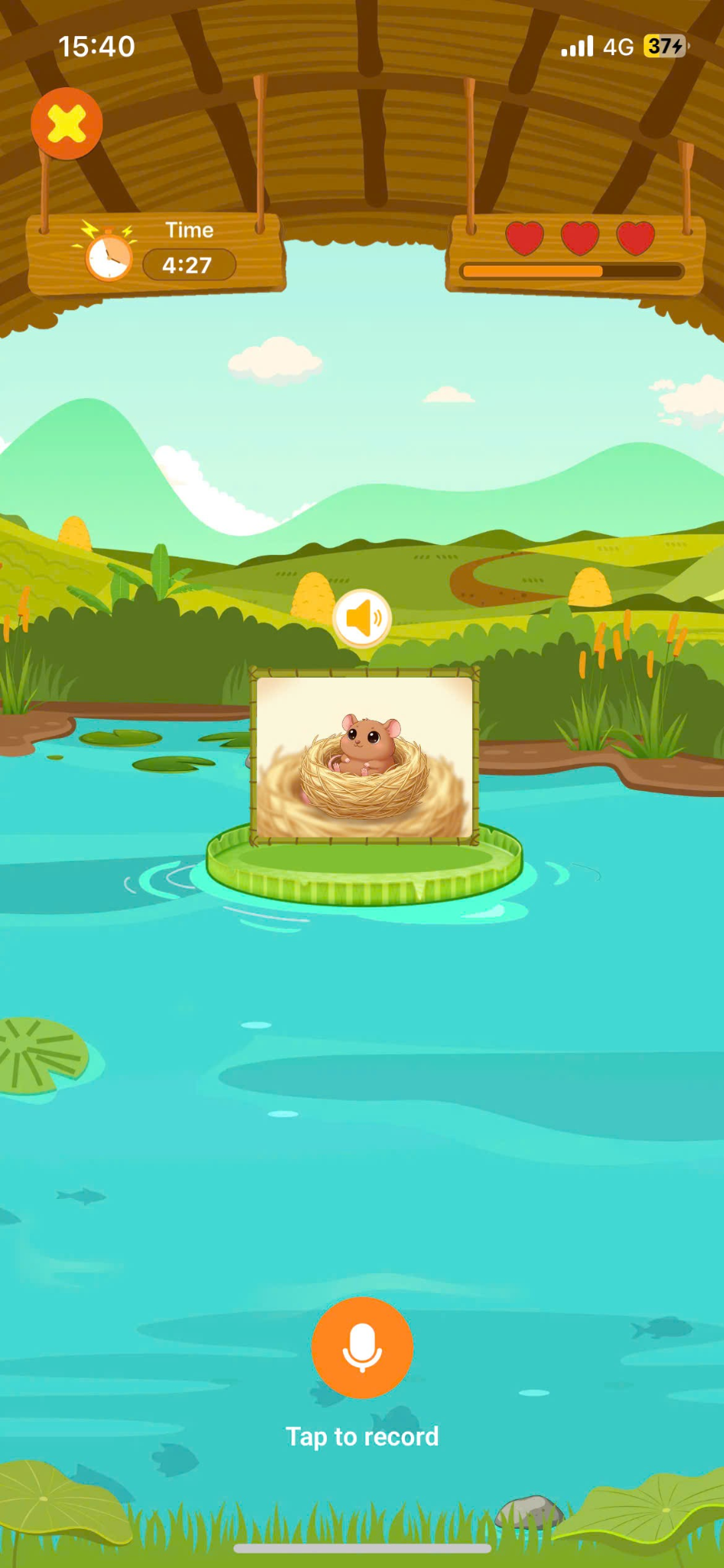
-
Drag and drop : Look at the picture and drag it to the correct bucket.
-
**Pronunciation:**Click the button
to hear the sound and click the button to record your voice
Step 15: Click  to start the Phonics Bridge Game.
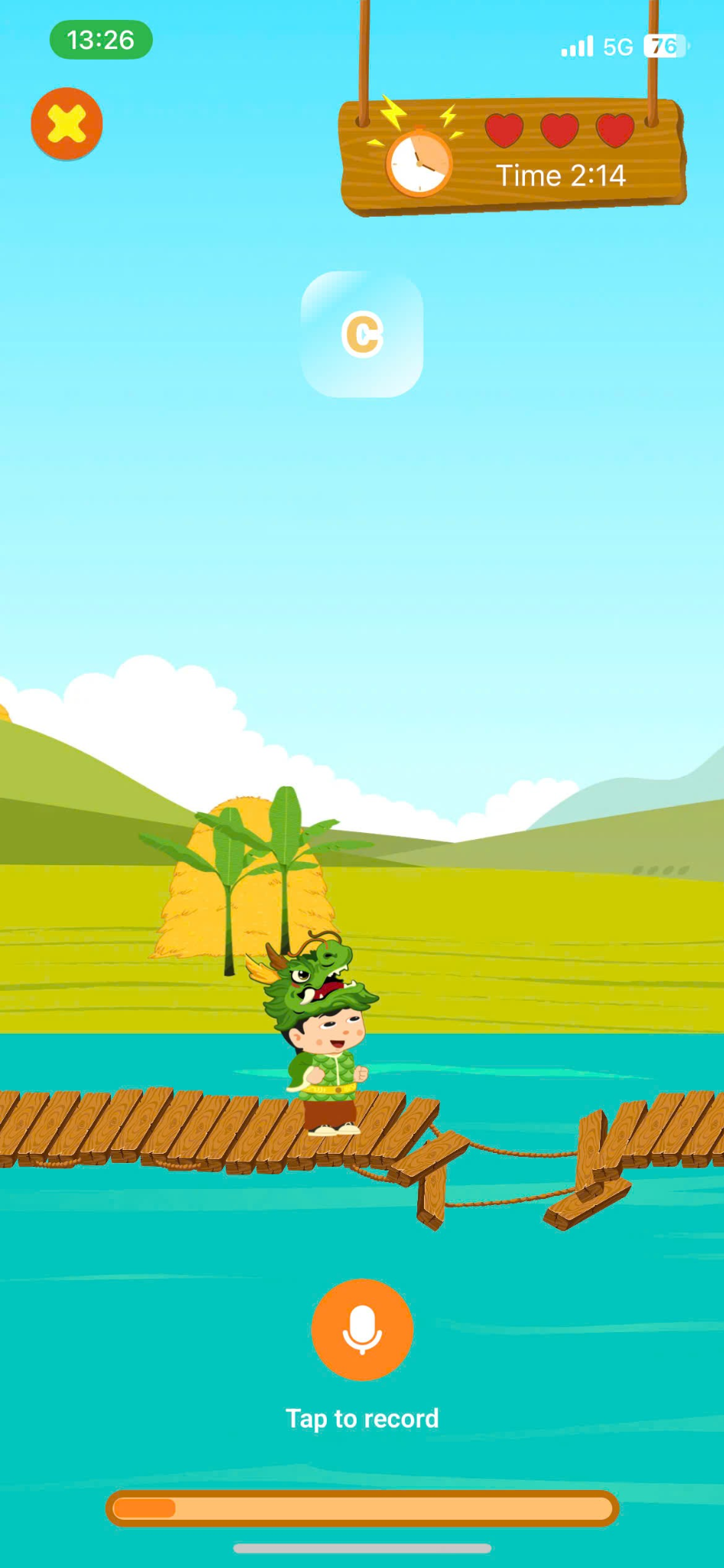
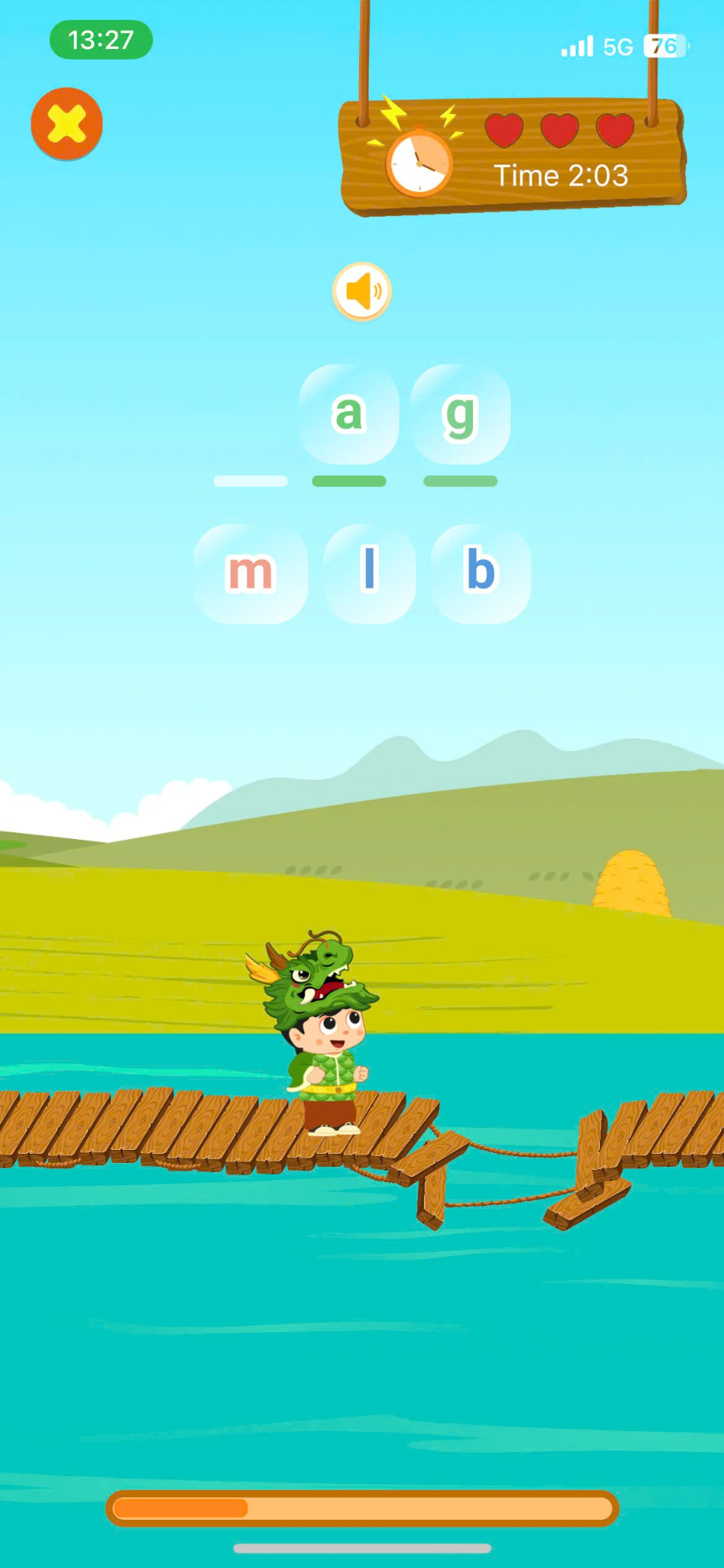
- Pronunciation: Tap the sound first and then click the button to record your voice
- Fill in the blank: Tap the correct sound to fill in the black.
13. STREAK PET
Step 1: on the main screen, select the Streak Pet area.
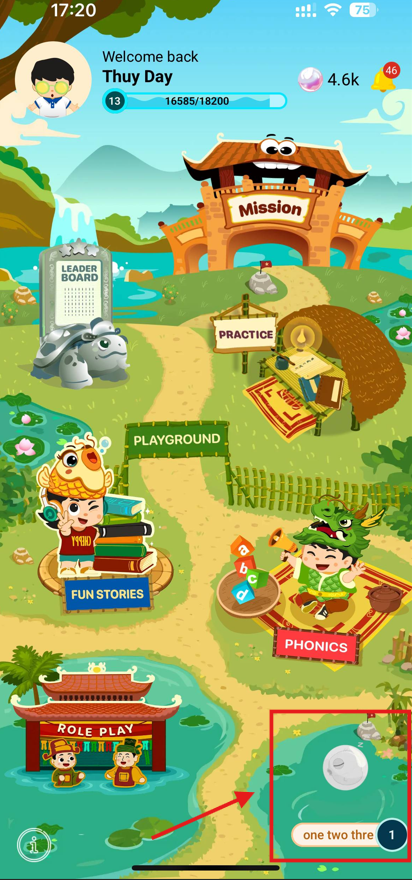
Step 2: The user presses  Enter the new name to change your pet's name.
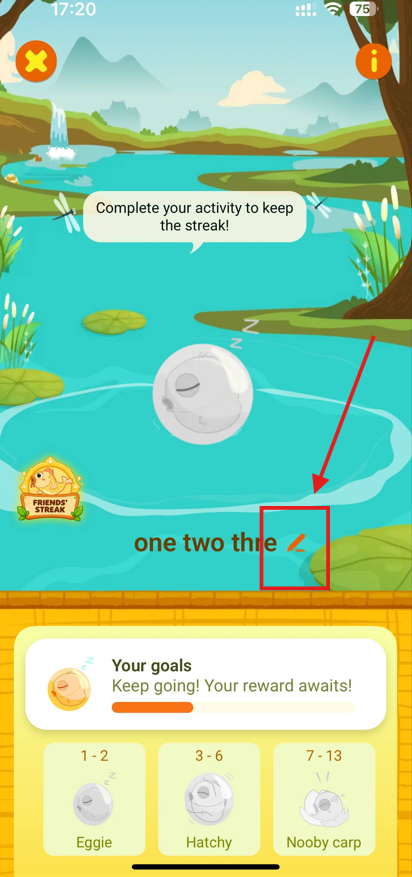
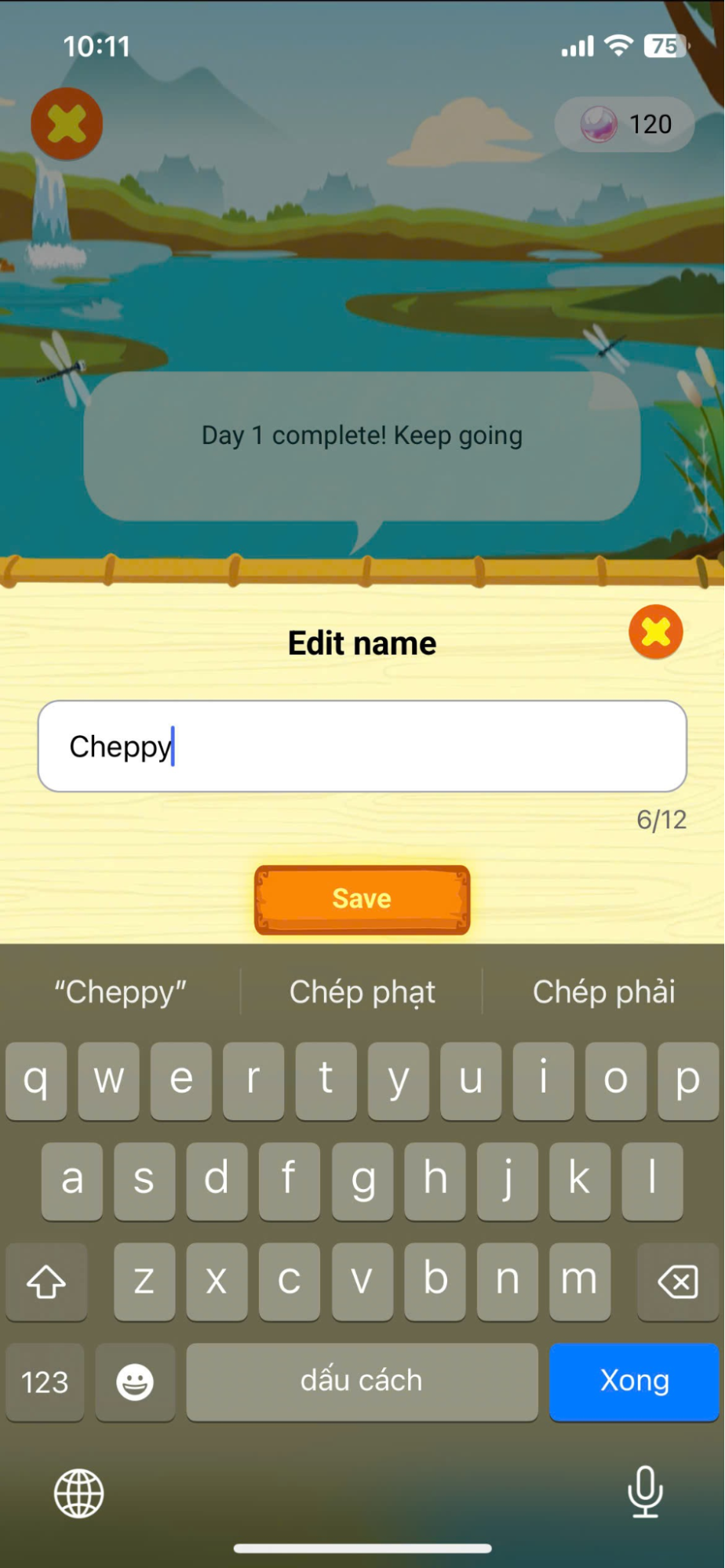
Step 3: The system will display the user's pet. Users should log in daily to level up their pet. The pet levels include:
| STT | Pet’s level icon for girls | Pet’s level for boys |
|---|---|---|
| 1 | 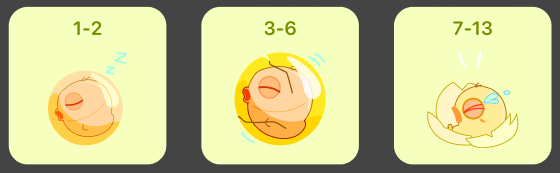 | 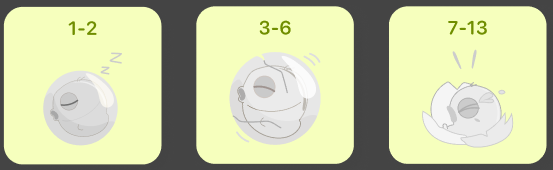 |
| 2 | 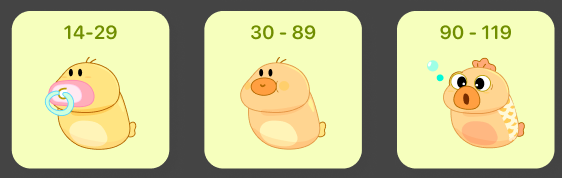 | 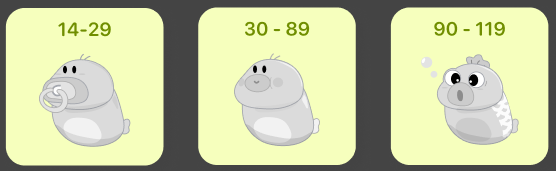 |
| 3 | 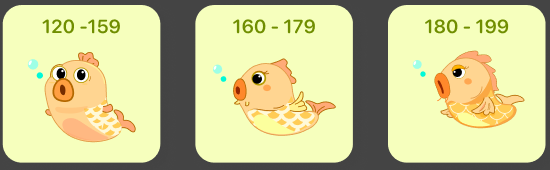 | 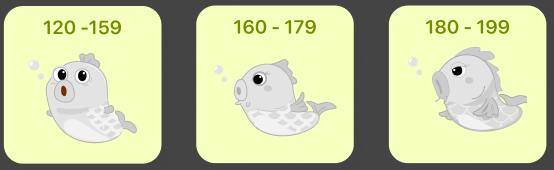 |
| 4 | 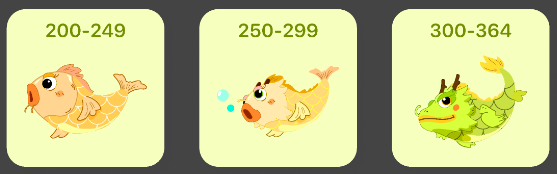 | 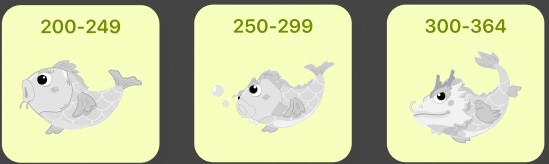 |
| 5 | 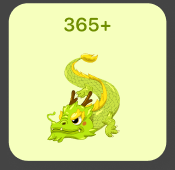 | 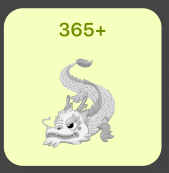 |
Note: If a learning streak is lost (no learning for 1 day), the user can still restore it for free within 48 hours (2 days). After this time, the user will need to spend 200 gems to restore the streak.
13.1. POKE FRIENDS
Step 1: Open Friends’ Streak from the home screen.
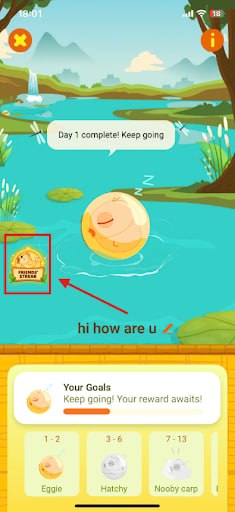
Step 2: Tap Class List to select the class where your friend is.
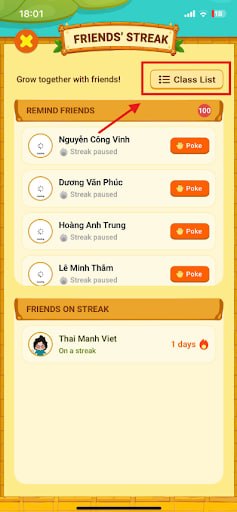
Step 3: Select a class in the list
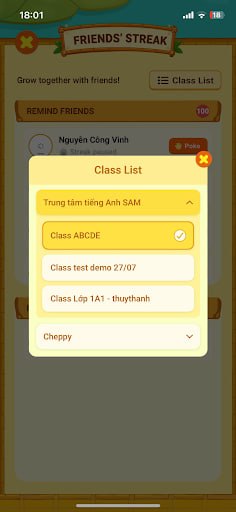
Step 4: Find your friend in the Remind Friends list and tap Poke
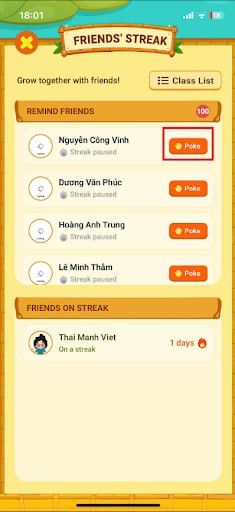
Note: Friends under Friends on Streak are already keeping their streak. Only friends under Remind Friends can be poked. Step 5: Your friend will receive a reminder to keep learning and continue their streak!
13.2. VIEW GROWING TIPS
Step 1: Open Growing Tips
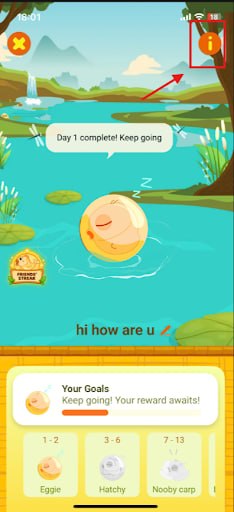
Step 2: Read each section to understand how to grow your pet.
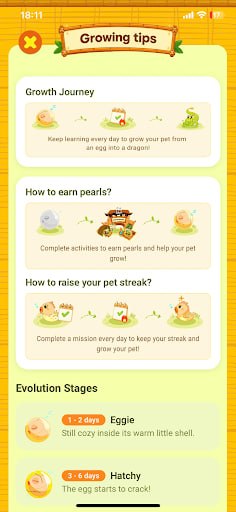
Note: Check Evolution Stages to see your pet’s growth stages and how many days each stage takes.